Configuring Platform SSO for macOS
Introduction
Admin By Request (ABR) manages privilege elevation on macOS by applying policies to users based on which group they belong to in the organisation's Identity Provider (IdP) - typically Microsoft Entra ID or Okta. To do that, ABR needs to know who is actually logged in to the Mac in corporate identity terms: not just the local macOS account name, but the user's corporate email address or User Principal Name (UPN) that the IdP recognises.
Platform SSO is Apple's solution for binding macOS login directly to a corporate IdP. When it is configured, the macOS login screen itself authenticates against Entra ID or Okta, and the OS stores the resulting identity in a system location that trusted applications can read. ABR reads that identity at the top of its lookup chain, before any application-based fallback is consulted. As long as the user has completed Platform SSO registration on their device, ABR gets a reliable, fresh UPN on every check - which in turn means Sub-Settings apply correctly and consistently.
This technical note explains what Platform SSO requires, how to configure it end-to-end for both Entra ID and Okta environments, how to verify that it is working, and what to do when it is not.
Applies to: macOS [Entra ID: ABR v5.1+, Okta: ABR v5.2+]
This technical note is available in PDF format:

In this technical note
Background: What is Platform SSO?
Platform SSO is an Apple capability introduced in macOS 13 Ventura that allows the macOS login screen to authenticate against a corporate IdP rather than against a local password. Instead of the user typing in a password stored only on their Mac, the macOS login dialog hands the authentication challenge off to an SSO plugin - provided by Microsoft (for Entra ID) or Okta - which authenticates the user with the IdP and receives back an identity token. macOS stores that token in a system location and makes it available to applications that are registered as trusted consumers.
The mechanism that delivers the SSO plugin to a Mac is a configuration profile called an Extensible Single Sign-On Profile (ESSP). This profile is pushed to devices via Mobile Device Management (MDM) - Intune or Jamf in most ABR environments. Once the profile is installed and the user has completed the initial registration flow (which typically happens at their next macOS login), Platform SSO is active and the OS-level identity token is available.
ABR does not configure Platform SSO itself. There is no toggle for it in the ABR portal. ABR's role is to read the Platform SSO identity attributes exposed by macOS on the local user record. Whether a token exists depends entirely on the MDM configuration and on whether the user has completed registration.
How the identity token reaches ABR
Step 1 is setup, once per device and steps 2-7 run at every user login. By design, ABR never participates in authentication - it's a consumer at the end of the pipeline, not a participant.

How ABR uses Platform SSO - the identity lookup chain
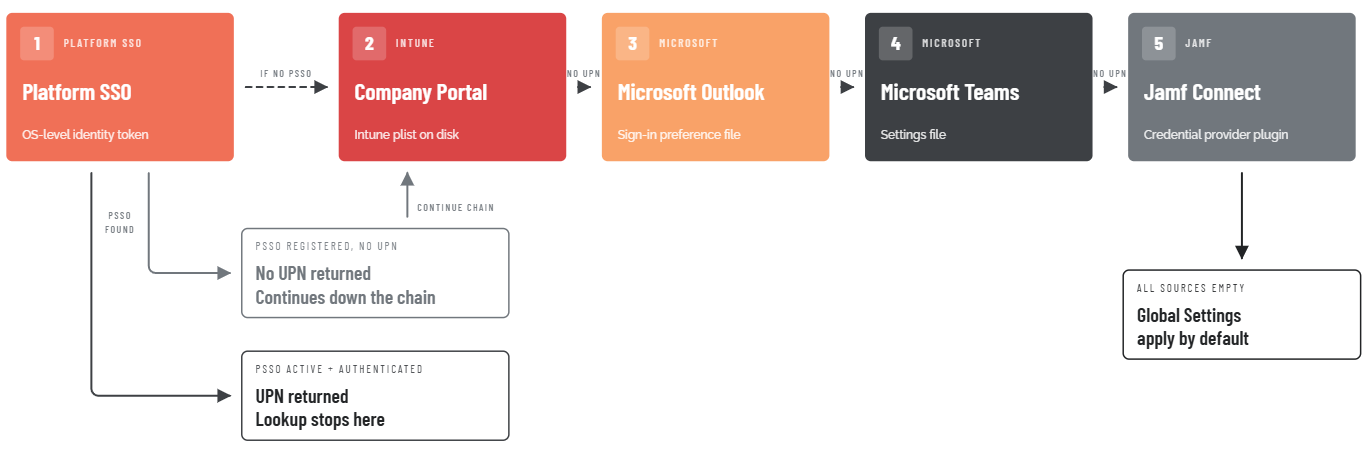
When ABR needs to identify the currently logged-in user, it works through a fixed priority list of identity sources - called the identity lookup chain - and stops at the first source that returns a usable UPN. The chain, from highest to lowest priority, is:
-
Platform SSO - The OS-level identity token from the SSO plugin. Used when an ESSP profile is deployed and the user has authenticated through it. This is the most reliable source, because the OS holds the identity rather than any specific application.
-
Microsoft Intune Company Portal - The plist file written to disk when the user signs in to Company Portal.
-
Microsoft Outlook - The preferences file that Outlook writes when the user is signed in to their Microsoft account.
-
Microsoft Teams - The Teams settings file. Requires Full Disk Access because Teams stores its data in a sandboxed container.
-
Jamf Connect - Jamf's credential provider plugin, used in Jamf-only environments that do not have Microsoft applications installed.
ABR checks these in order and uses the first source that returns a non-empty UPN. This order is fixed - it cannot be changed by configuration.
There is a critical behaviour to understand about Platform SSO in this chain: if Platform SSO is registered on the device but the user has not authenticated, ABR stops the lookup at step 1 and returns an error. It does not fall through to Company Portal or any other source.
This is by design - once the OS has recorded that Platform SSO is registered, ABR treats it as the authoritative source and does not consult fallback sources even when Platform SSO itself cannot return a value.
If the ESSP profile is deployed but the user has not completed registration, users who would previously have been identified via Company Portal will now get Global Settings instead.
Five sources, in fixed priority order
ABR stops at the first source returning a UPN. Platform SSO is checked first - a returned UPN ends the lookup, but a registration with no UPN falls through to the next source.
Entra ID vs Okta: an important difference
Both Entra ID and Okta environments use the same Platform SSO mechanism described above. The configuration steps are nearly identical. However, there is a fundamental difference in what happens when Platform SSO is not working:
-
Entra ID environments: Platform SSO is the preferred identity source, but it is not strictly required. If Platform SSO is not configured on a device at all, ABR falls through to Company Portal, Outlook, and Teams - all of which can supply an Entra ID identity. ABR can identify most Entra ID users without Platform SSO. Platform SSO makes this identification more reliable and consistent, but it is not mandatory.
-
Okta environments: Platform SSO is an essential requirement. The entire fallback chain below Platform SSO (Company Portal, Outlook, Teams, Jamf Connect) consists of Microsoft and Jamf applications. None of them carry Okta identity data. If Platform SSO is not configured, or is registered but unauthenticated, ABR has no way to discover the user's Okta identity and cannot match any Okta-group-based Sub-Setting. The official product documentation states this explicitly: "It is a requirement for using the Okta Connector with Macs that users login to their Mac devices using Platform SSO."
This means that for Okta deployments, any gap in Platform SSO coverage - an ESSP profile not deployed to a device, a user who has not completed registration, an ESSP profile misconfigured without the ABR allow-list entry - results directly in users getting Global Settings with no fallback. The operational risk of a misconfigured or partially deployed Platform SSO is higher in Okta environments than in Entra ID environments.
The following table illustrates the differences:
|
|
Entra ID |
Okta |
|---|---|---|
|
Introduced |
Mac agent v5.1 |
Mac agent v5.2 |
|
Platform SSO required? |
No - fallbacks exist via Microsoft apps |
Yes - no Okta-capable fallbacks |
|
If PSSO registered but unauthenticated |
Lookup stops at PSSO with error |
Lookup stops at PSSO with error |
|
If PSSO not configured at all |
Falls through to Company Portal, Outlook, Teams |
Falls back to Global Settings |
|
Group query mechanism |
Entra ID Connector (Microsoft Graph API) |
Okta Connector (Okta REST API) |
Prerequisites
Before starting configuration, confirm that all of the following are in place:
|
|
Requirement |
Detail |
|---|---|---|
|
Mac and MDM requirements |
macOS version |
macOS 13 Ventura or later. Platform SSO is an Apple capability introduced in Ventura. Older macOS versions cannot use it. |
|
|
MDM platform |
Microsoft Intune or Jamf Pro. The device must be MDM-managed because configuration profiles can only be deployed via MDM - users cannot install them manually. |
|
|
ABR agent version |
v5.1 or later for Entra ID environments; v5.2 or later for Okta environments. |
|
ABR portal requirements |
Entra ID Connector |
Required for Entra ID environments. ABR uses this connector to call the Microsoft Graph API and retrieve the user's Entra ID group memberships once it has their UPN from Platform SSO. If the connector is already configured for Windows endpoints in the same portal, it is shared across platforms - no additional configuration is needed for macOS. |
|
|
Okta Connector |
Required for Okta environments. ABR uses this connector, with an Okta API token, to call the Okta REST API and retrieve the user's Okta group memberships. Also shared across platforms if already configured for Windows. |
|
User |
Platform SSO registration |
The user must complete the Platform SSO registration flow on their device before ABR can read their identity. This typically happens automatically at the next macOS login after the ESSP profile is deployed, but may require the user to open Company Portal (Entra ID) or respond to an on-screen prompt (Okta) to complete registration. Until registration is complete, no identity token exists for ABR to read. |
With ABR portal requirements, neither connector needs a separate macOS-specific configuration. Platform SSO is auto-detected by ABR at the device level - there is no toggle to enable it in the portal.
Configuration
The configuration has five steps:
Step 1 - Deploy the Full Disk Access (PPPC) profile
ABR requires Full Disk Access (FDA) for macOS identity-related reads and application fallback sources. Platform SSO identity is resolved from local identity attributes and App SSO status metadata.
Recommended: use the ABR-supplied EPM mobileconfig
ABR ships a ready-made Admin By Request - EPM.mobileconfig profile that grants Full Disk Access to the ABR app and System Extension, pre-approves the System Extension, and grants Accessibility - all in one profile.
Download it (with the SRA companion file) from https://docs.adminbyrequest.com/resources/ConfigFiles/AdminByRequest-MDM-Config.zip, then deploy the EPM profile via your MDM to the target Mac group. Most customers will use this bundle rather than build the PPPC profile by hand. See Multiple endpoint installation in the install docs for the full MDM walkthrough.
Alternative: build the PPPC profile by hand
If your environment requires you to manage the profile directly rather than use the ABR-supplied bundle, the steps below build the equivalent FDA grant in Intune or Jamf. Note that both the main ABR executable and the ABR System Extension need FDA - so add two app entries, not one.
|
App |
Bundle ID |
|---|---|
|
Admin By Request (main executable) |
|
|
Admin By Request System Extension |
|
Intune steps
For Intune, do the following:
-
In the Intune admin centre, go to Devices > Configuration profiles > Create profile.
-
Select macOS as the platform and Templates > Privacy preferences policy control as the profile type.
-
Under Privacy preference settings, add a new app entry with the following values:
-
App identifier type: Bundle ID
-
App bundle ID:
com.fasttracksoftware.adminbyrequest -
Full Disk Access: Allow
-
-
Add a second app entry for the System Extension:
-
App identifier type: Bundle ID
-
App bundle ID:
com.fasttracksoftware.adminbyrequest.extension -
Full Disk Access: Allow
-
-
Assign the profile to the device group containing your Mac devices.
-
Save and deploy. In the portal, verify that the profile status shows as Succeeded for target devices before proceeding to Step 2.
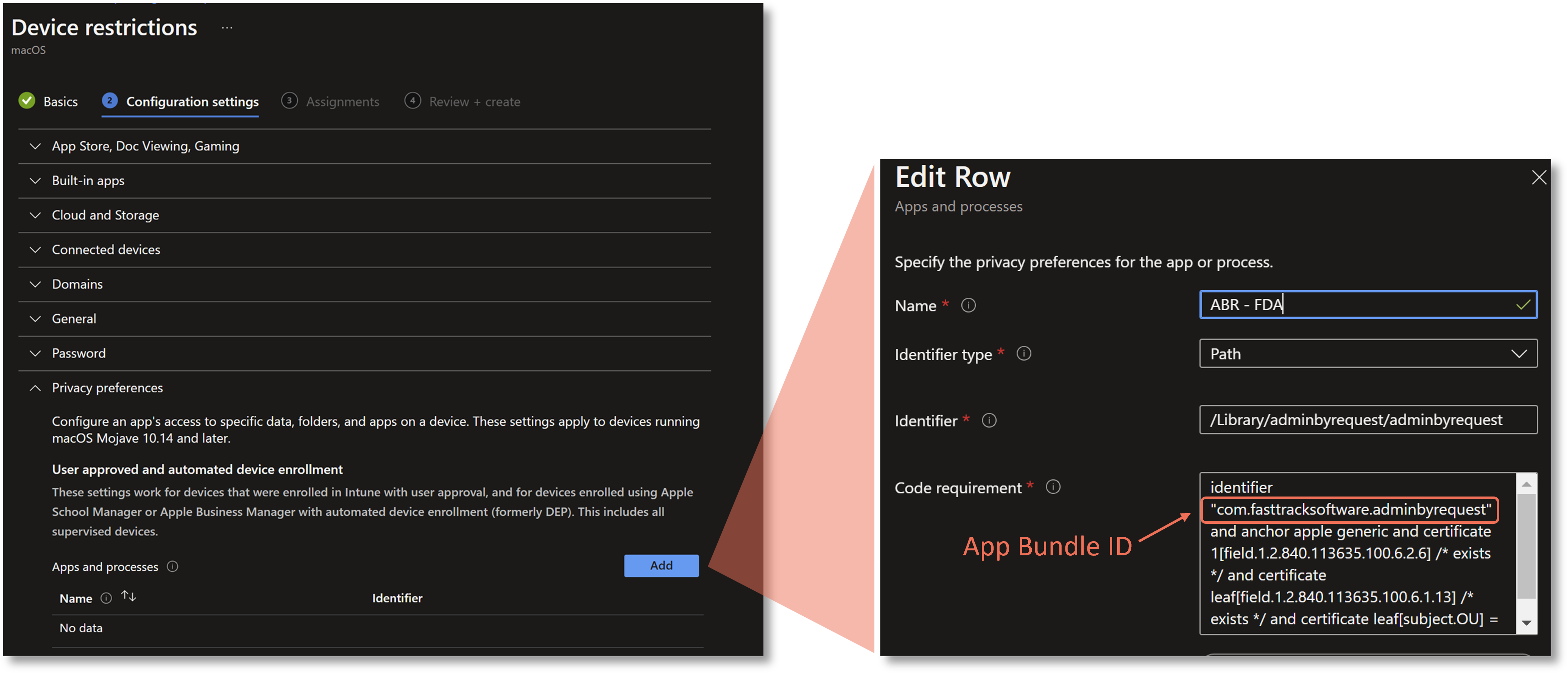
This example shows the App Bundle ID for the ABR main executable in Intune:
Jamf Pro steps
For Jamf, do the following:
-
In Jamf Pro, go to Computers > Configuration Profiles > New.
-
Add a Privacy Preferences Policy Control payload.
-
Click + to add an application entry:
-
Identifier:
com.fasttracksoftware.adminbyrequest -
Identifier Type: Bundle ID
-
Full Disk Access: tick Allow
-
-
Click + again to add a second application entry for the System Extension:
-
Identifier:
com.fasttracksoftware.adminbyrequest.extension -
Identifier Type: Bundle ID
-
Full Disk Access: tick Allow
-
-
Set the scope to the relevant computer group and save.
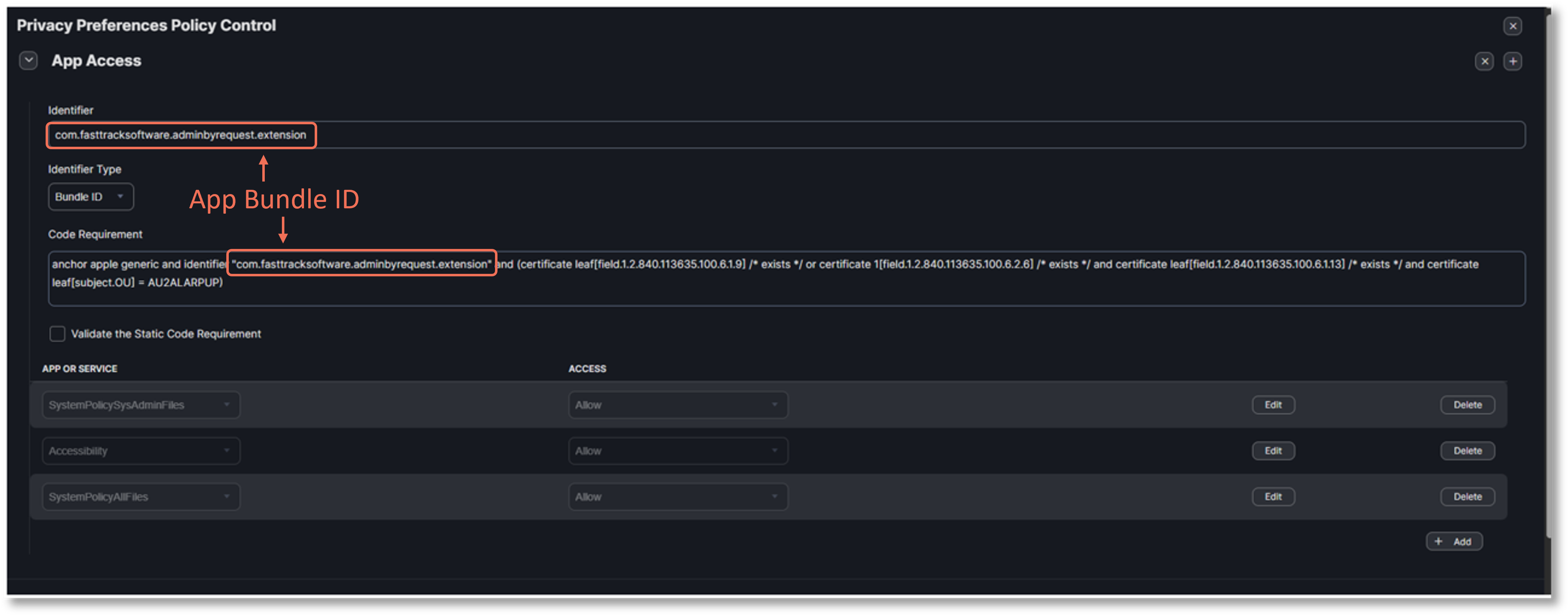
This example shows the App Bundle ID for the ABR System Extension in Jamf:
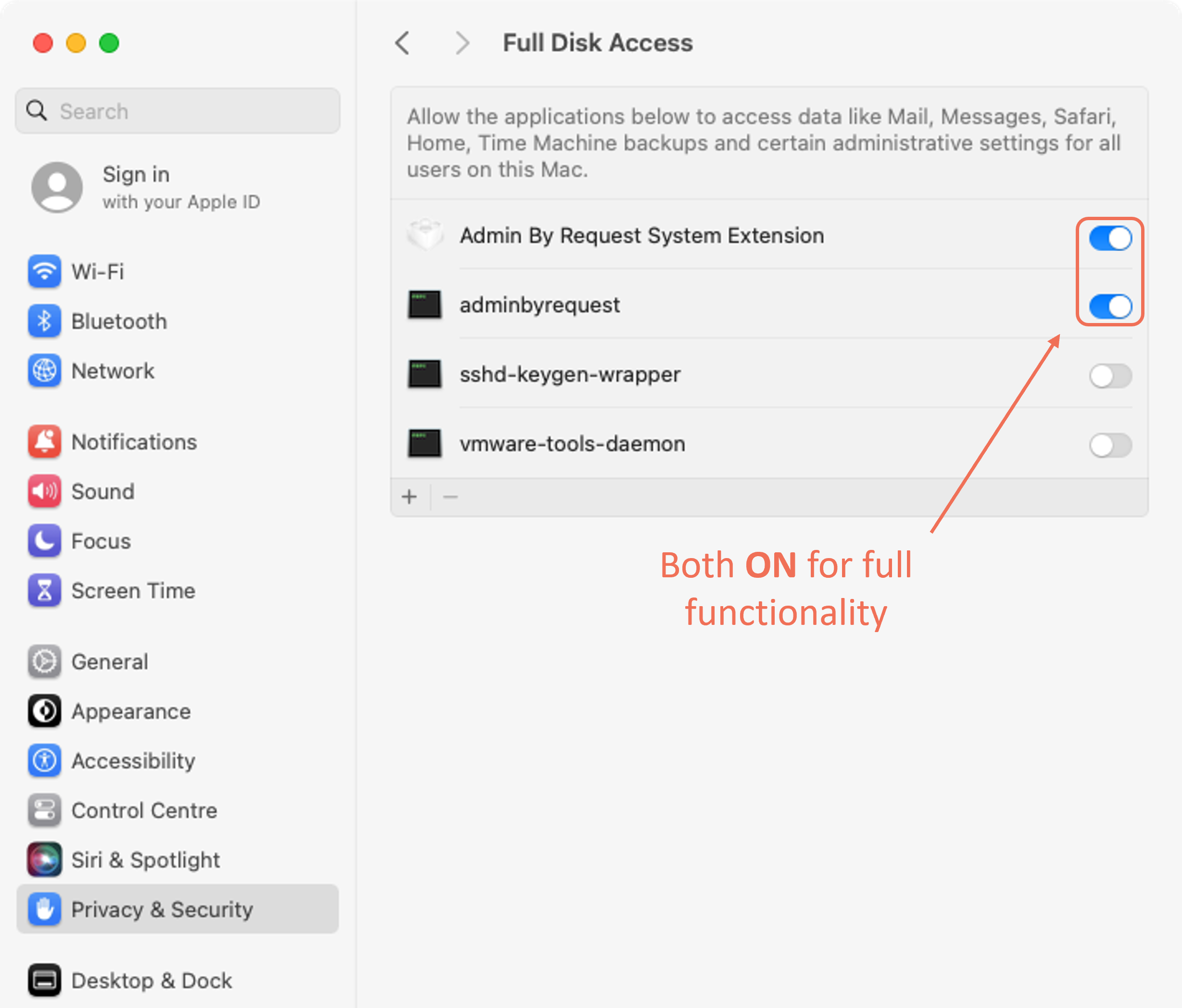
To verify that FDA has been granted on a device, go to System Settings > Privacy and Security > Full Disk Access on the Mac and confirm that both adminbyrequest and Admin By Request System Extension are listed with their toggles on:
macOS 26.1 / 26.2
On macOS 26.1 and 26.2, the privacy settings picker can fail to list binaries even when they are present. This problem is fixed in macOS 26.3 and later. If you are configuring or verifying FDA on macOS 26.1 or 26.2, drag-and-drop the binary from Finder into the Full Disk Access list as a temporary workaround.
Step 2 - Deploy the Extensible SSO (ESSP) profile
This profile is what tells macOS to use Platform SSO and which SSO plugin to use (Microsoft's for Entra ID, or Okta's). It also controls which applications on the Mac are allowed to access the Platform SSO identity token - and this is where the most commonly missed configuration step lives.
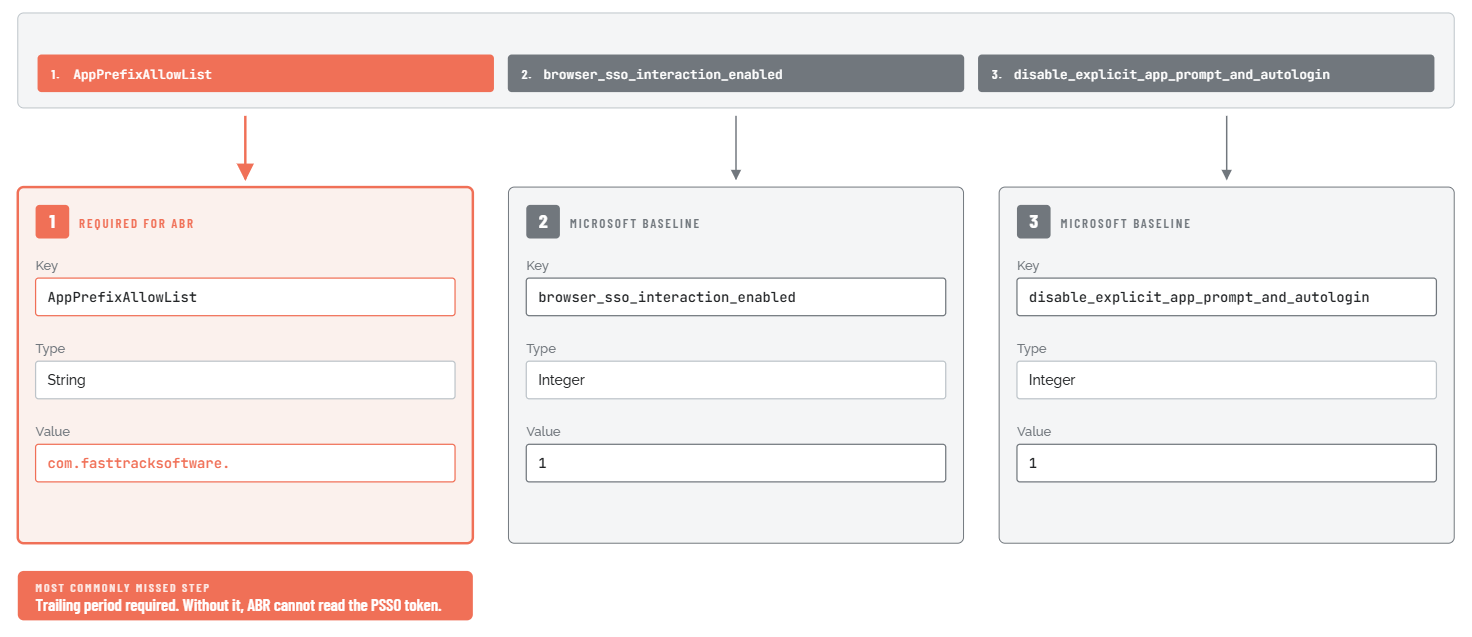
The AppPrefixAllowList key in the ESSP profile is a whitelist of application bundle ID prefixes that are allowed to read the Platform SSO token. ABR's bundle IDs start with com.fasttracksoftware., so that prefix must be in the list. If it is missing, the Platform SSO token is available to other applications (including the SSO plugin itself) but not to ABR. ABR will then behave as if Platform SSO is not configured - falling through to application-based sources on Entra ID, or returning Global Settings on Okta.
For Entra ID via Intune
Do the following:
-
In the Intune admin centre, create a new macOS configuration profile using Templates > Extensions.
-
Under Single sign-on app extensions, click Add and fill in the following:
-
Extension type: Microsoft Azure AD
-
Extension ID:
com.microsoft.CompanyPortalMac.ssoextension -
Team ID:
UBF8T346G9
-
-
In the Additional configuration section, add the following key/value pair:
-
Key:
AppPrefixAllowList -
Type: String
-
Value:
com.fasttracksoftware.
-
-
Configure the remaining Platform SSO options (authentication method, registration options, etc.) according to Microsoft's Entra ID Platform SSO documentation for Intune. [Note: the specific values for these fields depend on your Entra ID tenant configuration and Microsoft's current recommendations. Refer to Microsoft Learn for current guidance.]
The ESSP profile is also where you enable YubiKey and smartcard authentication for ABR's MFA prompt on macOS.
This works out of the box on Windows but requires two additional Extension Data keys on Mac -
browser_sso_interaction_enabled=1anddisable_explicit_app_prompt_and_autologin=1, both Integer - alongside theAppPrefixAllowListentry described above. The same two keys also enable Entra Conditional Access policies that restrict login by operating system to recognise macOS MFA logins.Refer to YubiKey / Smartcard Authentication in macOS for more information.
-
Assign the profile to the same Mac device group used in Step 1 and deploy.
Three Extension Data keys, one critical value
In the Intune Extensions profile editor, add these three keys under Extension Data. Key 1, the AppPrefixAllowList entry is the one customers most often miss - this is the key that lets ABR in (and don't forget the trailing period). Keys 2 and 3 are Microsoft's Platform SSO baseline.
For Okta via Intune
The process is the same as for Entra ID, but using Okta's SSO extension instead of Microsoft's. The extension ID, Team ID, and additional configuration keys are provided in Okta's MDM deployment documentation. The AppPrefixAllowList requirement is identical: the value must be com.fasttracksoftware.
Okta's SSO extension requires Okta Device Trust components to be installed on the Mac before the ESSP profile takes effect. Refer to Okta's current MDM documentation for the required extension ID, Team ID, and Okta Device Trust prerequisites.
For Jamf Pro (Entra ID or Okta)
Do the following:
-
In Jamf Pro, go to Computers > Configuration Profiles > New.
-
Add a Single Sign-On Extensions payload.
-
Add a new extension entry for the relevant IdP (Microsoft or Okta).
-
In the extension data / additional configuration section, add the key
AppPrefixAllowListwith string valuecom.fasttracksoftware. -
Scope the profile to the target computer group and save.
The Jamf Pro navigation for SSO Extensions profiles may vary by Jamf Pro version. Consult current Jamf documentation if the path above does not match your interface.
Step 3 - Verify the IdP selection
Once ABR has the user's UPN from Platform SSO, it needs to use that UPN to look up the user's group memberships in the IdP. That lookup happens through (1) the Authentication tab and (2) the identity connector configured in the ABR portal.
In the portal, the Mac-side configuration that affects this is on the EPM macOS Authentication tab (under Mac Settings); the connector itself is managed in Tenant Settings and is shared across platforms.
There is no Platform SSO-specific toggle in the portal - ABR auto-detects Platform SSO from the device state.
Prerequisite: Authentication Mode must be "Multi-factor Authentication"
On the EPM macOS Authentication tab, the Authentication Mode panel offers three mutually-exclusive options: Confirm, Multi-factor Authentication, and Authenticate. The Sign-on method and Email match settings that select the IdP for Platform SSO are only visible when Multi-factor Authentication is selected. If the tenant currently has Confirm or Authenticate selected, switch to Multi-factor Authentication first.
On the Authentication tab itself:
-
Log in to the ABR portal.
-
Navigate to EPM > Settings > Mac Settings > Endpoint > Authentication.
-
In the Authentication Mode panel, confirm Multi-factor Authentication is selected.
-
In the Multi-factor Configuration panel, confirm:
-
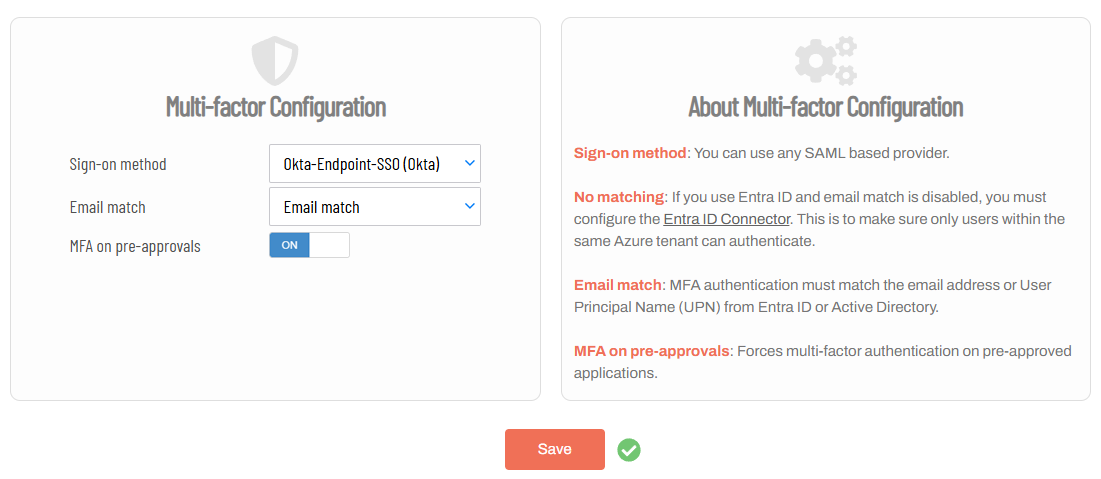
Sign-on method is set to the IdP you want ABR to use. The combo lists the SSO methods configured for this tenant (typically Microsoft 365 / Entra ID, plus any ADFS / Okta / SAML methods that have been added). A trailing "-- ADD NEW METHOD --" option opens a separate form for registering a new SSO method.
-
Email match is set per your matching policy (No matching / Email match / Account separation). See the on-tab About text for the semantic difference.
-
The Mac Authentication tab itself does not contain the Entra ID Connector or Okta Connector credentials (Client ID, Tenant ID, Client Secret, Okta URL, API token). Those are managed at a different portal location and shared across platforms.
Confirm with your portal administrator that the relevant connector is already configured and connected before proceeding to Step 4. If the connector is not yet configured, follow the standard ABR portal procedure for the relevant IdP:
-
Entra ID: create an App Registration in Entra ID with
Directory.Read.AllApplication permissions, then enter the resulting Client ID, Tenant ID, and Client Secret in the ABR Entra ID Connector page. -
Okta: create a token in the Okta Admin Console (Security > API > Tokens > Create token; copy the value at creation time as it is only displayed once), then enter your Okta tenant URL and the token in the ABR Okta Connector page.
Refer to Tenant Settings > Identity for more information on configuring IdP Connectors.
Setting MFA in the portal to your IdP sign-on method
For your Sign-on method to appear in the dropdown list, configure it at Entra ID Single-Sign-on or Okta Single-Sign-on, depending on your environment. This example shows Okta-Endpoint-SSO (Okta) - a name that was created during the configuration procedure:
Step 4 - Deploy the ABR agent
Deploy the ABR Mac PKG file to devices via MDM only after Steps 1 and 2 are confirmed as complete on target devices. The PKG is available for download from the ABR portal under the macOS installation section. It is tenant-specific: signed with your tenant's licence key - and should not be shared with other organisations.
Confirm that the PPPC profile (Step 1) and ESSP profile (Step 2) show as successfully installed in your MDM before pushing the agent. If the agent arrives before the PPPC profile, Full Disk Access will not be in place when the agent first starts and ABR will log an FDA error. Although the PPPC profile will eventually be installed later, FDA may not be recognised until the device is rebooted.
For the broader MDM deployment picture - including the SRA companion mobileconfig, package signing notes, and Jamf-side policy construction - see Multiple endpoint installation in the install docs.
Step 5 - Have users complete Platform SSO registration
Deploying the ESSP profile is not the same as completing Platform SSO registration. The profile tells macOS how to use Platform SSO, but the user's identity token does not exist until the user has actually authenticated through the Platform SSO flow at least once on that device.
On newly enrolled Macs, registration typically happens the first time the user logs in at the macOS login screen after the ESSP profile is deployed. The macOS login screen may present a different prompt than usual - asking the user to sign in with their corporate credentials rather than their local password.
For Entra ID environments
The most reliable way to trigger and confirm registration is via Company Portal:
-
Open Microsoft Company Portal on the Mac and sign in with Entra ID credentials if not already signed in.
-
Watch for a "Registration required" notification in macOS Notification Centre. Click it if it appears and follow the sign-in and MFA prompts.
-
After completing registration, click "About Admin By Request" in the ABR menu bar icon to trigger an immediate identity sync.
For Okta environments
-
Log out of macOS and log back in. If the ESSP profile is correctly installed, the macOS login dialog should be backed by Okta. Log in with Okta credentials and complete any MFA required by your Okta policy.
-
After logging in, click "About Admin By Request" in the ABR menu bar icon to trigger an immediate identity sync.
Include Platform SSO registration in Mac onboarding checklists
Users who attempt to use ABR before completing registration will get Global Settings rather than their intended Sub-Setting policy. Since registered-but-unauthenticated Platform SSO blocks the identity lookup chain without falling through to other sources, this is not a graceful degradation - the wrong policy applies until registration is done.
Verifying the configuration
After completing all five configuration steps, confirm that everything is working before rolling out to additional devices.
-
Check the Groups tab in portal Inventory. In the ABR portal, go to Inventory and open the record for a target device. If Platform SSO is active and the identity connector is working, a Groups tab will appear in the device record, listing the IdP group memberships that ABR has collected for that device. If the Groups tab is absent entirely, ABR has not been able to collect any group data - something in the configuration chain is broken.
-
Check the Sub-Settings match view. Navigate to the Sub-Setting that should apply to your test user and open the "Who matches this sub-setting?" view. Confirm that the expected device or user appears in the list.
-
Trigger a manual sync if needed. ABR caches group membership data and refreshes it on a four-hour automatic cycle. To verify immediately without waiting, click "About Admin By Request" in the ABR menu bar icon on the test device. This triggers an immediate identity check and group lookup.
-
Test an elevation. Request an elevation on the test device (for example, try to run an installer that requires admin rights). Confirm that the elevation request is handled according to the Sub-Setting that should apply to that user, not according to Global Settings.
Common issues
The following issues are recorded here:
The log messages shown below are examples for reference only. Because we are continuously improving our system diagnostics alongside our support team, the format and text of these logs may change in future client updates.
AppPrefixAllowList missing from the ESSP profile
Symptom:
Platform SSO appears to be working for other applications (for example, the user can sign in to macOS with their corporate credentials), but Sub-Settings are not applying correctly in ABR. The Groups tab in portal Inventory is absent or incorrect. There is no ABR log entry that specifically identifies this as the cause.
Cause:
The ESSP profile does not include com.fasttracksoftware. in the AppPrefixAllowList. macOS restricts access to the Platform SSO identity token to applications whose bundle ID prefix appears in this list. Without the entry, the token is inaccessible to ABR. On Entra ID environments, ABR will fall through to the application-based sources (Company Portal, Outlook, Teams). On Okta environments, identity resolution fails entirely.
Fix:
-
Open the ESSP configuration profile in your MDM.
-
Locate the Additional configuration or Extension Data section.
-
Add the key
AppPrefixAllowListwith string valuecom.fasttracksoftware.(including the trailing period). -
Save the updated profile and push it to devices. The change takes effect on the next MDM sync.
Platform SSO registered but user not yet authenticated
Symptom:
Users are getting "Admin Session denied by policy" or landing on Global Settings despite being in the correct Entra ID or Okta group. The ABR diagnostic log contains a message like:
Entra ID UPN - macOS Platform SSO enabled, but user has not authenticated
Cause:
ABR can see that Platform SSO is registered on the device (the ESSP profile has been deployed and macOS has processed it) but the user has not yet completed the authentication flow that creates the identity token. Because Platform SSO is registered, ABR treats it as the authoritative source and stops the identity lookup at step 1, even though step 1 is returning an error. This is the most common issue seen immediately after deploying Platform SSO to a Mac fleet.
Fix:
For Entra ID:
-
Open Microsoft Company Portal and sign in.
-
Look for a "Registration required" notification in macOS Notification Centre and follow any prompts.
-
After completing registration, click "About Admin By Request" in the menu bar icon to sync immediately.
For Okta:
-
Log out of macOS and log back in using the Okta-backed login screen.
-
Complete any MFA prompted by Okta.
-
Click "About Admin By Request" to sync.
Full Disk Access not granted
Symptom:
Sub-Settings are not applying and the ABR diagnostic log contains a message like:
Entra ID UPN - macOS Platform SSO enabled, but Full Disk Access not enabled
Cause:
The PPPC profile granting Full Disk Access to ABR was not deployed before the ABR agent, or was deployed but not recognised by macOS until after a reboot. ABR cannot read identity data without FDA.
Fix:
-
On the affected Mac, go to System Settings > Privacy and Security > Full Disk Access.
-
Check whether both
adminbyrequestandAdmin By Request System Extensionappear in the list. If either is missing, the PPPC profile is incomplete - the canonical install docs require FDA on both bundle IDs (com.fasttracksoftware.adminbyrequestandcom.fasttracksoftware.adminbyrequest.extension). If either appears but its toggle is off, the profile may be present but not correctly enforced. -
Verify in MDM that the PPPC profile is assigned to and installed on this device.
-
If the profile is present but FDA is still not applied, reboot the device. macOS sometimes requires a reboot to pick up FDA grants from MDM profiles.
-
On macOS 26.1 or 26.2, if you need to add FDA entries manually as a workaround, drag-and-drop the binary from Finder rather than using the privacy-settings picker (the picker can fail to list binaries on those OS versions; fixed in 26.3).
ESSP profile configuration errors
Symptom:
The ABR diagnostic log contains one or more messages such as:
-
[AppSSO] JSON parsing error for Device Configuration: The data couldn't be read because it isn't in the correct format. -
[AppSSO] JSON parsing error for Login Configuration: The data couldn't be read because it isn't in the correct format. -
[AppSSO] No extensionIdentifier/accountDisplayName found. Exiting early.
Cause:
ABR cannot read the ESSP profile configuration at all. This is distinct from the "user has not authenticated" error - it means the configuration profile itself is broken or absent, not just that the user has not registered. Common causes include:
-
The ESSP profile was not assigned to this device in MDM (check the assignment scope).
-
The profile extension data contains a syntax error.
-
For Okta: the Okta Device Trust app components required by the ESSP profile are not installed on the Mac.
-
A conflict with another ESSP or SSO configuration profile on the device.
Fix:
-
In your MDM, confirm that the ESSP profile is assigned to this specific device and that its status is successful (not pending or failed).
-
Review the profile's extension data configuration for syntax errors.
-
For Okta: confirm that the Okta device management app components are installed and running on the Mac.
-
Check whether any other SSO-related profile is deployed to this device that might conflict.
Platform SSO artifacts persist after profile removal
Symptom:
A device was removed from the Platform SSO ESSP profile (for example, a device was taken out of an Intune group during or after a pilot). Even after removal, ABR still behaves as if Platform SSO is registered - it looks for a token, cannot find one (because the user has not re-authenticated since PSSO was removed), and returns Global Settings.
Cause:
Platform SSO registration data is written into the device's keychain and OS configuration state when it is first set up. Removing the ESSP profile from MDM does not automatically clean up this data. ABR still detects the device as having Platform SSO registered and continues to treat it as the authoritative identity source.
Fix:
Per Microsoft's guidance, the intended resolution is to reset the Company Portal app state and clean the relevant keychain entries. However, in practice, support teams have found this cleanup unreliable - the Platform SSO configuration is often too deeply embedded in the device state to fully remove without a wipe. The most dependable resolution is to wipe and re-enroll the device.
Before rolling out Platform SSO to a pilot group, decide in advance how you will handle devices that need to exit the pilot. If a clean exit without a wipe is important, plan carefully and test the cleanup procedure on a small number of devices before committing to the pilot. Exiting a Platform SSO deployment is significantly harder than entering one.
New combined EPM mobileconfig deployed over old separate profiles
Symptom:
After switching from the older pair of mobileconfigs (AdminByRequest - FDA PPPC_v2.mobileconfig and AdminByRequest - System Extension.mobileconfig) to the new combined Admin By Request - EPM.mobileconfig, devices show unpredictable behaviour: Full Disk Access may not register, the System Extension may show as not approved, or both states may flap. ABR cannot reliably read the Platform SSO token, and Sub-Settings stop applying.
Cause:
The new combined Admin By Request - EPM.mobileconfig consolidates what the two older profiles did. When it is pushed to a device that still has the old profiles installed, macOS sees overlapping PPPC and System Extension payloads from different profiles and the resulting state is not deterministic.
Fix:
-
In your MDM, remove the assignments for
AdminByRequest - FDA PPPC_v2.mobileconfigandAdminByRequest - System Extension.mobileconfigfrom the target Mac group and confirm both have been uninstalled from devices. -
Once the old profiles are gone, push
Admin By Request - EPM.mobileconfigto the group. -
Verify FDA in System Settings > Privacy and Security > Full Disk Access and the System Extension approval in Login Items and Extensions on a sample device.
Do not deploy the new combined profile on top of the old ones - delete the old ones first.
[Okta only] v5.2.0 and v5.2.1 - device groups fail when HostName and NetBIOS name differ
Symptom:
After upgrading Mac agents from v5.1.x to v5.2.0 or v5.2.1 in an Okta environment with Platform SSO active, device-group-based policies stop applying. The Groups tab in Inventory shows "No data to display" on upgraded devices. The same devices showed groups correctly on v5.1.x. Windows devices on the same tenant are not affected.
Cause:
A bug in ABR Mac v5.2.0 and v5.2.1 caused device group resolution to fail when the device's HostName and NetBIOS name did not match exactly. This affected environments that used computer groups in Global Scope or Sub-Settings with Platform SSO active.
Fix:
Upgrade the Mac ABR agent to v5.2.2 or later. The fix checks both HostName and NetBIOS name formats when resolving device group membership.
If you cannot update immediately, a temporary workaround is available: change the scope condition in the affected Global Scope or Sub-Setting from computer groups to user groups. This restores correct policy application without requiring a client update.
Diagnostic logs
When investigating Platform SSO issues, ABR's diagnostic logs are the fastest way to identify which part of the configuration chain has failed. Log entries from the AppSSO layer will tell you whether the ESSP profile is absent, misconfigured, or present-but-unauthenticated.
Two ways to access the logs:
-
macOS Console app: Open the Console app on the affected Mac and navigate to Log Reports > adminbyrequest.log.
-
In-app diagnostics submission: Click "About Admin By Request" in the ABR menu bar icon and select Diagnostics > Submit. This sends the logs directly to the ABR support team, which is useful when a customer is submitting a support ticket.
Key log patterns:
|
Log entry (text might not be exact) |
What it means |
|---|---|
|
|
ESSP profile is deployed and macOS recognises Platform SSO, but the user has not completed the registration flow. |
|
|
Platform SSO is registered but ABR cannot read the token because FDA has not been granted. |
|
|
The ESSP profile is absent from the device or contains a syntax error. |
|
|
The ESSP profile is absent, incomplete, or conflicted with another profile. |
Acronyms and Abbreviations
|
Abbreviation |
Full form |
Notes |
|---|---|---|
|
Extensible Single Sign-On Profile |
A macOS MDM configuration profile that installs and configures an SSO extension at the OS level, allowing the macOS login dialog to authenticate against a corporate IdP (Entra ID or Okta) via Apple's Platform SSO mechanism. Deployed via Intune or Jamf. ABR requires the |
|
|
Full Disk Access |
macOS permission required by the ABR agent to function. |
|
|
Identity Provider |
The external system that authenticates users via SSO/MFA (e.g., Entra ID, Okta, ADFS, Google, JumpCloud). |
|
|
Mobile Device Management |
Platforms (Intune, Jamf, Kandji, SCCM) used to deploy and manage the ABR agent (among other things). |
|
|
User Principal Name |
The user's identity in Active Directory or Entra ID, typically in |
Technical Terms
AppPrefixAllowList - A configuration key in an Extensible Single Sign-On Profile (ESSP) that whitelists application bundle ID prefixes allowed to read the Platform SSO identity token. ABR's bundle IDs begin with com.fasttracksoftware., so the value com.fasttracksoftware. must be present in this list for ABR to access the Platform SSO identity token. If this key is absent or does not include the ABR prefix, the token is readable by the SSO extension but not by ABR, and identity resolution fails silently.
PPPC profile - Privacy Preferences Policy Control profile. A macOS MDM configuration profile that grants specific applications specific privacy/accessibility permissions at the system level, bypassing the macOS user consent dialogs. ABR requires a PPPC profile to grant it Full Disk Access (FDA) so it can resolve user group membership via Entra ID or Platform SSO. This profile must be deployed to devices via MDM (Intune, Jamf, Kandji) before or at the same time as the ABR agent package.