Pre-Approval
On this page:
Overview
Pre-approving applications is a way to keep trivial elevation requests out of your ticket queue and the auditlog. Applications that have been vetted and are known to be clean can be whitelisted so that requests to elevate them no longer need to be manually approved.
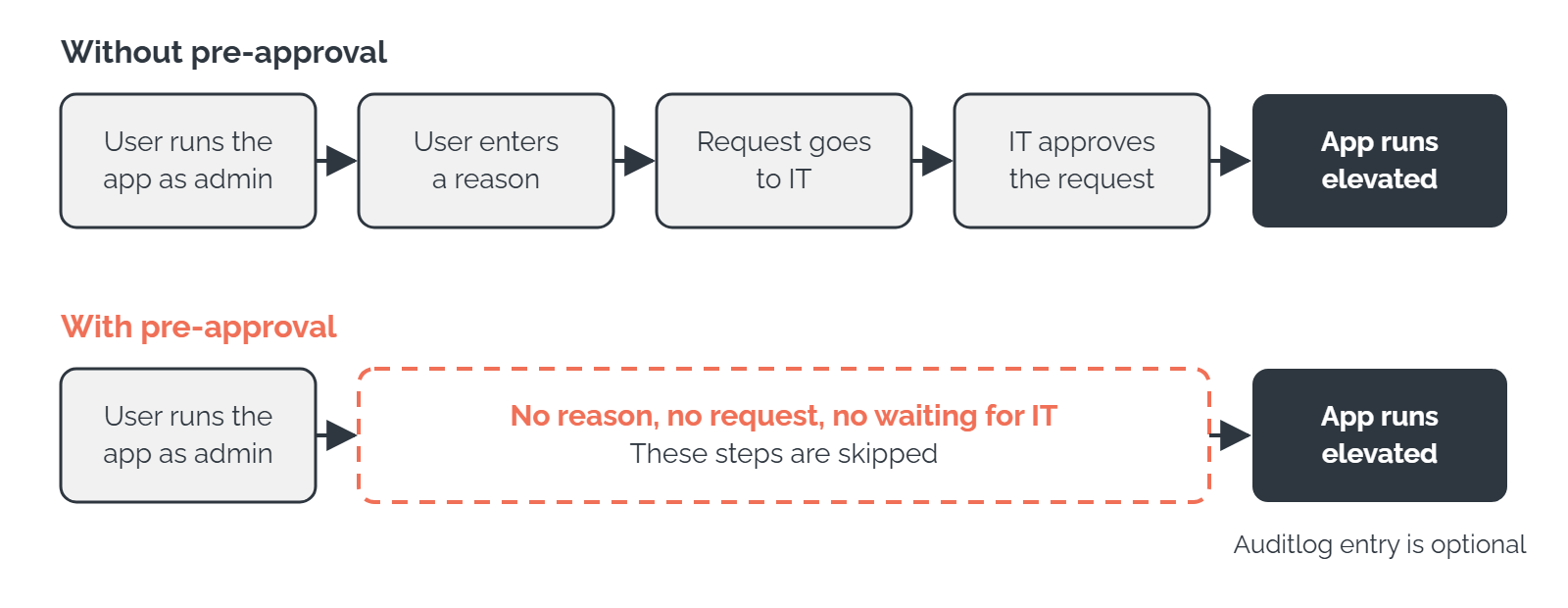
When an application is pre-approved:
-
The approval flow is skipped, so the user doesn't need to wait for IT.
-
You can choose to not log it to the auditlog.
-
It still runs if Allow Run As Admin is turned off or Block Run As Admin is turned on in the global or sub settings.
It is important to understand that in general, pre-approval does not replace the Run as administrator command, but simply provides a shortcut for allowing elevation. This means that auto-approval has no effect when an application is started normally. The only exception to this is the Force running application elevated approval type on Windows, which automatically elevates the application whenever it is launched.
The general procedure for pre-approving an application is the same across platforms. The individual configuration options are platform-specific.
Note: Application pre-approval is configured separately from the downloads pre-approval in Web Access Management. A file may be pre-approved for download, but installation might still require manual approval, and vice versa.
Global Versus Sub Settings
You can pre-approve applications globally or in sub settings which match different groups of computers and users.
When pre-approving applications, be aware that pre-approval always overrides block settings for the same application, regardless of where the block rule is defined. This means that global pre-approval will override sub settings with block rules, which is different from the way sub settings normally work. There is no way to force a block sub setting to override the global pre-approval. If you want to pre-approve an application for most of your users, but block it for a few, you need to block it globally, and then pre-approve it for most of your users via sub settings, instead of the other way around.
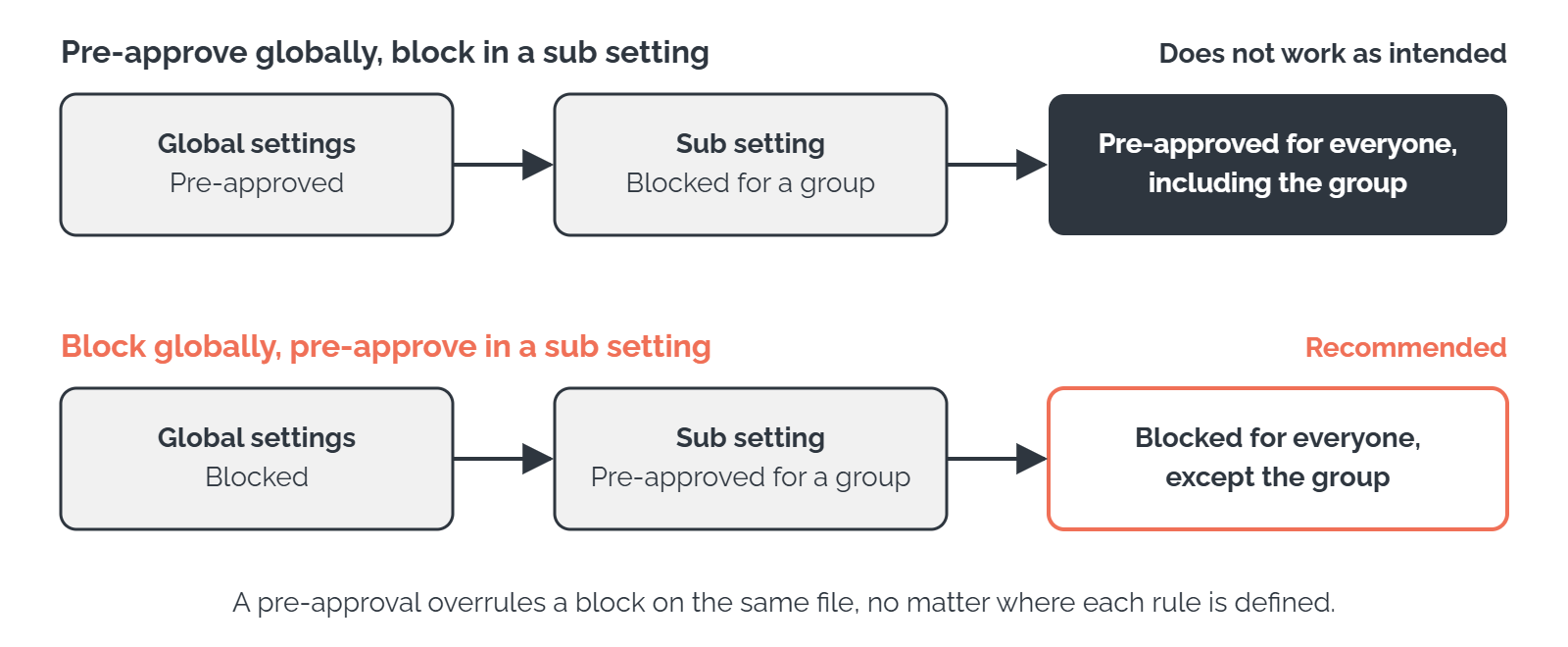
Note that this precedence rule only applies to pre-approval and block being applied to the same file. If a pre-approved application calls a blocked helper application with administrator rights, the block is effective and prevents the helper application from being elevated.
Types of Pre-Approval
Depending on your platform, different types of pre-approval are available:
|
Type |
Use it when… |
Windows |
Mac |
Linux |
|---|---|---|---|---|
|
Run As Admin application pre-approval |
You want to approve exactly one specific application. Approval is granted based on the file name of the executable file. |
✓ |
✓ |
✓ |
|
Run As Admin vendor pre-approval |
All applications by a specific vendor are considered trustworthy. Approval is granted based on the vendor certificate associated with the application. |
✓ |
– |
– |
|
Run As Admin location pre-approval |
Files are located in a company software repository that contains only vetted applications. Approval is granted based on the directory where the file is located. |
✓ |
– |
✓ |
|
You have legacy applications which always require administrator rights to run. Note: Changes to Force running application elevated entries may take up to four hours to reach all clients. Individual clients can force a settings update by opening the About dialog from the system tray. |
✓ |
– |
– |
|
|
sudo command pre-approval |
A standard user needs to run a specific command with |
– |
✓ |
– |
Protection
For pre-approval types which take a file name, it is strongly recommended to choose a protection method that will prevent tampering. Without protection, users could simply change the name of any executable file to one that is pre-approved, and always run that file with administrator rights, without needing approval.
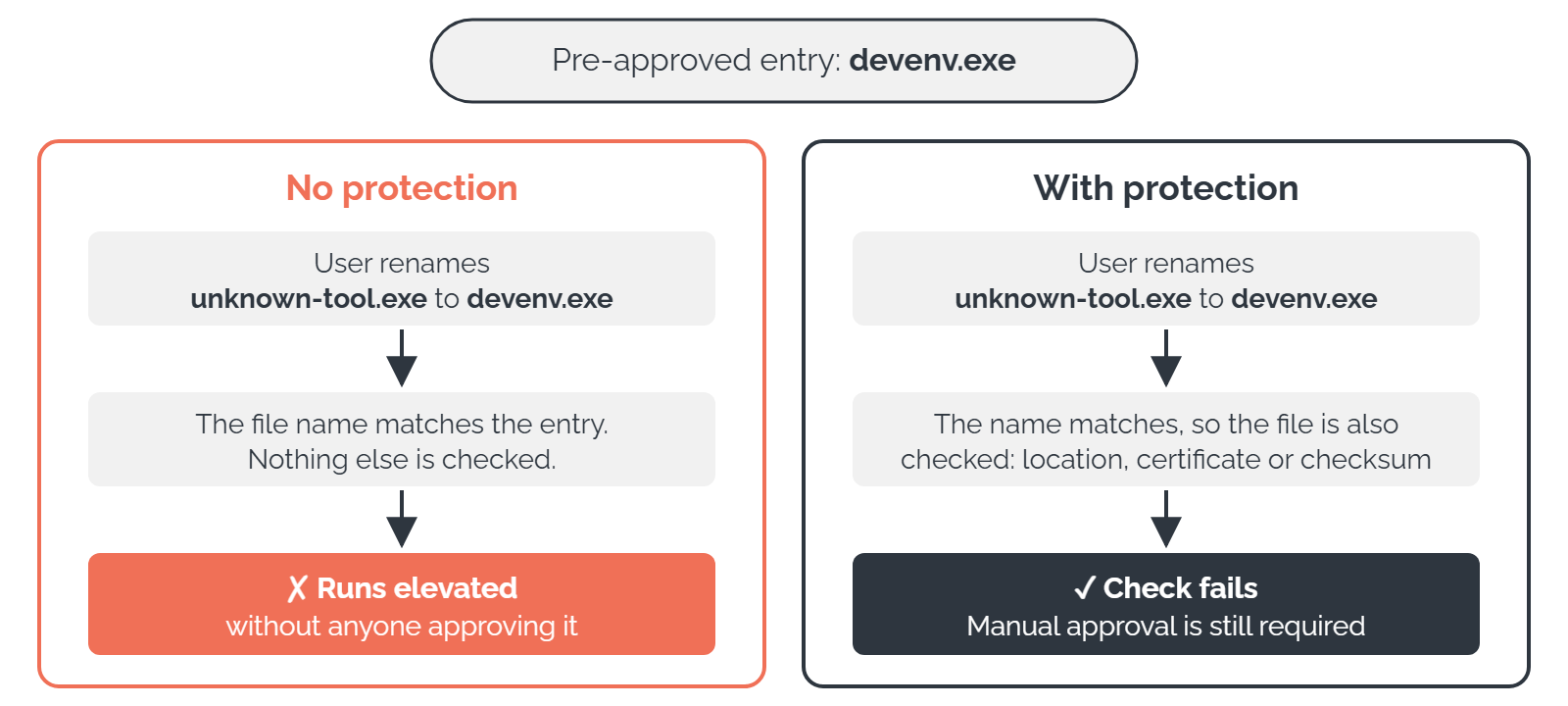
Depending on your platform, different types of protection are available:
|
Method |
Description |
Windows |
Mac |
Linux |
|---|---|---|---|---|
|
File must be located in read-only directory |
The file must be in a directory that regular users don't have write access to, for example |
✓ |
– |
✓ |
|
File must match digital certificate and application name |
Pre-approves an application based on the vendor's digital certificate and the name of the application. Requires client version 8.7 or later. |
✓ |
– |
– |
|
File must match digital certificate and file name |
Pre-approves an application based on the vendor's digital certificate and the name of the executable file. Recommended if you have a copy of the file. |
✓ |
– |
– |
|
File must match team id |
Pre-approves all files with the specified Team ID. A Team ID is the ten-character identifier Apple assigns to a developer account, which appears in every application that developer signs. For example, Microsoft's Team ID is |
– |
✓ |
– |
|
File must match team and bundle id |
Pre-approves all files with the specified Team ID and Bundle ID. A Bundle ID is the reverse-domain identifier of one application, such as |
– |
✓ |
– |
|
File must match checksum |
Pre-approves exactly one specific file. Use this if you are distributing an executable file to your users, and everyone uses an identical copy. If the file is updated, its checksum no longer matches, and you need to add the new one. |
✓ |
✓ |
✓ |
|
No protection |
This setting is only intended for testing. Never use it in a production environment. |
✓ |
– |
✓ |
Accessing the Pre-Approval Settings
You can access the pre-approval settings from different places:
 From the auditlog (Windows and Mac only)
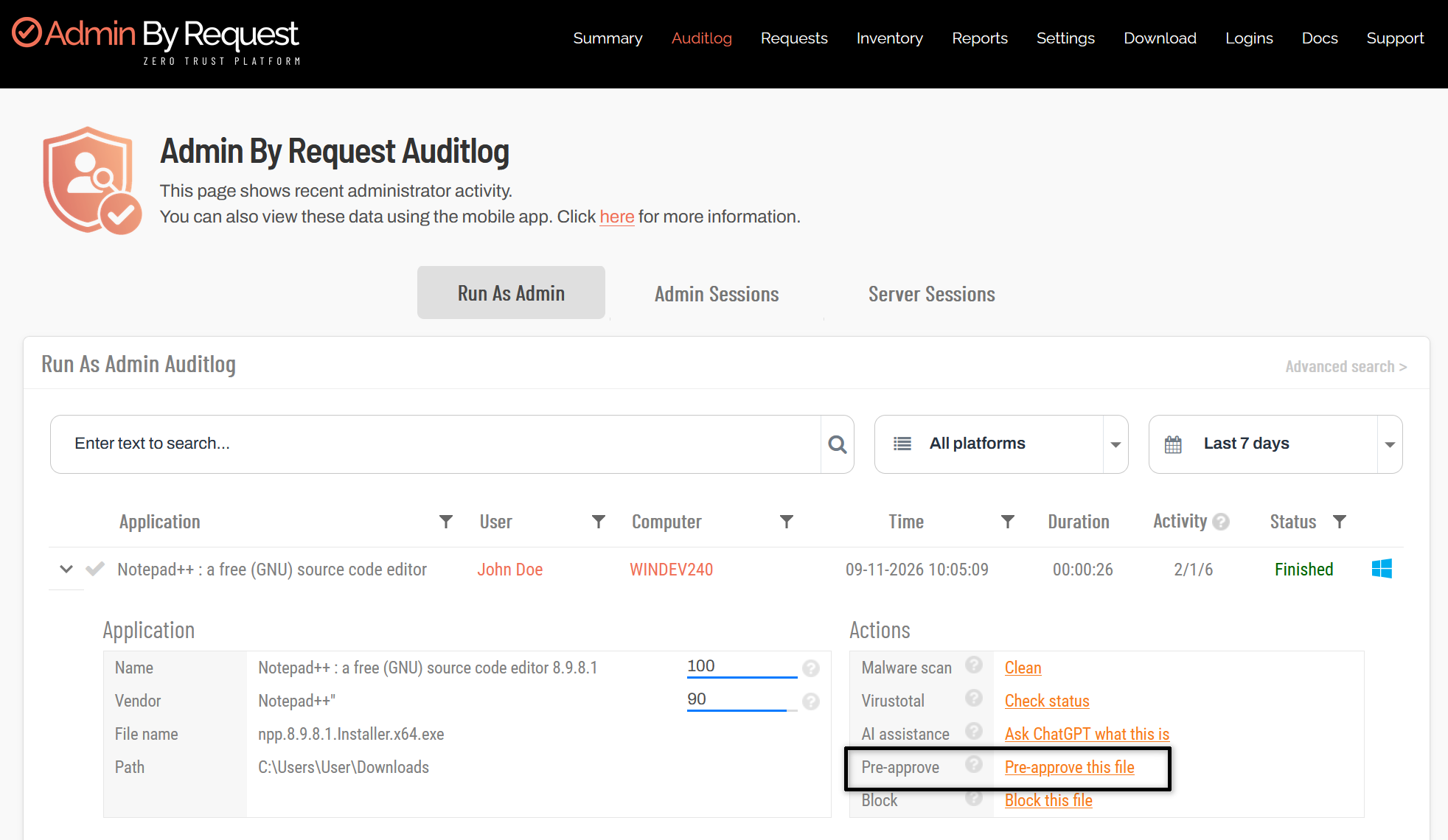
This is where you can pre-approve applications that have already been run by users. Pre-approving from the auditlog is the preferred method for pre-approving individual applications, since it will automatically fill most of the fields in the configuration with the correct values.
-
In the main navigation of the portal, click Auditlog.
-
On the Run As Admin tab, expand an entry that contains the application you want to pre-approve.
-
In the Actions area, click Pre-approve this file.
From the global settings for your platform
This is where you pre-approve applications for all users.
-
In the main navigation of the portal, open the global settings for your platform, e.g. Settings > Windows Settings.
-
In the navigation area on the left, click App Control.
-
On the Pre-approve tab, click New Entry to add a new application, or click Edit to edit an existing configuration.
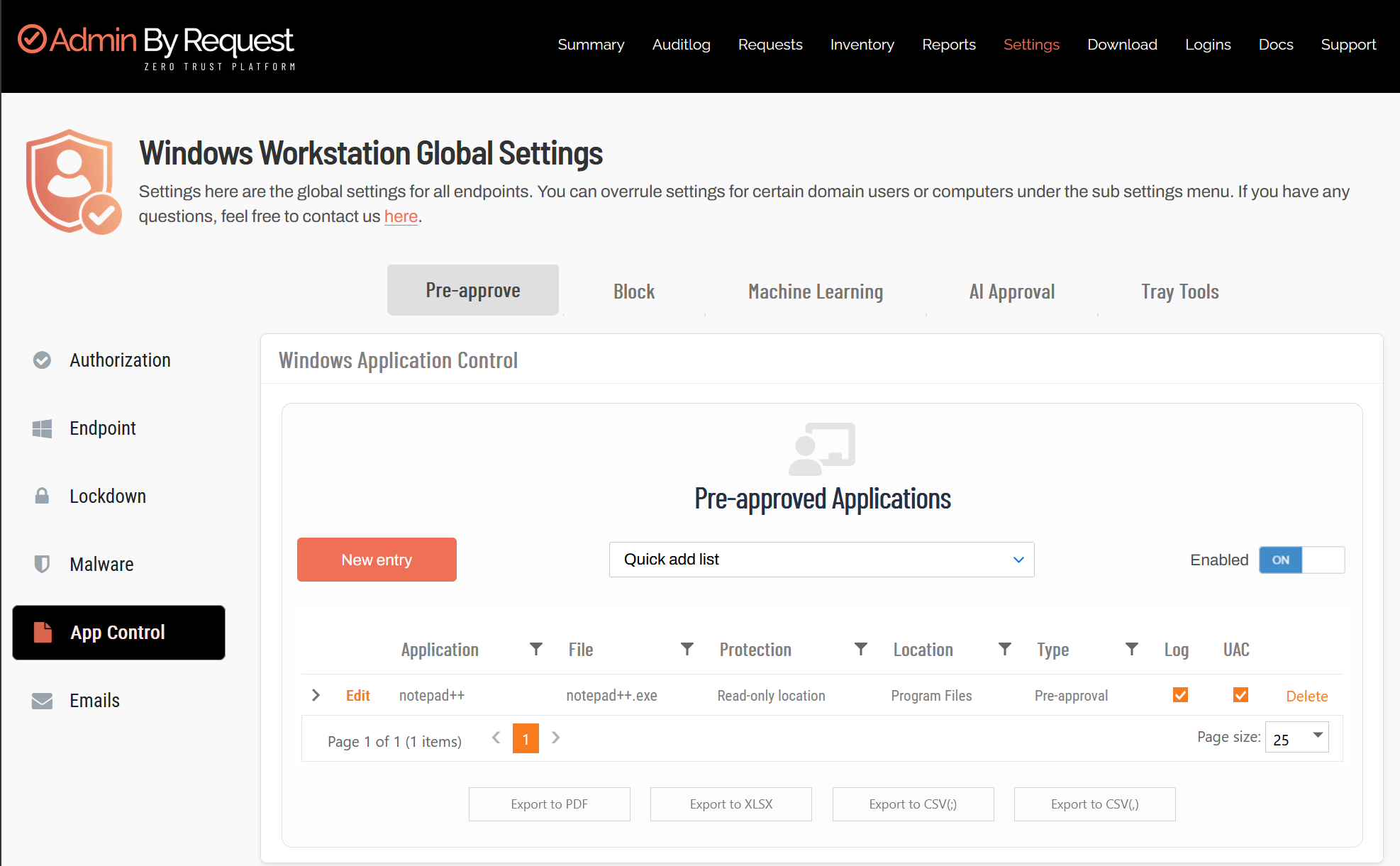
From the sub settings for your platform
This is where you pre-approve applications only for specific groups of users or computers. Everyone else still needs manual approval to elevate the applications.
-
In the main navigation of the portal, open the sub settings for your platform, e.g. Settings > Windows Sub Settings.
-
Find the sub setting you want to edit, and click Edit.
-
In the navigation area on the left, click App Control.
-
On the Pre-approve tab, click New Entry to add a new application, or click Edit to edit an existing configuration.
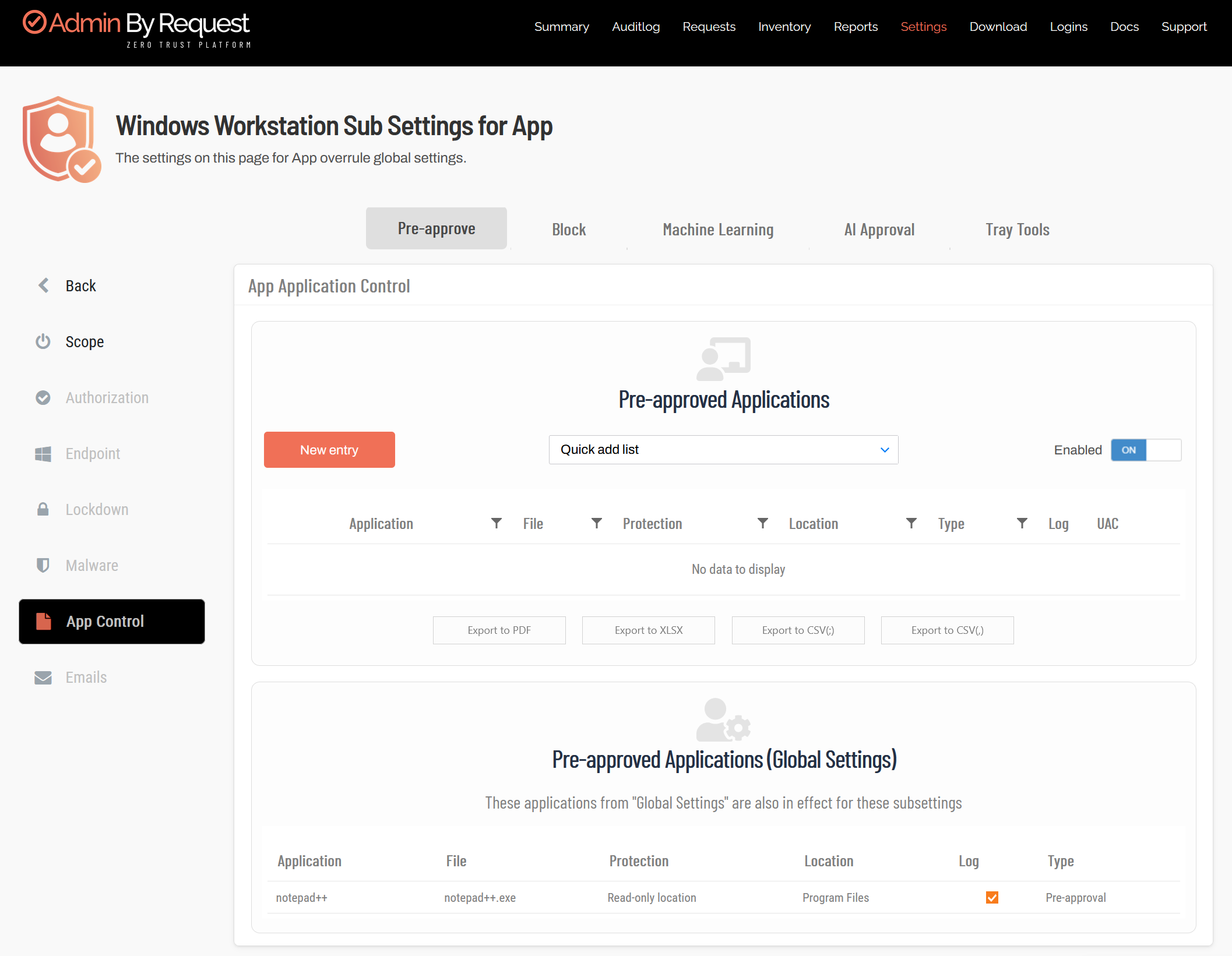
Configuring Pre-Approval
- Windows
- Mac
- Linux
Configuring pre-approval on Windows (EPM)
-
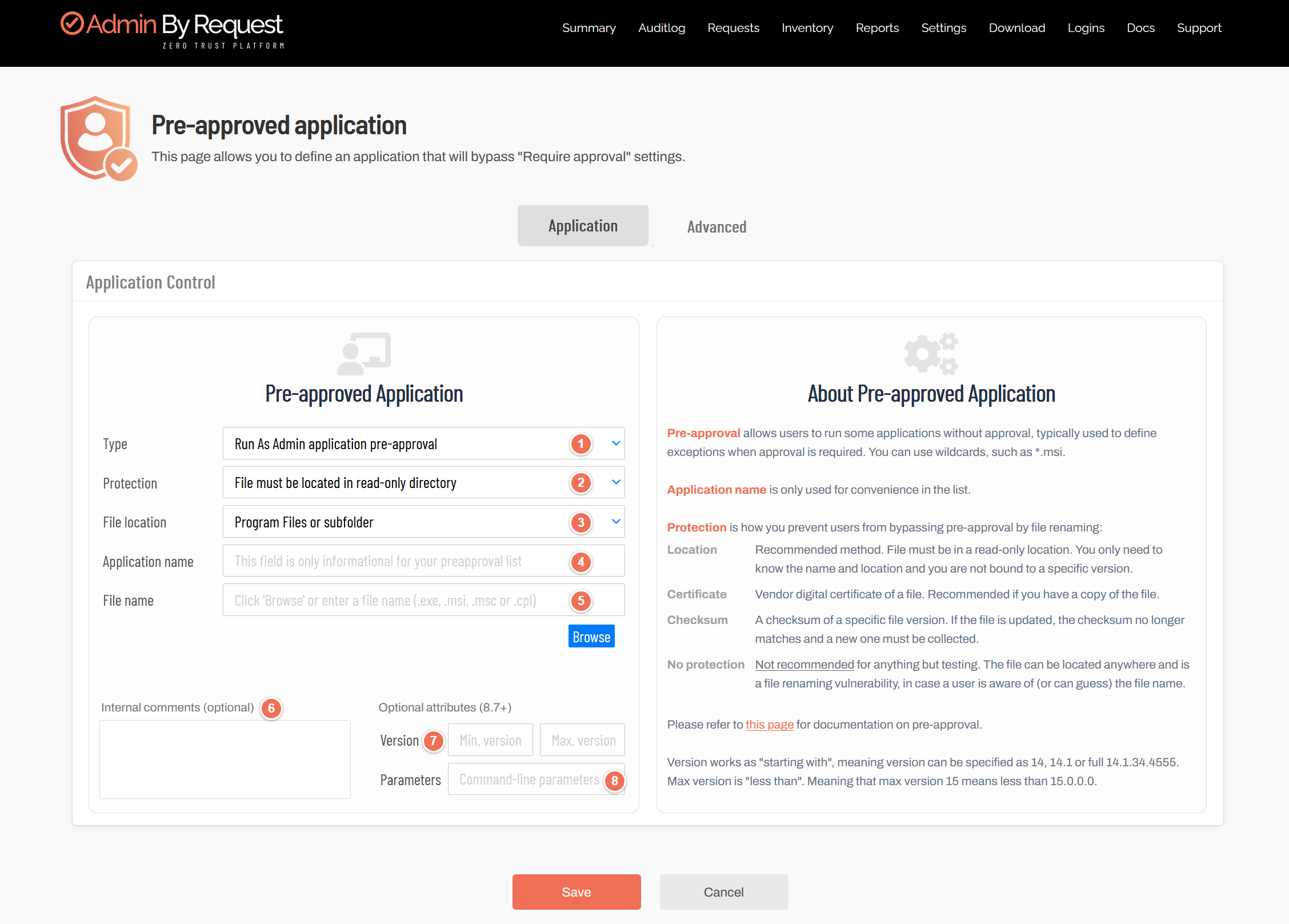
Access the Pre-approved application page.
-
On the Application tab, fill in the fields described in the table below. The numbers in the screenshot refer to the table. Which fields are shown depends on the approval type and protection method you select.
#
Field
Description
Displayed
1
Type
Select the approval type.
Always
2
Protection
Select a protection method.
Application pre-approval and Force running application elevated
3
File location
Select where the file must be located: Program Files or subfolder, Windows directory or subfolder or Custom read-only location.
Protection is File must be located in read-only directory
–
Directory
Enter the directory. You can use the variables
%PROGRAMFILES%,%WINDIR%,%USERPROFILE%and%APPDATA%. For a directory that is not on the local machine, use a UNC path.Location pre-approval, or file location is Custom read-only location
–
Vendor
Click Browse and select a file from the vendor to collect its digital certificate.
Vendor pre-approval, or protection based on a digital certificate
4
Application name
Enter a name that identifies the application in the overview list. This field is only informational. With File must match digital certificate and application name, click Browse to retrieve the name from the file.
Application pre-approval and Force running application elevated
5
File name
Enter the file name, or click Browse to select the file. Allowed file types are exe, msi, msc and cpl. You can use wildcards, for example
*.msi.Application pre-approval and Force running application elevated, unless the protection is based on a checksum or the certificate and application name
–
SHA256 checksum
Click Browse and select the file to collect its checksum.
Protection is File must match checksum
6
Internal comments (Optional)
Add a note or comment about the application.
Always
7
Version (Optional)
Restrict the approval to a range of versions. The minimum version is included, the maximum version is not. For example, a minimum of 1.0 and a maximum of 1.8 approves all versions from 1.0 up to, but not including, 1.8. Version 1.8 and later, and any version below 1.0, still require manual approval. Requires client version 8.7 or later.
Application pre-approval
8
Parameters (Optional)
Enter command-line parameters to pass to the application. Requires client version 8.7 or later.
Application pre-approval
-
On the Advanced tab, you can set the following options:
Option
Description
Default
User confirmation
The application is approved automatically, but the user has to confirm a system message before launching it.
On
Log to auditlog
Launching the application triggers an entry in the auditlog, just like a manual elevation. You can turn this off to avoid cluttering your auditlog with trivial entries. This option is hidden if User confirmation is off.
On
Block subprocesses
Only the application itself is launched elevated, but any subprocesses it spawns are blocked. This is an added layer of security, but will probably prevent installers from working. Decide on a case-by-case basis whether you should turn this setting on or off. Requires client version 8.3 or later.
Off
-
Click Save to save your changes.
Configuring pre-approval on Mac (EPM)
-
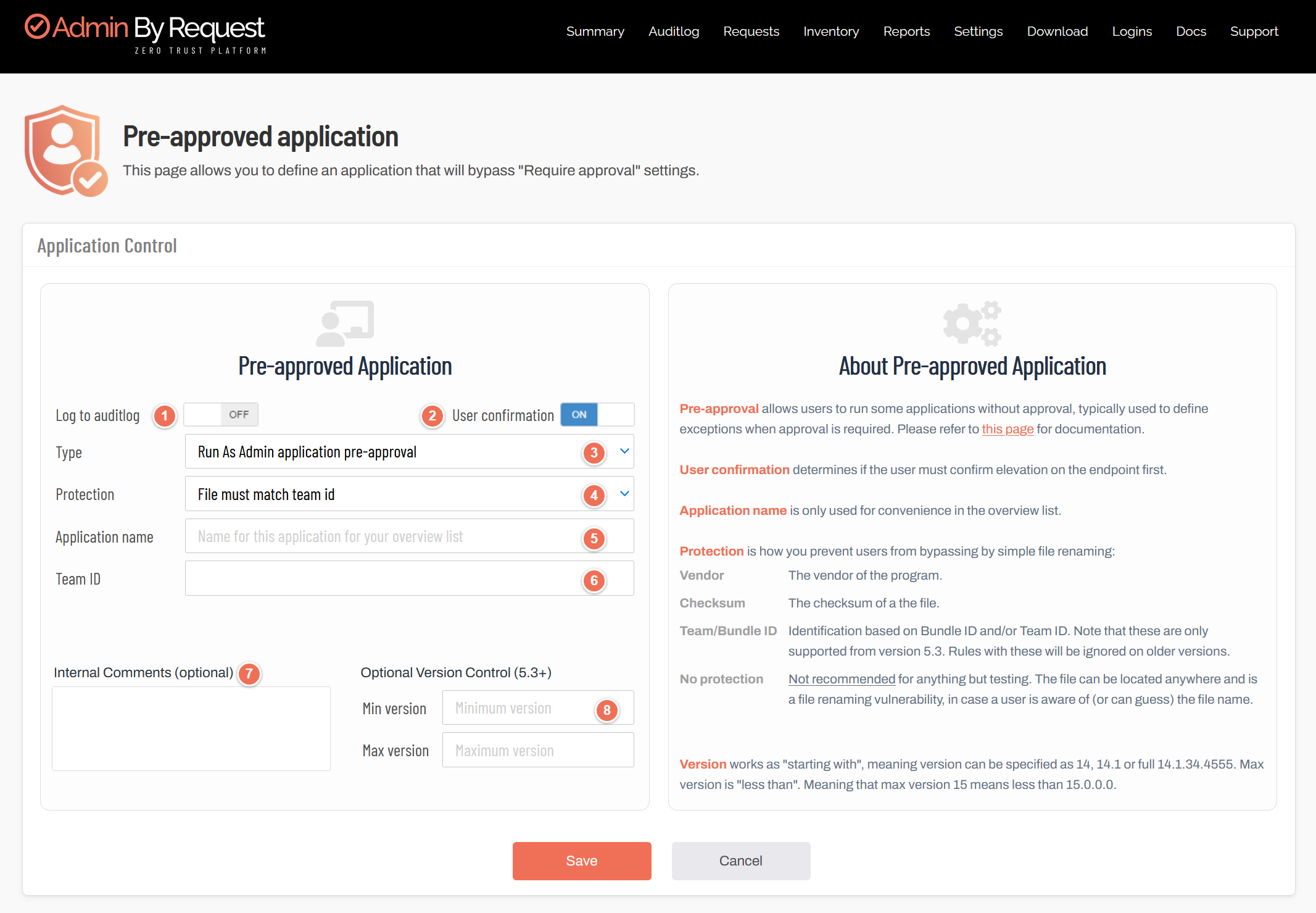
Access the Pre-approved application page.
-
Fill in the fields described in the table below. The numbers in the screenshot refer to the table. Which fields are shown depends on the approval type and protection method you select.
#
Field
Description
Displayed
1
Log to auditlog
Turn this on if the elevation should create an auditlog entry, just like a manual elevation. It is off by default.
For application pre-approval, hidden if User confirmation is off. Otherwise, always shown.
2
User confirmation
Turn this on if the user has to confirm a system message before launching the application. It is on by default.
Application pre-approval
3
Type
Select the approval type.
Always
4
Protection
Select a protection method.
Application pre-approval
5
Application name
Enter a name that identifies the application or command in the overview list. This field is only informational.
Always
6
Team ID
Enter the Team ID of the application.
Protection is File must match team id or File must match team and bundle id
–
Bundle ID
Enter the Bundle ID of the application.
Protection is File must match team and bundle id
–
SHA256 checksum
Enter the SHA256 checksum of the file. The easiest way to get it is to pre-approve the file from the auditlog.
Protection is File must match checksum
–
File path
Enter the absolute path of the command, for example
/usr/sbin/dseditgroup.sudo command pre-approval
7
Internal comments (Optional)
Add a note or comment about the application.
Always
8
Version (Optional)
Restrict the approval to a range of versions. The minimum version is included, the maximum version is not. For example, a minimum of 1.0 and a maximum of 1.8 approves all versions from 1.0 up to, but not including, 1.8. Version 1.8 and later, and any version below 1.0, still require manual approval. Requires client version 5.3 or later.
Application pre-approval
-
Click Save to save your changes.
Configuring pre-approval on Linux (EPM)
-
Access the Pre-approved application page.
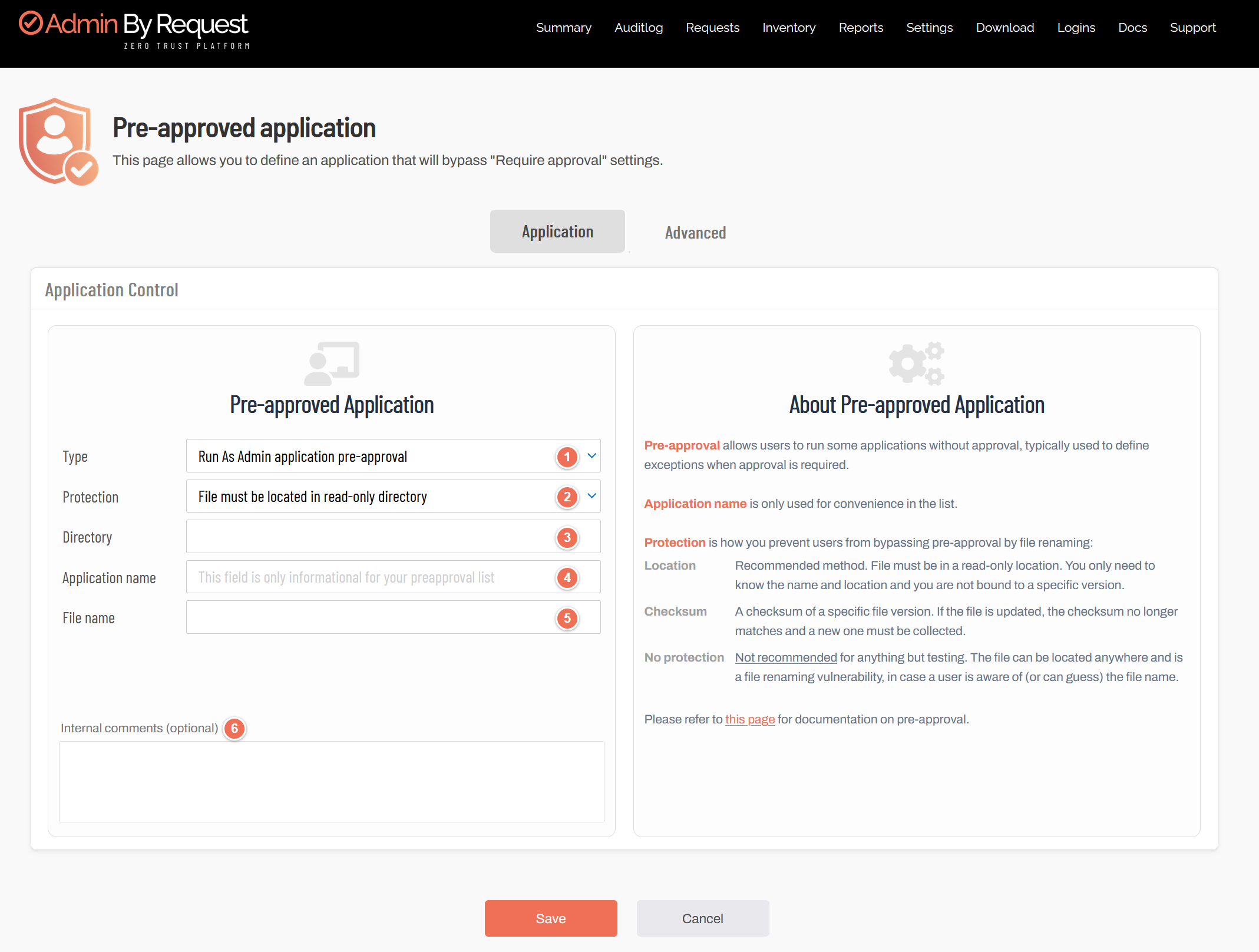
-
On the Application tab, fill in the fields described in the table below. The numbers in the screenshot refer to the table. Which fields are shown depends on the approval type and protection method you select.
#
Field
Description
Displayed
1
Type
Select the approval type.
Always
2
Protection
Select a protection method.
Application pre-approval
3
Directory
For location pre-approval, enter the directory whose files are pre-approved, including sub-folders. With read-only protection, enter the read-only directory where the file is stored.
Location pre-approval, or protection is File must be located in read-only directory
4
Application name
Enter a name that identifies the application in the overview list. This field is only informational.
Application pre-approval
5
File name
Enter the file name of the application.
Application pre-approval, unless protection is File must match checksum
–
SHA256 checksum
Enter the SHA256 checksum of the file.
Protection is File must match checksum
6
Internal comments (Optional)
Add a note or comment about the application.
Always
-
On the Advanced tab, you can set the following options:
Option
Description
Default
User confirmation
The application is approved automatically, but the user has to confirm a system message before launching it.
On
Log to auditlog
Launching the application triggers an entry in the auditlog, just like a manual elevation. You can turn this off to avoid cluttering your auditlog with trivial entries. This option is hidden if User confirmation is off.
On
-
Click Save to save your changes.
Troubleshooting
I pre-approved an installer file, but users still can't install the application.
Check the lockdown settings (Settings > Windows Settings > Lockdown > Run As Admin). A pre-approved application overrules Deny elevating system files, but it does not overrule Deny system file subprocesses. If a pre-approved application starts a blocked System32 process, that process is still blocked. See Pre-approval and subprocess blocking for a detailed technical description.
I pre-approved a file, but users are still asked for authentication.
Check the Endpoint > UAC (Windows, Linux) or Endpoint > Authentication (Mac) page in the global settings for your platform. If you are using multi-factor authentication as your User Account Control / Authentication mode, check whether the MFA on pre-approvals switch is turned on. In this case, users do not need to request approval, but they still need to authenticate.
Users for whom a file should be pre-approved report that they still need to request approval.
Check your sub settings. If a computer or user matches several sub-settings with different pre-approval settings, the first matching sub-setting wins.
Users for whom a file should be blocked report that it is pre-approved for them.
This is due to global pre-approval overriding block sub settings.
Related Topics
Pre-approval is only one aspect of app control, and the different app control settings can influence each other. For information on other app control functionality, refer to the following pages: