Web Access Settings
Introduction
Web Access Management is the Admin By Request policy layer that controls how endpoint users browse the internet and download executable software. Managed from the portal, it gives IT teams centralized enforcement of browser restrictions, site blocking/allow-listing, download governance, MFA-gating, device compliance checks, and malware scanning - without requiring admins to approve every individual action, because trusted sites and downloads can be pre-approved while high-risk activity is blocked, audited, or routed through approval workflows.
Web Access Management is a separate product from Endpoint Privilege Management (EPM) and Secure Remote Access (SRA). It is accessed via the Web Access Management tile on the portal Summary page. Global settings are under Settings > Web Access Settings. Population-level overrides (i.e. Sub-Settings) are managed under Settings > Web Access Sub Settings.
Platform, agent, and licensing
|
Item |
Description |
|---|---|
|
Supported platforms |
Windows only (initial release). Mac and Linux support to be confirmed. |
|
Supported OS versions |
Windows 10 and later |
|
Required agent version |
Admin By Request for Windows v9.0 or later |
|
License model |
Separate SKU from EPM and SRA - not bundled; must be activated independently |
|
Free Plan |
25 endpoints, free with no time limit (same model as EPM and SRA Free Plans) |
|
Paid Plan |
Unlimited endpoints, annual subscription |
Agent upgrade paths: download manually from portal Downloads menu, or request ABR Support to start a tenant upgrade immediately. Without a manual request, auto-update typically takes 4–6 weeks.
Settings structure
Web Access Management settings are organized into two levels:
-
Global settings - the baseline policy applied to all endpoints. Configured under
Settings > Web Access Settings, organized into six sidebar sections. -
Sub-settings - selective overrides for specific user or device populations. Configured under
Settings > Web Access Sub Settings. Each sub-setting can override any combination of the six global sections for matched users/devices; everything else falls through to global.
Global settings sections
|
Authorization, Notification |
|
|
Browsers, VPN, Instructions, MFA, Owner, Intune |
|
|
Detection, Notification |
|
|
Pre-Approved, Blocked, Machine Learning, AI Approval, Policy |
|
|
Pre-Approved, Blocked |
|
|
Request Emails, Ticketing System |
Authorization
Downloads
Controls whether users can download executable files.
|
Field |
Type |
Default |
Behavior |
|---|---|---|---|
|
Allow downloads |
Toggle |
ON |
When OFF, all executable downloads are blocked. The pre-approved list under App Control is the only exception. |
|
Require approval |
Toggle |
OFF |
Only visible when Allow downloads is ON. When ON, every download request must be approved by a portal admin before it proceeds, unless the app appears in the pre-approved list. |
|
Require reason |
Toggle |
OFF |
Only visible when Allow downloads is ON. When ON, the user must provide a reason before the download is initiated; an empty reason field rejects the request. |
The ML auto-approval and AI auto-approval features under App Control only have effect when Require approval is ON. Both pages show a dependency banner when Require approval is OFF:
Browsing
Controls access to the internet.
|
Field |
Type |
Default |
Behavior |
|---|---|---|---|
|
Allow browsing |
Toggle |
ON |
When OFF, browsing is restricted to the pre-approved site list under Site Control. Intended for non-interactive devices; all blocked sites are logged to the audit log. |
|
Request blocked sites |
Toggle |
OFF |
Only available when Allow browsing is ON. When ON, users can request access to sites on the blocked list; access is approved for 2 hours. |
Authorization → Notification
Configures admin email alerts for new approval requests.
|
Field |
Type |
Default |
|---|---|---|
|
Send email notifications |
Toggle |
OFF |
|
Email addresses |
Textarea |
(empty) |
When Require approval is enabled, requests always appear in the portal Requests view. Email notifications are supplemental - for admins not actively watching the portal. One address per line; multiple addresses supported. Phone notifications are handled via the mobile app.
Lockdown
Browsers
Defines which browsers are allowed and their minimum acceptable version. Blocking an outdated or unapproved browser prevents it from being used at the endpoint before it creates risk.
The browser table lists: Chrome, Edge, Firefox, Internet Explorer, and Non-browsers (in-app browser controls). Each row has:
-
Allowed - ON/OFF toggle. ON means the browser is permitted.
-
Min. Version - Text input. Leaving empty means no minimum enforced. Example:
143or143.0.7499for Chrome.
Saving applies to all browsers in the panel at once.
VPN
The VPN tab removes browser-extension VPNs from the endpoint.
Browser VPN extensions install without administrator rights and route browser traffic through their own tunnel, so a user can reach a blocked site or download a file without the traffic passing through Web Access Management policy. This setting, when ON, removes them as they appear.
|
Field |
Type |
Notes |
|---|---|---|
|
Remove browser VPNs |
Toggle |
When ON, a VPN extension added to a supported browser is removed in real time and the browser is restarted. The removal is recorded as a device event, so the events report shows who attempted to install which extension. |
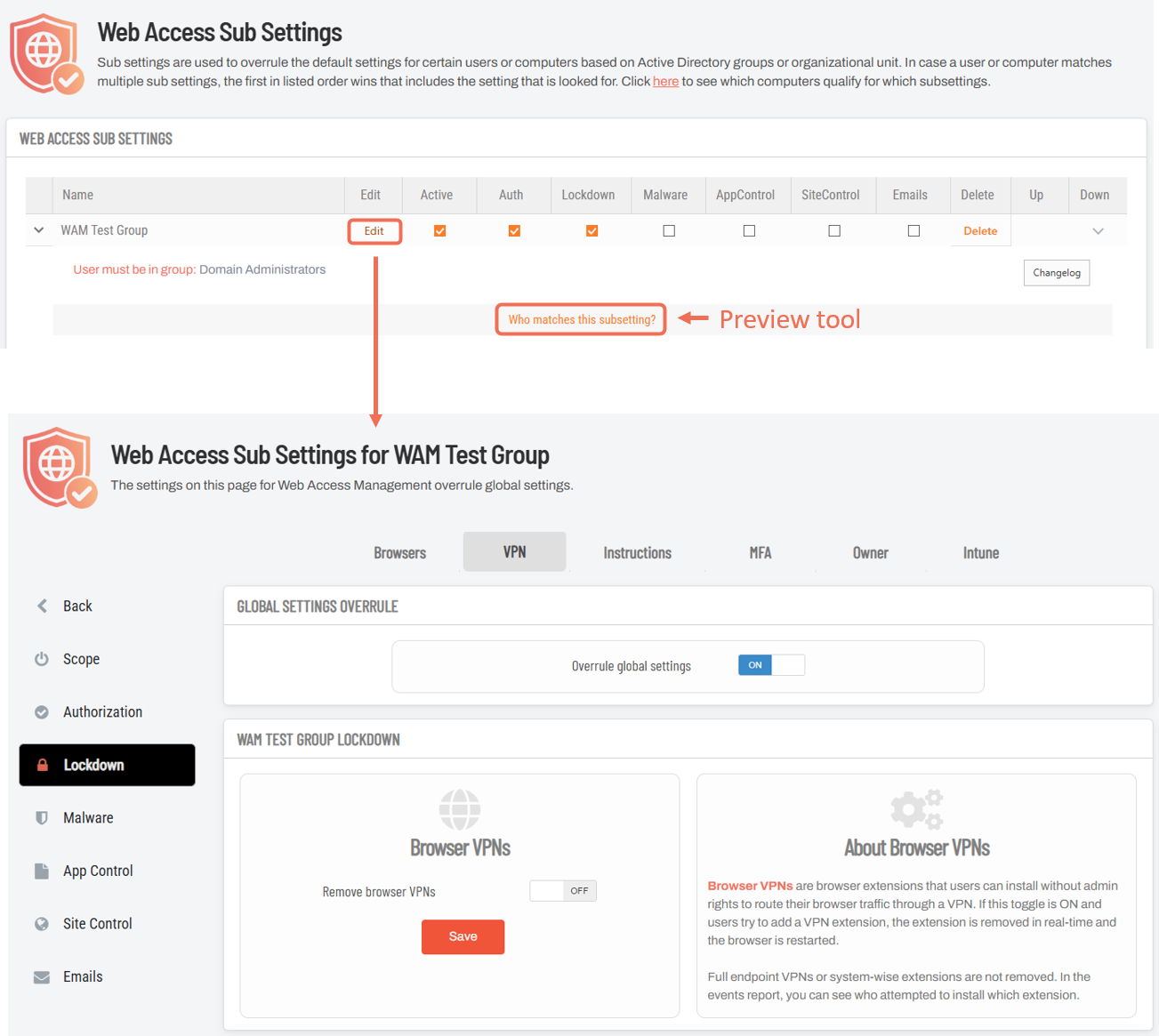
An example sub-setting for VPN, where Domain Administrators in group WAM Test Group inherit the setting Remove browser VPNs OFF, meaning their VPN extensions will not be removed..
Scope
This setting covers per-user browser extensions only. Full endpoint VPN clients and system-wide (per-machine) extensions are not removed.
A full VPN client is not a policy problem in the same way and traffic delivered through its tunnel is still inspected and still audited.
Browser-extension policy enforced through Group Policy or your MDM can still be done alongside this setting.
What the user sees
The endpoint raises a notification reading VPN detected / Restarting your browser to remove VPN extension, the browser closes and reopens without the extension, and an entry appears under Inventory > (device) > Events.
Instructions
Configures user-facing instructions shown before browsing or before downloading. Used for acceptable-use notices, legal disclaimers, or security reminders. Configured independently for browsing and downloading.
|
Field |
Type |
|---|---|
|
Show instructions before [downloading/browsing] |
Toggle |
|
Title |
Text input |
|
Instruction content |
Multiline text editor |
|
Display behavior |
Dropdown: Show only once / once a week / once a month / once a quarter / once a year |
URLs in instruction content are auto-detected and rendered as clickable links on the endpoint. When a toggle is OFF, all fields in that panel are disabled.
MFA
Requires users to re-authenticate via SSO/MFA before an executable download is released.
|
Field |
Type |
Notes |
|---|---|---|
|
MFA required to download |
Toggle |
When ON, enables the fields below |
|
Sign-on method |
Dropdown |
Currently: Microsoft 365 / Entra ID; extensible for other SSO providers |
|
Email match |
Toggle |
When ON, the authenticated SSO identity must match the endpoint user |
When MFA required to download is OFF, Sign-on method and Email match are disabled. Configuration applies at tenant/global level and is distributed via endpoint policy.
Owner
Restricts executable downloads to the assigned device owner. Intended for shared-device environments.
|
Field |
Type |
Notes |
|---|---|---|
|
Only owner can download |
Toggle |
When ON, only the device owner (as set in Inventory) can download executables. Any user can still browse if browsing is enabled under Authorization. |
Owner is managed in Inventory; this setting does not change who the owner is, only enforces the restriction.
Intune
Blocks executable downloads on devices that fail Microsoft Intune compliance checks.
|
Field |
Type |
Notes |
|---|---|---|
|
Must be compliant to download |
Toggle |
Requires the Entra ID Connector to be configured. Browsing may still be allowed depending on Authorization settings. |
Malware
Uses OPSWAT MetaDefender for file scanning. Malicious files are blocked before execution.
Detection
|
Field |
Type |
Default |
Behavior |
|---|---|---|---|
|
Real-time detection |
Toggle |
ON |
Checks file checksum on execution request and blocks if flagged. |
|
Cloud scan unknown files |
Toggle |
ON |
Uploads unknown files for multi-engine cloud scanning via MetaDefender. |
|
Action |
Dropdown |
Quarantine |
What happens to detected files. Quarantine is the default; additional actions depend on endpoint support. |
Cloud-scan file-size limit:
Files larger than 250 MB are not uploaded for cloud scanning. 250 MB is the OPSWAT MetaDefender ceiling (MetaDefender rejects larger files) and is also the default.
It can be lowered via the Windows policy key MaxMalwareScanFileSize (value in MB) under HKLM\SOFTWARE\FastTrack Software\Admin By Request\Policies - for example, set it to 50 to cap cloud uploads at 50 MB and reduce bandwidth on installer-heavy fleets.
A file over the limit whose checksum is not already in the MetaDefender database falls through to local endpoint antivirus rather than being cloud-scanned.
Malware → Notification
Configures real-time email alerts when malware is detected, denied, or quarantined.
|
Field |
Type |
|---|---|
|
Send email notifications |
Toggle |
|
Email addresses |
Textarea (one per line) |
Denied/quarantined events also appear in the portal under Requests or Detected Malware. Email provides real-time alerting for SOC/security teams. At least one valid address is required when toggle is ON.
App Control
Pre-Approved Downloads
Defines downloads that bypass the approval workflow even when Require approval is enabled. A global Enabled toggle controls whether any pre-approval rules are applied.
Rule types:
|
Type |
Required fields |
|---|---|
|
Pre-approve downloads from website |
Root URL (domain or domain + subpath; no scheme required) |
|
Pre-approve download URL |
Direct URL (full URL or partial path; no scheme required) |
|
Pre-approve file checksum |
Application name + SHA256 checksum (64 hex chars); Browse button collects from a local file |
|
Pre-approve vendor (digital certificate) |
Vendor certificate (collected via Browse) |
|
Pre-approve vendor and application name |
Application name + vendor certificate |
Each rule also has an optional Log to auditlog toggle and Internal comments field. Exportable to PDF/XLSX/CSV.
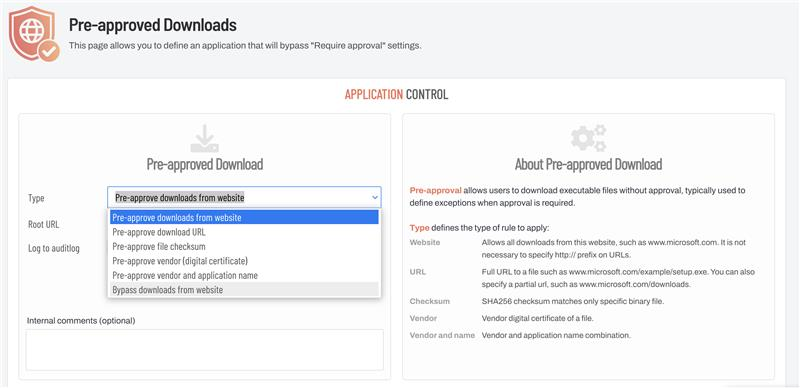
The Pre-approved Downloads rule builder. The Type dropdown lists the five pre-approval rule types; "Bypass downloads from website" is the separate exclude-from-WAM option.
Blocked Downloads
Hard-deny rules for executable downloads. Blocked regardless of other allow rules. Same five rule types as pre-approved downloads, plus an optional Blocking message field (shown to the end user when blocked). Global Enabled toggle controls enforcement.
Machine Learning Auto-Approval
Automatically approves future requests for applications that have already been manually approved a configured number of times. Only has effect when Require approval is ON (shows a dependency banner when OFF).
|
Field |
Type |
Range |
|---|---|---|
|
Enabled |
Toggle |
- |
|
Approvals |
Slider |
1–10 (discrete steps) |
The Approvals value is the number of prior manual approvals needed before an application becomes auto-approved going forward. Endpoint behavior matches the configured threshold exactly after the next policy sync; no restart required.
AI App Auto-Approval
Uses the ABR AI scoring engine to auto-approve requests for common/low-risk applications in real time. Only has effect when Require approval is ON. Contains two independent scoring dimensions:
AI App Auto-Approval
|
Field |
Type |
Range |
|---|---|---|
|
Enabled |
Toggle |
- |
|
App Score |
Slider |
0–100 (discrete steps of 1) |
Applications are scored by popularity, reputation, and trends. Requests for applications with App Score ≥ configured threshold are auto-approved; those below follow the normal approval workflow. App Score values are visible in the Audit Log.
AI Vendor Auto-Approval
|
Field |
Type |
Range |
|---|---|---|
|
Enabled |
Toggle |
- |
|
Vendor Score |
Slider |
0–100 |
Scores software publishers rather than individual applications. When a vendor's Vendor Score meets the configured threshold, all applications from that vendor are auto-approved regardless of their individual App Score. Operates independently of AI App Auto-Approval - both can be enabled simultaneously.
Both dimensions require Require approval to be ON and show a dependency banner when it is OFF.
Policy (Strict Enforcement)
The fifth App Control tab holds a single Approval Policy panel with one toggle.
|
Field |
Type |
Default |
Behavior |
|---|---|---|---|
|
Strict enforcement |
Toggle |
OFF |
When OFF, approval/MFA is enforced only for known browsers and known tools; other executable downloads (in-app updaters and "everything else") pass through audited but uninterrupted. When ON, approval/MFA is enforced for all executable downloads in user space, including user-profile-installed app updaters. |
About Approval Policy:
Strict enforcement means that approval and/or MFA is enforced for all executable downloads in the user space, including user profile installed app updaters. When off, enforcement is only for known browsers and tools.
Unless in a highly locked down environment, this setting is recommended off as apps may not support an interrupted download flow. All executable downloads are still reported to the portal with strict enforcement off.
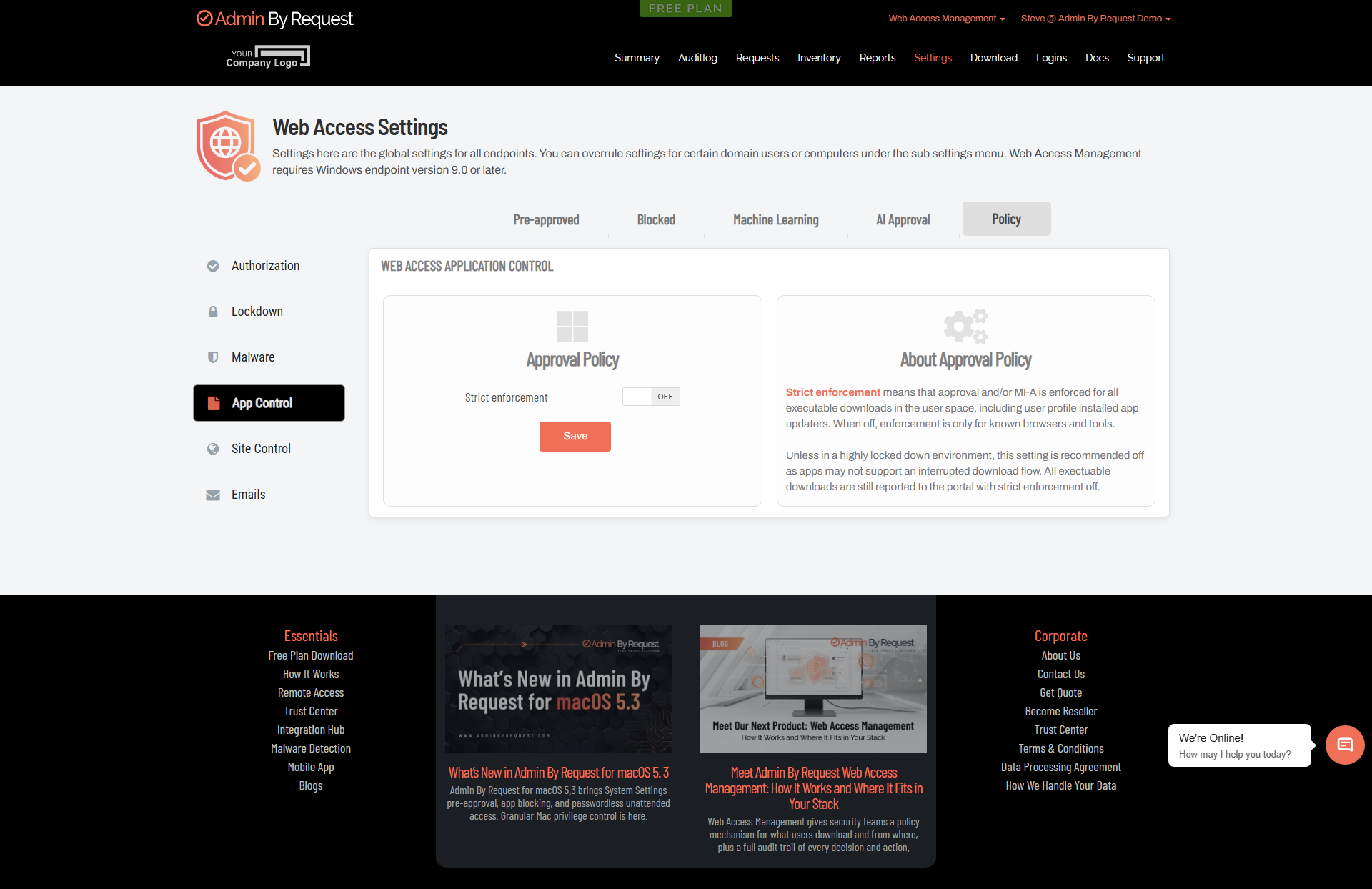
The App Control > Policy tab (Settings > Web Access Settings > App Control > Policy)
Site Control
Pre-Approved Sites
Defines sites that bypass browsing approval/restrictions. Global Enabled toggle. Each rule is a Root URL (domain or domain + subpath; no scheme required) with optional Log to auditlog and Internal comments. Exportable.
Blocked Sites
Tenant-wide blocked site rules. Prevents access to specified URLs. Global Enabled toggle. Each rule is a Root URL with optional Blocking message (shown to user) and Log to auditlog. Normalization prevents duplicates from whitespace/case/trailing slash differences. Exportable.
Site access requests (when Request blocked sites is ON under Authorization) are approved for 2 hours.
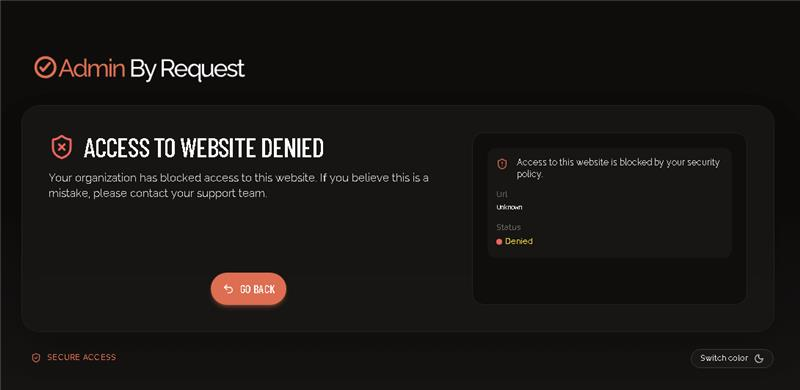
What the end user sees when a site is on the Blocked Sites list. The optional per-rule Blocking message replaces the default explanatory text.
Emails
Request Emails
A template editor for all emails generated by Web Access Management events. Select a template from the dropdown to load, edit, preview, and save it. "Get default" resets the editor fields to the product default without saving.
Available templates (exact names):
|
Template |
Triggered by |
|---|---|
|
Download: Approved email |
Admin approves a download request |
|
Download: Denied email |
Admin denies without a reason |
|
Download: Denied with reason |
Admin denies with a reason; |
|
Site Access: Approved email |
Admin approves a site access request |
|
Site Access: Denied email |
Admin denies without a reason |
|
Site Access: Denied with reason |
Admin denies with a reason |
|
Admin notify: New download request |
User creates a new download request |
|
Admin notify: New site access request |
User creates a new site access request |
|
Admin notify: Malware detected |
Endpoint detects malware (requires Malware Notification enabled) |
Per template: Email sender (display name), Email sender address, Email subject, Body (rich-text editor with Design / HTML / Preview view modes: these switch how you view the same template, not separate saved versions). Tags use {CurlyBrace} syntax; unsupported tags are treated as plain text. Stored HTML is sanitized against script injection.
Ticketing System
Configures email-based notifications to an external ticketing system for download and site access events.
|
Toggle |
Default |
|---|---|
|
User requests download |
OFF |
|
Admin approves download |
OFF |
|
Admin denies download |
OFF |
|
User requests site access |
ON |
|
Admin approves site access |
OFF |
|
Admin denies site access |
OFF |
Fields: Ticket system email address, Email sender, Email subject, Priority (Normal default). Supports dynamic content tags in the same {CurlyBrace} tag format.
Sub-Settings
Portal menu: Settings > Web Access Sub Settings
Sub-settings allow global Web Access Management policy to be selectively overridden for specific user or device populations. A single tenant can apply different policies to different groups - for example, stricter download controls for finance, relaxed browsing restrictions for IT staff, or a locked-down pre-approved-list-only mode for kiosk devices - without creating separate tenants.
Override model
Sub-settings do not replace the entire global configuration. Each of the six sidebar sections (Authorization, Lockdown, Malware, App Control, Site Control, Emails) can be independently enabled or disabled within a sub-setting group. Only sections that are enabled in the sub-setting override the corresponding global setting for matched users/devices. Sections left disabled fall through to global.
Priority and ordering
-
Sub-settings are evaluated in listed order, top to bottom.
-
The first sub-setting that matches the user/device and has the relevant section enabled wins for that section.
-
A user/device can match multiple sub-settings, but only the first match per section takes effect - no merging or additive behavior.
-
Order is adjustable in the portal list view by dragging.
Creating a sub-setting group
-
Navigate to
Settings > Web Access Sub Settingsand click New. -
Enter a Name and click Update. The group appears as (Inactive) - it has no scope and no overrides.
-
Click Edit to configure Scope and overrides.
A group with no scope matches no endpoints and has no effect even if enabled.
Scope tab
The Scope tab defines which users and/or devices the group applies to. All defined scope conditions must be met simultaneously - scope types combine with AND logic. Within a single scope type, the match is OR (user must be in at least one listed group).
User scope - Active Directory security groups (by name) or Entra ID / Azure AD groups (requires Entra ID Connector). Multiple groups entered one per line.
Computer scope - Organisational Units in any of these formats:
|
Format |
Example |
Behavior |
|---|---|---|
|
Bottom-level name only |
|
Matches any OU named Sales, anywhere in the directory tree |
|
Root path with backslashes |
|
Matches the OU at that specific path from domain root |
|
Fully distinguished name |
|
Exact match |
Combined scope - if both user groups and computer OUs are defined, both conditions must be met. Leaving one side empty means that dimension is not evaluated.
Comments tab
Free-text documentation field. Records business purpose, owner, and group structure. Visible when expanding the sub-setting row in the list view. Has no effect on policy evaluation.
Clone tab
Creates a complete copy of the sub-setting group. The clone appears below the source in list order, set to inactive by default. Useful for creating variant policies with minor differences.
Configurable settings per section
All settings available at global level are configurable in sub-settings. The following notes apply to sub-setting-specific behavior:
-
Authorization - Download and browsing toggles, Notification email addresses. When the Authorization section is enabled in a sub-setting, all Authorization settings for matched users/devices come from the sub-setting.
-
Lockdown - Browsers (per-browser allowed and minimum version), VPN (removal of browser VPN extensions), Instructions (content and display frequency), MFA (method and email match), Owner (only owner can download), Intune (compliance gating).
-
Malware - Detection settings and malware notification email recipients. Enables different SOC teams to receive alerts for different populations.
-
App Control - When enabled in a sub-setting, the sub-setting's pre-approved and blocked lists apply instead of the global lists for matched users/devices. Machine Learning and AI auto-approval thresholds are also independently configurable per sub-setting.
-
Site Control - Sub-setting pre-approved and blocked site lists apply instead of global lists for matched users/devices when this section is enabled.
-
Emails - Email templates for all approval outcomes and admin notifications. When overridden, matched users/devices receive emails rendered from the sub-setting templates rather than global templates.
Diagnostic tool
To verify which sub-settings a device currently qualifies for:
Settings > Web Access Sub Settings > [Expand sub-setting name] > [Click "Who matches this subsetting?"]
Download processing flow
When a user downloads an executable, Web Access Management evaluates policy in sequence - allow/deny rules, approval requirement, MFA, Intune compliance, and owner restriction - then scans the file with OPSWAT MetaDefender, and finally releases, blocks, or quarantines it.
The download does land on the endpoint during this process, but it is held in a protected, user-inaccessible staging area while the policy checks and malware scan run. It is released to the user-accessible filesystem only after all controls pass; otherwise it is blocked or quarantined and never reaches the user.
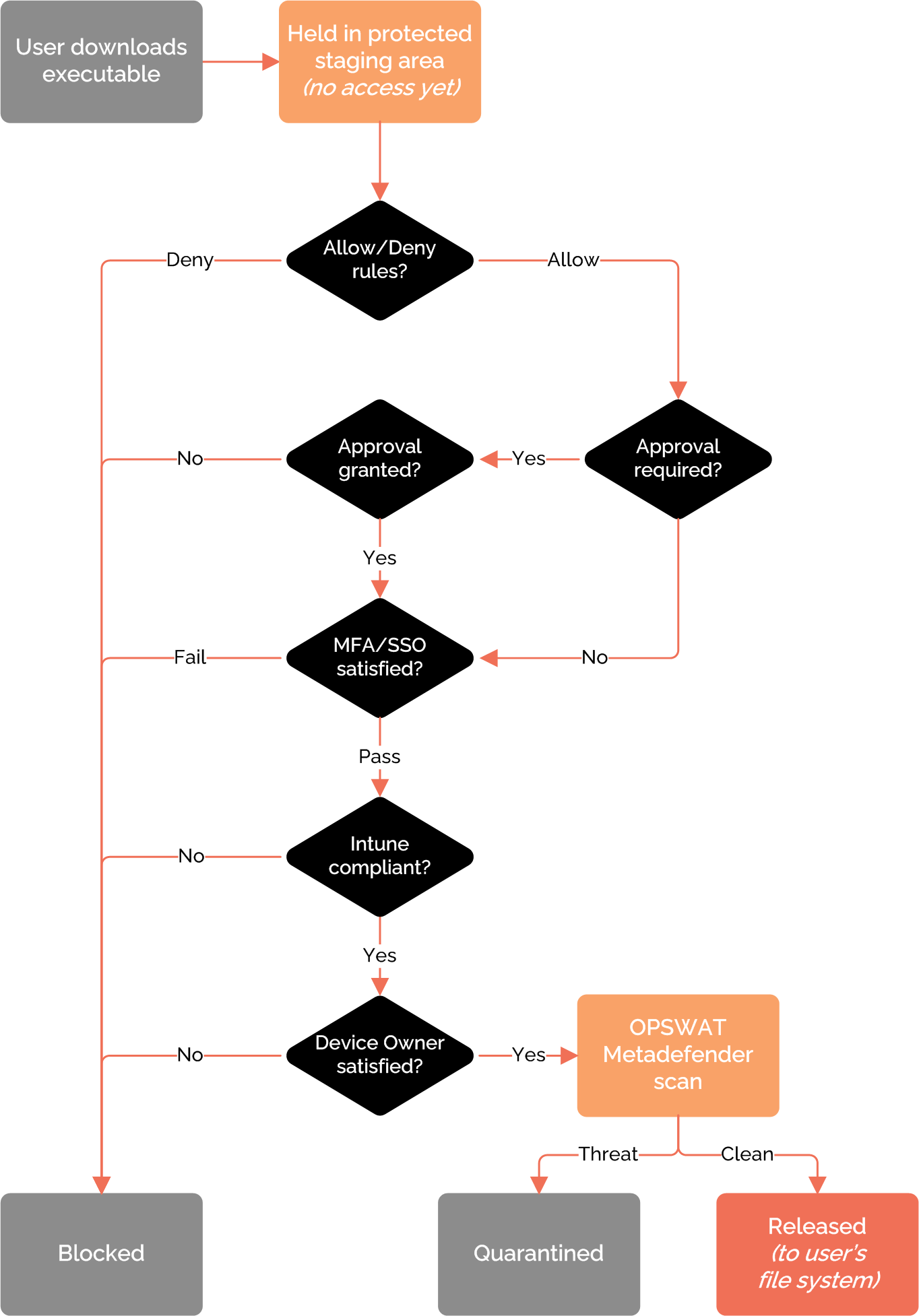
Download evaluation order. A failure at any gate blocks the file and a malware hit quarantines it; only a file that passes every control and scans clean is released to the user file system.
Approval flow summary
When Require approval is enabled for downloads or Request blocked sites is ON:
-
User attempts a download or visits a blocked site on the endpoint.
-
Request is created and appears in the portal Requests view.
-
If admin email notifications are configured (Authorization → Notification), recipient admins receive an email.
-
Admin approves or denies in the portal (or via mobile app).
-
For site access: approval is valid for 2 hours, after which the user must request again.
-
For downloads: if ML or AI auto-approval conditions are met, the request is auto-approved without admin action.
-
Outcome email (approved / denied / denied-with-reason) is sent to the user using the configured template - the sub-setting template if matched, otherwise global.
Audit logging
All browsing blocks, download decisions (approved, denied, auto-approved, blocked by rule), and malware detections are written to the Web Access Management audit log.
Per-rule Log to auditlog toggles on App Control and Site Control entries allow granular control over which pre-approved/blocked rules generate audit entries. Approval-related events (approvals and denials) are recorded regardless of the per-rule log toggle, as part of the approval workflow history.
Ordinary allowed browsing is not logged (a "by design" privacy choice): the only browsing recorded is blocked-site visits and visits to sites pre-approved with logging enabled.
There is no setting to log all browsing and no wildcard (such as *.com) to capture every site, so the audit log gives full visibility into downloads but not into general web browsing.