4 Scenario-Based Risk Management
4.1 Introduction
This section describes potential scenarios that you, the customer, can remediate to minimize downtime while we, the service provider, resolve the issue.
This article does not describe the steps and processes to be taken by Admin By Request to recover from disasters and other such unforeseen events - that information is covered in our internal company BC / DR plan.
4.2 Service Outage Scenarios
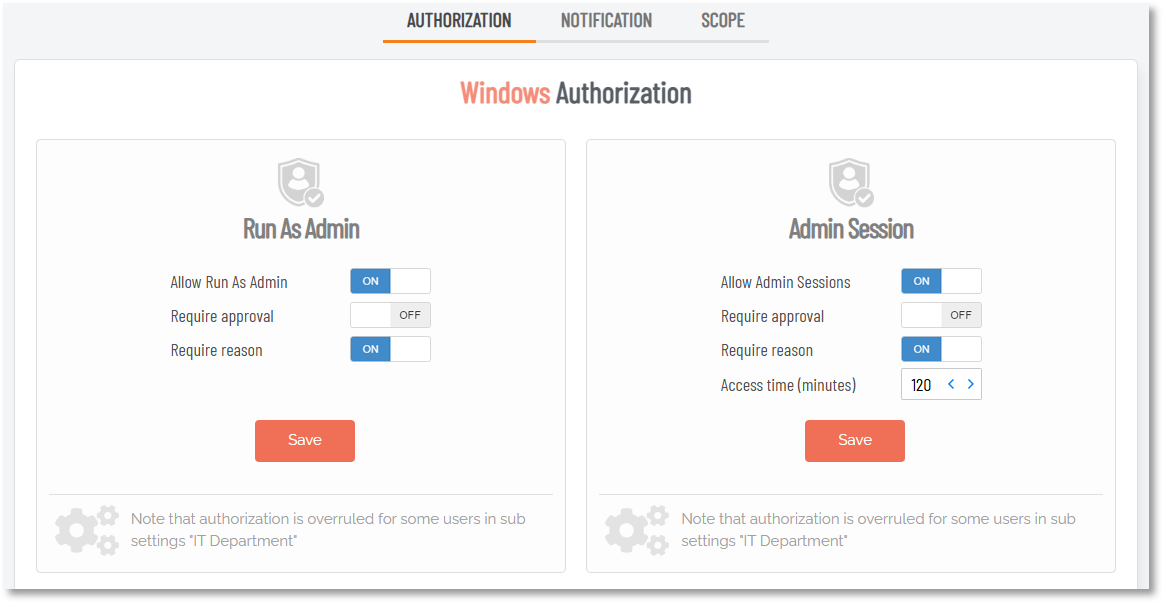
For these types of scenarios, it is important to understand the different result for organizations that are using Require approval mode (where users require approval of requests before elevation) and organizations that are not (where users do not need their requests approved in order to gain elevation). An example of a portal setting that illustrates approval not required is shown in the following image:
Many customers opt not to use Require approval mode at all. They use Admin By Request as an auditing tool with roadblocks to prevent obvious abuse (such as Require reason, blacklists, etc.) and assurance of malware protection (OPSWAT MetaDefender).
For these customers, the business impact of a service outage scenario is always low, because the end user experience stays the same – even in worst cases.
These points are illustrated in the following scenarios.
In this article, the definition of an acceptable period of time is determined by each customer’s RTO.
Customers not using Require Approval mode
For service outage scenarios where the customer is not using Require approval mode, the result and business impact will be similar to that described below.
4.2.1 Scenario: Worst-case all systems non-functional
This scenario covers both short and extended time periods.
Description: The entire Admin By Request service is non-functional for what is considered an acceptable or unacceptable period of time including website, APIs and mobile app.
Result: Users function normally from their endpoints, as their requests do not need to wait for approval. The current settings at the time of the service outage are maintained throughout, however editing of settings is unavailable. Any uploads to the Auditlog are queued on the endpoint and will upload when the service is functioning again. Once service is restored and all endpoints have worked through their upload queues, the Auditlog will appear as if the service was never down.
Business Impact Rating: LOW
Customers using Require Approval mode
For customers using Require approval mode, service outages can cause varying results and business impacts, illustrated in the following scenarios.
4.2.2 Scenario 1: Worst-case all systems non-functional (short)
This scenario covers only short or acceptable time periods.
Description: The entire Admin By Request service is non-functional for an acceptable period of time, including website, APIs and mobile app.
Result: Users cannot get approval of requests, which sit on endpoints until the service is up again. When this happens, requests are updated from the endpoint to the API. User experience is that response time is longer than usual. Administrators cannot access the Auditlog or other portal pages during the incident.
Business Impact Rating: MEDIUM
Remedial Actions: None.
4.2.3 Scenario 2: Worst-case all systems non-functional (extended)
This scenario covers extended or unacceptable time periods.
Description: The entire Admin By Request service is non-functional for an unacceptable period of time, including website, APIs and mobile app.
Result: Users cannot get approval of requests, which sit on endpoints until the service is up again. When this happens, requests are updated from the endpoint to the API. User experience is that response time is considerably longer than usual. Administrators cannot access Auditlog or other pages during the incident.
Business Impact Rating: HIGH
For Windows, set the AutoApprove and EnableAppElevations registry keys to temporarily allow elevations without approval. These keys are for Admin Session and Run As Admin respectively:
-
Open the Group Policy Management Editor from the Windows search bar (Edit group policy in menu)
-
Go to Computer Configuration > Preferences > Windows Settings > Registry
-
Policies are set under the following registry key:
CopyHKEY_LOCAL_MACHINE\Software\FastTrack Software\Admin By Request\PoliciesKeyPath must be Software\FastTrack Software\Admin By Request\Policies
-
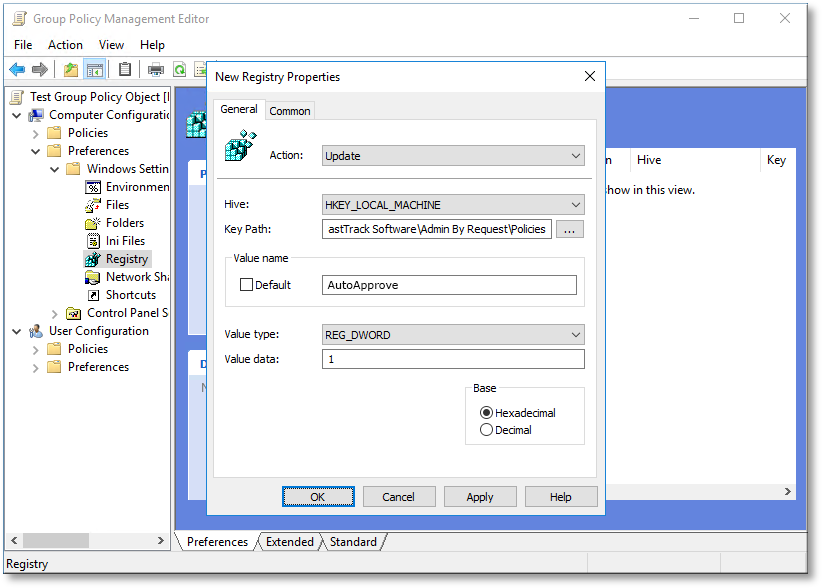
Set the AutoApprove registry key to 1 (for Admin Session):
-
In the same way, set the EnableAppElevations registry key to 1 (for Run As Admin).
More on this here: Policies for Windows.
For macOS, set theRequireApproval and EnableAppElevations policy values to temporarily allow elevations without approval:
-
Go to /Library/Application Support/Admin By Request/adminbyrequest.policy
-
Edit the file so that it includes setting the RequireApproval boolean value to 0 (false) and EnableAppElevations to 1 (true):
Copy{
"RequireApproval" : "0",
"EnableAppElevations": "1"
}More on this here: Policies for Mac.
Once a contingency scenario is over, do not forget to reset any endpoints where approvals have been temporarily disabled.
4.2.4 Scenario 3: Service ceases to operate
Description: The entire Admin By Request service ceases to operate indefinitely or permanently, including the website, APIs and mobile app.
Note that this scenario is unrealistic because you pay a subscription for the Admin By Request service. Therefore, you would be made aware if our service were to cease operating.
Result: Users cannot get approval of requests, which sit on endpoints until the service is up again. When or if the service is up, requests are queued, and the user experience is an exceptionally long approval time.
Business Impact Rating: CRITICAL
Remedial Actions:
-
Option 1: As a temporary solution while planning a replacement, set the AutoApprove and RequireApproval registry keys to temporarily allow elevations without approval. See Remedial Actions:.
-
Option 2: Uninstall Admin By Request on endpoints and install a replacement solution.
4.3 Software Failure Scenarios
These scenarios cover individual aspects of Admin By Request's cloud-based service:
-
Website is Down
-
Mobile Application is Down
-
Support Assist Feature is Unavailable
Customers using Require Approval mode
For customers that use Require approval mode only - the scenarios do not apply if users do not require approval.
4.3.1 Scenario 1: Website is Down
Description: The Admin By Request website is entirely non-functional for a short / extended period of time.
Result: IT administrators are not able to use the website for any function, including approving requests, viewing the Auditlog and configuring settings. Users may have to wait longer than usual for requests to be approved.
Business Impact Rating: LOW
Remedial Actions: Perform all functions using the Admin By Request mobile application on any iPhone, iPad or Android device, apart from change settings, which is unavailable via the app.
4.3.2 Scenario 2: Mobile Application is Down
Description: The Admin By Request mobile application is entirely non-functional for a short / extended period of time.
Result: IT administrators are not able to use the mobile app for any function, including approving requests and viewing the Auditlog. Administrators out of the office will not be able to approve requests on the move via the mobile app. Users may have to wait longer than usual for requests to be approved.
Business Impact Rating: LOW
Remedial Actions: To use Admin By Request on a mobile device, log in to the website user portal from the internet browser of a mobile device.
4.3.3 Scenario 3: Support Assist Feature is Unavailable
Description: The Admin By Request Support Assist feature is non-functional for a short or extended period of time.
Result: End users who are not able to self-service (either due to lacking IT skills or having Run As Admin and Admin Session disabled) cannot use the Support Assist feature to gain elevation.
Business Impact Rating: LOW
Remedial Actions: Log out the user who is unable to self-service or use Support Assist and log the Help Desk person in to perform the task that requires elevation.
4.4 Loss of Communication Scenarios
These scenarios cover situations where Admin By Request's support services and/or key contacts are unavailable, unresponsive or cannot be contacted.
4.4.1 Scenario 1: Service Provider General Support is Unavailable or Unresponsive
Description: Attempted contact with the service provider by the customer is unsuccessful – no reply or answer in a timely manner.
Result: Customers cannot get general support from service provider.
Business Impact Rating: LOW
Try all possible means of contact:
-
Option 1: Create a support ticket, using either the Admin By Request portal or the main website, which will return a response within one business day.
-
Option 2: Contact your Admin By Request account executive (the representative you purchased the software subscription from).
-
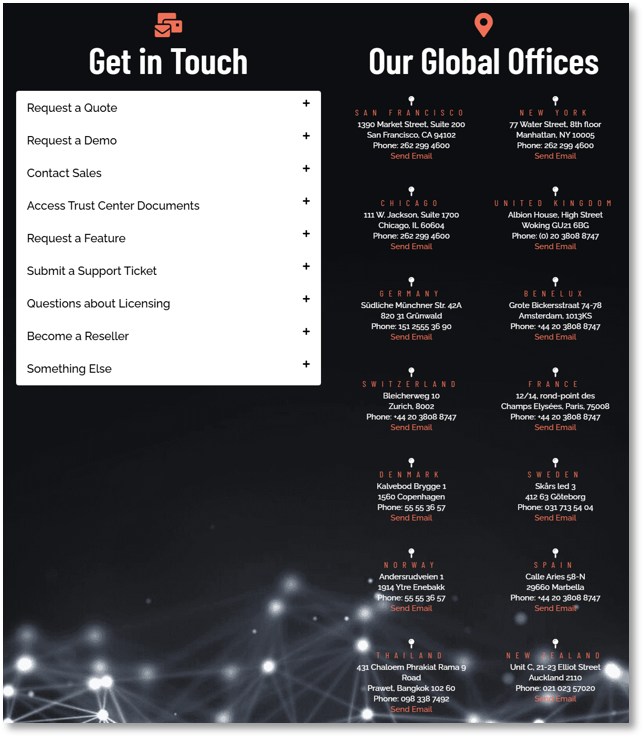
Option 3: Use any of the listed mechanisms for contact on the Admin By Request website Get in Touch page:
-
Option 4: Use the contact Information from Key Personnel.
4.4.2 Scenario 2: Customer’s Key Contact in Service Provider is Suddenly Unresponsive
Description: The customer’s Admin By Request account executive (the representative you purchased the software subscription from) is suddenly unresponsive to attempted contact.
Result: Customers cannot get general or specific support from service provider or service provider key contact.
Business Impact Rating: LOW
Remedial Actions: See Remedial Actions:.
4.5 Cyber Attack Scenarios
4.5.1 Scenario 1: Hackers Reveal Cyber Attack on Service Provider
Description: It is revealed online that Admin By Request has suffered a security breach and customer data has been compromised (before the service provider is aware or has contacted customers about the issue).
Result: Customer may have had data compromised. Customer may suffer disruption to normal business operations due to downtime while the issue is being resolved, damage to reputation and uncertainty in the workforce. Relationship and/or contract with service provider may be damaged or terminated.
Business Impact Rating: HIGH
Remedial Actions: Activate own organization’s remediation plan / DRP. Admin By Request personnel will keep you informed at every stage of the recovery process. See the Data Processing Agreement on our website for more information.
4.6 Customer-Instigated Scenarios
4.6.1 Scenario 1: Customer Fails to Renew Subscription
Description: A customer fails to renew their subscription with Admin By Request, either by accounting or other error.
Result: The customer’s plan reverts from the paid version to the free plan.
Business Impact Rating: LOW
Remedial Actions: Contact your Admin By Request account executive as soon as possible. If unavailable or unresponsive, use one of the options listed in Remedial Actions:.