Admin Guide for New MSPs
Overview
Admin By Request (ABR) is a platform made up of separately licensed products. Its Endpoint Privilege Management (EPM) product is designed to solve the security and productivity challenges relating to local administration rights within today’s security conscious and highly distributed enterprises, and its Secure Remote Access (SRA) product provides remote access to managed devices. The products are described in The product set, in section 2.
With EPM, during routine use, employees achieve optimum productivity by using secure methods to safely elevate everyday trusted tasks. IT departments achieve significant time and resource savings as employee requests for elevation are offloaded and routed through streamlined, fully audited and automated workflows.
This guide covers portal administration for Managed Service Provider (MSP) accounts. The customer tenants managed through an MSP account may contain Windows, macOS, and Linux endpoints; the concepts and procedures documented are about managing those tenants from the portal, not about any one endpoint platform.
The guide is written for an IT admin team at an MSP that has just signed up with Admin By Request. It assumes you are technically capable, but new to these products. Each major task is preceded by just enough background to make the procedures understandable, and the procedures are written as numbered steps you can follow in order.
This technical note is available in PDF format:

In this guide
1. Introduction
Who this guide is for and how to read it
You are reading this because your MSP has just signed up with Admin By Request and you will be running it on behalf of your customers: provisioning new customer environments, deploying agents, managing who can log in, handling licensing and billing questions, and dealing with the day-to-day support issues that come up. If you read it start to finish you will have a working mental model of how the MSP side of Admin By Request fits together. If you come back to it later, each section stands on its own, and sections 11 and 12 are built for quick reference when something needs fixing.
A note on terminology before we begin, because the names overlap:
-
Admin By Request is both the company and the platform. Where this guide says Admin By Request, it means the company or the platform as a whole: the Admin By Request portal, an Admin By Request tenant, Admin By Request support.
-
The platform is sold as separate products: EPM Workstation and EPM Server (Endpoint Privilege Management), Web Access Management (WAM) and Secure Remote Access (SRA). Where a statement applies to one product rather than the platform, this guide names that product.
The most important vocabulary (tenant, sub-tenant, datacenter, subscriber account, and so on) is defined in the glossary in section 13, and the first time each term appears it is explained in context.
What Admin By Request EPM does
Admin By Request EPM is an endpoint privilege management product. The core idea is to remove standing local administrator rights from end users' Windows, macOS, and Linux machines, and then hand back administrator-level access in a controlled, audited, time-bound way when it is actually needed. The moving parts are:
-
A lightweight agent installed on each managed endpoint. The agent intercepts actions that require administrator rights and applies your policy to them.
-
A cloud-managed portal where you configure policy, review activity, and approve or deny requests.
-
An approval workflow so that when a user needs elevated rights, the request can be auto-approved by rules, approved by an administrator, or denied, with the full history written to an audit log.
Every one of these capabilities is available in each customer tenant you create, which is what makes Admin By Request EPM practical to set up quickly for a new customer.
How the MSP model differs from a standalone Admin By Request tenant
A normal Admin By Request customer is a single company managing a single Admin By Request environment. Their IT team logs into one portal and handles everything in one place. That single environment is called a tenant: an isolated Admin By Request instance with its own settings, its own audit log and inventory, its own license counts, and its own user logins.
An MSP does not manage one tenant. It manages many, one per customer, and it needs to do so without logging in and out of dozens of separate portals all day. The MSP model is built for exactly this. It gives you:
-
A single parent MSP account that you log into once.
-
A consolidated overview of all your customer tenants.
-
The ability to click into any customer tenant and work in it directly, without a separate login for that customer.
Each customer is still a completely separate, isolated tenant. The MSP account simply has an operator relationship over the whole collection. One customer can never see another customer's data.
This is a commercially distinct arrangement from a standalone Admin By Request deployment. It is set up by the Admin By Request Account Management team, it uses a different login URL, and includes a technical rule about datacenters that you must understand before you provision anything. All of that is covered next.
2. Core concepts you need before touching the portal
This section is deliberately conceptual. Spending ten minutes here will save you hours later, because almost every confusing MSP support case traces back to one of the ideas below.
Tenants, the parent MSP account, and per-tenant isolation
The MSP model is a parent-child structure. There is one MSP account, which is the parent, and every customer you provision under it becomes a sub-tenant, which is a child.
-
The parent MSP account is what you log into. It does not itself manage endpoints; it is the place from which you reach all your customers.
-
Each sub-tenant (customer tenant) is a fully independent Admin By Request tenant. It has its own settings, its own audit log and inventory, its own license counts, its own portal user accounts, and its own branding.
-
Sub-tenants are isolated from one another. When you are working inside one customer's tenant you see exactly what a full administrator of that customer would see, and nothing from any other customer crosses over.
The two portals (the single most common point of confusion)
There are two different web addresses, and mixing them up is the most frequent thing new MSP operators get wrong.
-
The MSP portal at
www.fasttracksoftware.com/msp. This is where you log in as an MSP, see your customer overview, and add new customers. (FastTrack Software was the company name before it was changed to Admin By Request. Now, both company and product are called Admin By Request, which can be confusing.) -
The standard tenant portal at
www.adminbyrequest.com/login
If you try to add or manage customers from www.adminbyrequest.com/login, you will not find the option, because adding customers is an MSP-portal function. Additional customers must be added through www.fasttracksoftware.com/msp.
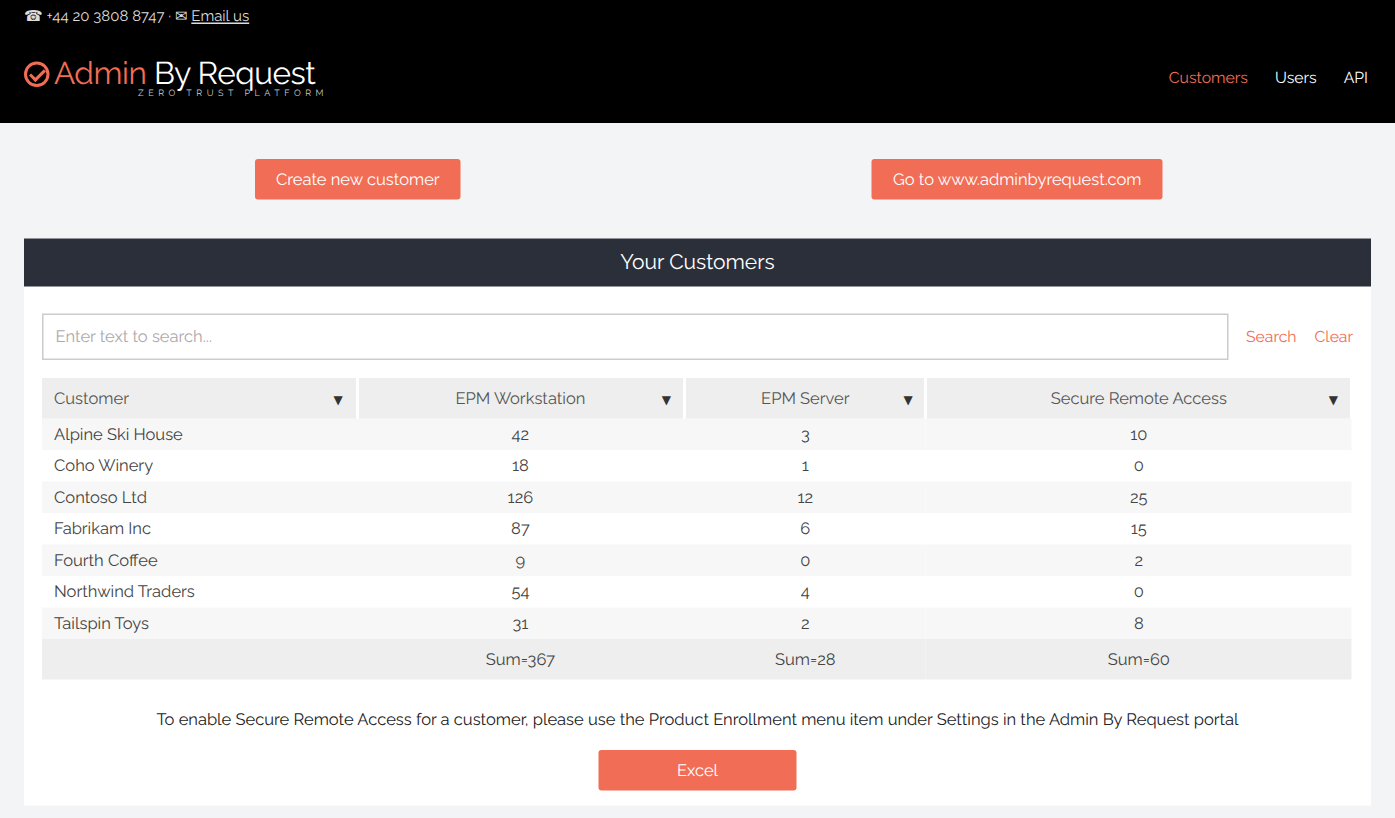
The MSP overview screen itself reinforces the distinction: it shows your customers, a Create new customer button, and a separate Go to www.adminbyrequest.com button for crossing over to the standard portal when you need to:
Datacenters and the alignment constraint
The information in this section is concept only; the how-to is in 4. Creating and provisioning customer tenants.
Admin By Request runs multiple geographically separate datacenters. Every tenant, including your MSP account, is assigned to exactly one datacenter when it is created. That datacenter determines where the tenant's data lives, which application programming interface (API) endpoint it uses, and which portal subdomain reaches it.
The rule that matters for you is this:
The MSP account and every customer tenant it manages must be on the same Admin By Request datacenter. A customer tenant on a different datacenter is completely invisible in your MSP overview, with no error and no placeholder. It simply does not appear.
This is not a bug and it cannot be fixed from inside the portal. It follows from how Admin By Request keeps each regional datacenter as a fully separate environment, with no data flowing between regions. A consolidated parent view can only span tenants that physically live in the same environment.
The practical consequence is that the datacenter is chosen once, at MSP account creation, and it governs every customer you provision afterward. As long as you create customers from your MSP portal (see section 4), alignment is automatic. The trouble starts when a customer signed up for Admin By Request independently before joining you, because their tenant may be on a different datacenter. If it is, it does not appear in your overview until it is on your datacenter, and moving a tenant between datacenters is a manual exception that only Admin By Request can carry out, and it has to be requested through your Admin By Request Account Manager. See Why tenants cannot be merged in section 10.
Admin By Request operates six datacenters. Each region has a human-readable Data Location name and an API prefix (the prefix you see under About API Keys). The six are:
-
EU West, Netherlands (
dc1api) -
US East, Virginia (
dc2api) -
London, United Kingdom (
dc3api) -
EU Central, Germany (
dc4api) -
US West, California (
dc5api) -
Singapore (
dc6api)
What matters operationally is simply that your MSP account and all of your customers share one of these six regions.
The product set: three products, billed separately
At the time of writing, Admin By Request is sold as three separate products, and all three show up as their own columns in your MSP overview:
-
EPM Workstation - endpoint privilege management for workstations (Windows workstations, Macs, and Linux machines all draw from this).
-
EPM Server - endpoint privilege management for Windows Server.
-
Secure Remote Access (SRA) - remote access to managed devices (currently Windows and Mac endpoints only).
Each product is licensed and counted separately per customer tenant, and each appears as its own line on the invoice (see section 8).
Windows Server Core is not a supported platform. EPM Server cannot be installed on a Server Core installation, and the same restriction applies to Secure Remote Access. Take this into account when sizing a customer whose server estate runs Server Core.
Licensing model and the Free Plan
Licensing in the MSP model works at the level of the individual customer tenant, not at the MSP account level. Each customer tenant has its own seat counts, independent of every other tenant.
There is no Free Plan under an MSP. Every endpoint in every customer tenant you manage is invoiced, including in tenants with fewer than 25 seats.
The Free Plan is the permanent, no-cost tier a standalone tenant can start on before it is joined to an MSP account. For reference, because MSPs are regularly asked about it by prospects, it provides:
-
25 EPM workstation seats (shared across Windows workstations, Macs, and Linux)
-
10 EPM server seats (Windows Server only)
-
25 SRA seats, with the live-screen-sharing Remote Support feature limited to 10 of those
-
25 Web Access Management seats
-
No expiration date
-
Access to the full Admin By Request feature set, with one exception: manual deletion of devices from the portal Inventory is not available on the Free Plan
The Free Plan is ideal for letting a prospect evaluate Admin By Request before committing, and a prospective customer may well arrive already running one. It is not a state a tenant sits in underneath an MSP. Once a tenant is managed under an MSP account, every endpoint it holds is invoiced. Note also that a Free Plan tenant that is not already on your datacenter cannot be brought under your MSP account until it is on your datacenter, and moving a tenant between datacenters is a manual exception that only Admin By Request can carry out, and it has to be requested through your Admin By Request Account Manager (see section 10).
For more information refer to 8. Licensing and billing in practice (this document) and Licensing (online).
3. Getting started: first login and MSP account setup
Obtaining credentials and logging in for the first time
MSP accounts are not self-service. You cannot sign one up from a website. The process begins with a commercial arrangement with Admin By Request, after which the Admin By Request Account Management team creates your MSP account and issues two things:
-
A dedicated MSP login URL (the
www.fasttracksoftware.com/mspportal described in section 2). -
Initial login credentials.
To log in for the first time:
-
Go to the MSP login URL provided by your account manager.
-
Sign in with the credentials provided.
What a brand-new, empty MSP account looks like
A freshly provisioned MSP account is empty. There are no customers, no users, and no data. This is expected.
One specific behavior catches people out: if you try to open the endpoint management views before you have created any customer, the portal shows an error along the lines of "You have not set up any customer yet, please contact us." This does not mean anything is broken. It simply means the very first task on a new MSP account is to create at least one customer tenant, which is covered in section 4.
Securing operator logins with SSO and MFA
Before you start adding customers, decide how your own operators will authenticate. The strong recommendation is to use Single Sign-On (SSO) with Multi-Factor Authentication (MFA), rather than ABR-specific usernames and passwords. The recommended method is Microsoft 365 / Entra ID SSO, which has two benefits beyond security: it makes tenant switching smoother, and it means there are no ABR-specific passwords for you to manage.
To set an operator up this way:
-
Create a portal user account within the MSP account for each operator who needs access (the mechanics of creating users are in 6. Managing portal users and access).
-
Set that user's sign-on method to "Office 365 / Azure AD Single sign-on."
-
When the operator logs in, they authenticate through Entra ID, and MFA is enforced by Entra ID rather than by Admin By Request.
A useful side effect: if an operator's Entra ID account is later disabled (for example, when they leave your company), they lose Admin By Request portal access immediately, with no separate cleanup needed in Admin By Request.
There is also a historical reason to be consistent about using SSO for MSP operators. Creating MSP users with and without SSO has in the past produced two different backend tenant records for the same MSP, which causes confusion. Configuring all MSP admins with SSO keeps that inconsistency from arising in the first place.
4. Creating and provisioning customer tenants
Why you must create customers from the MSP portal
Always create customer tenants from inside your MSP portal using the Create new customer (also labelled Create Customer) button. This is the only method that guarantees the new tenant lands on the same datacenter as your MSP account, which is what keeps it visible in your overview. Do not create a customer by signing them up for a free trial at www.adminbyrequest.com, because that route assigns a datacenter independently and the tenant may end up on the wrong one and be invisible to you.
Step-by-step: create a customer tenant
-
Log into the MSP portal at your dedicated MSP URL (
www.fasttracksoftware.com/msp). -
If you have no customers yet, the portal will prompt you to create one. If you already have customers, click the Create new customer button on the overview.
-
Fill in the required fields:
-
Name - the customer's organization name. This is what shows in your overview list and in the tenant switcher.
-
Address - billing or postal address.
-
Country - used for regional settings and compliance purposes.
-
Notes - optional internal reference notes, visible to MSP operators only.
-
-
Submit the form. Admin By Request creates a new, fully independent tenant on the same datacenter as your MSP account. You are not asked to choose a datacenter, because it is inherited automatically.
-
The new tenant appears in your overview straight away. Click into it to begin configuring it.
What is created automatically with a new tenant
A new tenant is intentionally blank. When Admin By Request provisions it, you get:
-
A tenant with Global Settings at their factory defaults, which means most features are off until you turn them on.
-
No Sub-Settings (you create those as needed).
-
No portal user accounts for the customer (you create those if the customer needs their own portal access; see section 6).
-
No enrolled devices (devices appear only after you deploy agents to them; see 7. Deploying agents into a customer tenant).
In other words, creating the customer is the start, not the finish. It is your job to configure settings, deploy agents, and set up the approval workflow before the deployment is live for that customer.
Verifying datacenter alignment
When you create customers through the MSP portal, alignment is automatic and you do not need to check anything. You only need the checks below when a customer does not appear where you expect, or when you are taking on a customer who already had an Admin By Request account.
There are two ways to find out which datacenter a given tenant is on. Both are read from inside the tenant (either directly or after clicking into it from your overview).
Method 1: API key prefix.
-
Open the tenant and go to
Settings > Tenant Settings > Data > API KEYS. -
Under About API Keys, read the API hostname prefix shown.
-
The prefix encodes the datacenter. For alignment purposes, what matters is simply that the prefix for the missing customer matches the prefix for your MSP account. If they differ, the tenants are on different datacenters.
Method 2: Data Location.
-
Open the tenant and go to
Settings > Tenant Settings > Data > RETENTION. -
Read the Data Location field, which shows the human-readable region name (for example, EU West (Netherlands) or US East (Virginia) ).
Method 1 is the one support teams use most, because it is a quick prefix comparison. Method 2 is friendlier when you just want to read the region name. For diagnosing alignment, comparing the two tenants' API prefixes is enough.
Per-tenant branding and logo
Because you will switch between many customers, it quickly becomes important to tell them apart at a glance. Each tenant can be given a custom company logo and name, which then appear in the portal header while you are working in that tenant and in your overview list. Setting branding at provisioning time is strongly recommended for any MSP managing more than a handful of customers (in the portal, go to Endpoint Privilege Management > Settings > Windows Settings > Endpoint > BRANDING).
5. Navigating between customer tenants
Once you have provisioned customers, moving between them is simple, but there is one habit worth forming early.
-
With only one customer, the portal takes you straight into that customer. There is no tenant switcher, because there is nothing to switch between.
-
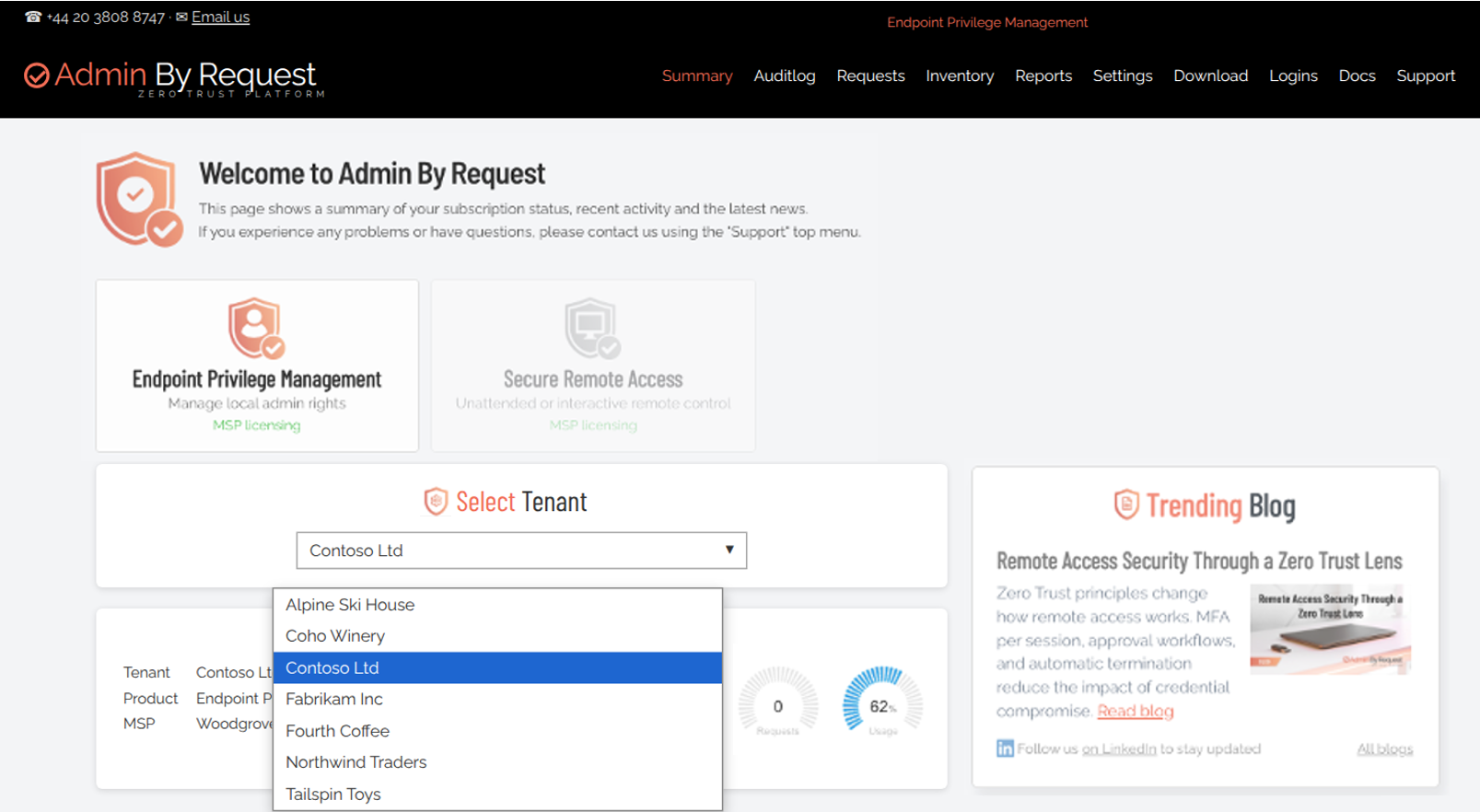
With two or more customers, a Select Customer dropdown appears in the portal header. Use it to switch the portal into a different customer's context.
When you select a different customer, the switch is immediate and total. Every view updates to that customer's data: Auditlog, Inventory, Requests, Settings, and everything else now reflects the selected tenant, and any change you make applies to that tenant only.
This is exactly why the habit matters: because the portal looks almost identical from one tenant to the next, it is easy to lose track of which customer you are in and make a change in the wrong place. Always check the tenant name (and the branding/logo) in the header before you modify settings.
6. Managing portal users and access
"Portal users" are the accounts that can log into a portal. This section covers three related things: creating users, restricting what they can see and do, and the separate feature for giving one person access to more than one tenant.
Creating portal users
You create portal users from the relevant portal. For your own operators, create them in the MSP account. For a customer's own staff who need to see their tenant, create the user inside that customer's tenant.
The basic procedure (the same form is used in both places) is:
-
Click Create User (in the MSP portal) or New user (inside a tenant, at
Logins > User Logins). -
Enter the person's name and email address.
-
Choose the sign-on method. Enabling SSO via Microsoft 365 / Entra ID is the recommendation, because it carries MFA and removes ABR-specific password management.
-
Assign their access rights: full administrator, or a restricted set (for example, support-ticket submission only).
-
Save. The user receives an invitation by email to set up their access.
With SSO enabled, the user authenticates through Microsoft 365 and MFA is enforced by the identity provider (IdP), not by Admin By Request.
Two account-level rules are worth knowing up front:
-
Each tenant's master (subscriber) email must be unique across tenants. Assigning one email address as the master account of several tenants strands access, and only Admin By Request support can reset a tenant's master account to a new, unique address. Admin By Request support can disclose a tenant's master-account email, list its registered admins, and report license usage and expiry, but they cannot grant portal access directly or create users inside a customer tenant for you.
-
Password resets for MSP-managed users do not use the standard portal flow. A portal user account created through the MSP/Reseller side does not get the normal "Change Password" or "Forgot Password" buttons; those changes have to be made by the MSP admin through the MSP portal. The clean way to avoid this entirely is to put MSP-managed users on Microsoft 365 / Entra ID SSO, so there is no Admin By Request password to reset in the first place.
What does "strands access" mean?
Every Admin By Request tenant has exactly one "master" account (also called the subscriber account). It is the root owner login for that tenant, and Admin By Request keys it on the email address. That email has to be unique per tenant because the system treats a given email as the master of only one tenant at a time.
"Strands access" is informal for leaves a tenant with no usable owner login. If you set the same email as the master across several tenants, that email can only resolve to one tenant's master account, so the other tenants are left with an owner account nobody can actually sign into. The access to those tenants is "stranded": orphaned/unreachable. And because the master/subscriber account is the one account a customer cannot self-service change (it always retains credential login as the SSO-outage fallback and can only be reset by Admin By Request support), you cannot fix it yourself - you have to give support a new, unique email and have them set it.
Admin By Request support has encountered exactly this problem: a customer with four tenants couldn't get admin access to one of them. The listed admins were either tied to other tenants or inactive, so there was no reachable owner. Support couldn't grant access directly; they asked the customer to supply a unique email, then set it as that tenant's master and offered a password reset, which restored access for the customer.
Restricted rights and portal user scopes
Two independent controls decide what a portal user experiences:
-
Rights decide which portal areas and actions a user has at all
-
Scopes decide which computers a user can see within those areas
They work together: rights are the "what can you do," scopes are the "which devices can you do it to."
Rights are set in the Rights section of a user's account. The areas a user can be granted or denied include Auditlog, Reports, Settings, Mobile App, Requests, Inventory, Portal users admin, and Read-only view.
The specific permissions include Approve Requests, Issue PIN Codes, Allow Remote Control, Create Support Ticket, Issue Break Glass, and Limit to access.work. For example, to give a customer's IT manager a safe read-only window into their own tenant, you would set Auditlog On, Inventory On if wanted, Read-only view On, and turn Settings and Portal users admin Off.
Scopes further restrict which computers a user sees. Without a scope, a portal user sees every device in the tenant. With a scope, they see only the devices that match it.
A scope can filter by:
-
Active Directory Organizational Unit (OU) the computer belongs to
-
Computer group membership (AD or Entra ID)
-
Domain the computer belongs to
-
The requesting end user's OU, group, or domain
-
Device type (Windows workstations, Windows servers, Macs, Linux, or devices discovered by an SRA gateway)
-
The SRA gateway a device is reachable through (useful when you have one on-premise gateway per customer site)
After setting any scope, use the Preview link on the Logins > User Logins list to see exactly which computers currently fall inside it before you hand the account to the person who will use it. The Preview link is also the quickest way to confirm that a value you entered in a text field (such as a domain name in "Computer must be in domain") is in the form Admin By Request expects: set the value, open Preview, and check that the right devices appear.
One limitation to plan around: scopes that rely on directory membership (OU, group, domain) only work for devices that Admin By Request has resolved through a directory connector. Workgroup devices that are not joined to Active Directory or Entra ID have no directory data for Admin By Request to match, so they cannot be targeted by the directory-based scope fields.
Multi-tenant user invitation: one person, several tenants
This is a separate feature from the MSP parent relationship, and keeping the two distinct prevents a whole category of confusion.
-
MSP parent access (everything in this guide so far) is a structural, commercial relationship between accounts. You log into the MSP portal and see all customer tenants. It requires an MSP account set up by Admin By Request.
-
Multi-tenant user invitation is a per-user mechanism available to any portal administrator, MSP or not. It lets one email address be linked to more than one tenant, with independent permissions in each.
Use the invitation feature when an individual needs to work in more than one tenant from a single login: for example, an MSP engineer who needs to submit support tickets inside a customer's tenant, or a partner who needs to reach both a test tenant and a production tenant.
To send an invitation:
-
Log into the portal of the tenant you want to grant access to.
-
Go to
Logins > User Loginsand click New user (you need the Portal users admin right to do this). -
Enter the recipient's email address (the same one they already use to log into Admin By Request in their own tenant).
-
Set the sign-on method to match what they already use, and configure their Rights from scratch for this tenant. Invited users do not inherit any rights from their home tenant.
-
Save.
To accept an invitation: the recipient sees a notification inside their existing portal session, reviews which tenant is inviting them and with what rights, and clicks to accept. The new tenant then appears in their tenant dropdown, and they can switch to it without re-authenticating.
Permissions are independent per tenant, so the same person can be a full administrator in their own tenant and have support-ticket-only access in a customer's. The classic use is a partner submitting tickets on a customer's behalf without needing a separate login.
Three constraints to know before you rely on it:
-
Sign-on method limits cross-tenant switching. Only Admin By Request native credentials or Microsoft 365 / Entra ID SSO let a user switch between tenants in a single session. If a user's sign-on method is a generic SAML provider (ADFS, Okta SAML, or another third-party SAML setup), their login is scoped to one tenant and the dropdown will not switch to others. The only fix is to change the sign-on method to credentials or Microsoft 365.
-
Cross-tenant switching is within one region. If the tenants are on the same data-server region, the same portal user can be created on multiple tenants and switch between them after accepting the invitation. If the tenants are on different regions, the user needs separate portal accounts per region.
-
The subscriber (master) account cannot be invited. The email used to first create a tenant is a subscriber account, which sits above the portal user list and does not appear in
Logins > User Logins. It cannot send or receive invitations. If someone says their "main account" cannot be added to another tenant, create a separate portal user account (which may use the same email) and use that for invitations.
7. Deploying agents into a customer tenant
This section covers the MSP-specific facts about deployment. For full, step-by-step agent deployment on each platform and with each deployment tool, refer to the platform-specific Admin By Request deployment documentation; the points below are the parts unique to running deployment under an MSP.
The single most important MSP fact about deployment is that the endpoint installer is tenant-specific. The MSI (the Windows installer package) is built dynamically at the moment you download it, and it is unique to the tenant you downloaded it from. The agent it installs reports only to that tenant. The practical rules that follow from this are:
-
Always download the installer from inside the specific customer tenant you intend to enroll devices into.
-
If you ever move a device from one tenant to another, you must uninstall the old agent and install the installer downloaded from the new tenant. Simply pointing the existing agent elsewhere is not possible, and if you skip this the endpoints keep reporting to the old tenant.
A second MSP-specific behavior concerns automatic updates. Agent auto-update for MSP tenants is deliberately throttled and extra-cautious: a client only auto-updates when the tenant's configured auto-update version is above the client version and Admin By Request has actually rolled that version out to the tenant, and that rollout is more conservative for MSP tenants than for others.
If you need a specific version on your own schedule, push the agent yourself through your deployment tooling (for example Intune or SCCM) and test it before mass deployment; Admin By Request support can also raise the auto-update version for a tenant on request.
8. Licensing and billing in practice
You are billed for what you deploy: there is no seat pool
An MSP account has no allocated seat limit. You do not buy a pool of seats up front and draw it down, and there is no prepayment. Invoicing starts when Admin By Request creates your MSP account. At the end of each month, Admin By Request counts the endpoints in each of your customer tenants and sends the invoice to you, the MSP: you deploy agents, and what you have deployed is what you are billed for.
Two consequences follow. There is no allocation step to wait on, and there is no seat pool to run out of partway through an onboarding.
The month-end count is a simple snapshot of the endpoints active in each tenant when the invoice is generated. It is not pro-rated by how long each endpoint was active during the month, and mid-month changes are not tracked separately: they are all consolidated into the month-end count. An endpoint activated the day before the invoice is generated is invoiced for that month.
A sub-tenant displaying a seat figure that looks wrong is usually a display issue rather than a licensing one, and it is not something technical support can change. See "Free Edition" on a sub-tenant is usually cosmetic below. If the figure on your invoice looks wrong, that is a question for your Admin By Request Account Manager, with the MSP parent account name and the customer sub-tenant name to hand.
Costs are tracked per product
The three products (EPM Workstation, EPM Server, and SRA) are counted separately. Your MSP overview shows a separate count per product per customer, and the monthly invoice lists one line per customer tenant and product, with the number of licenses and the price. The sample below shows the layout; every name and figure in it is fictitious:
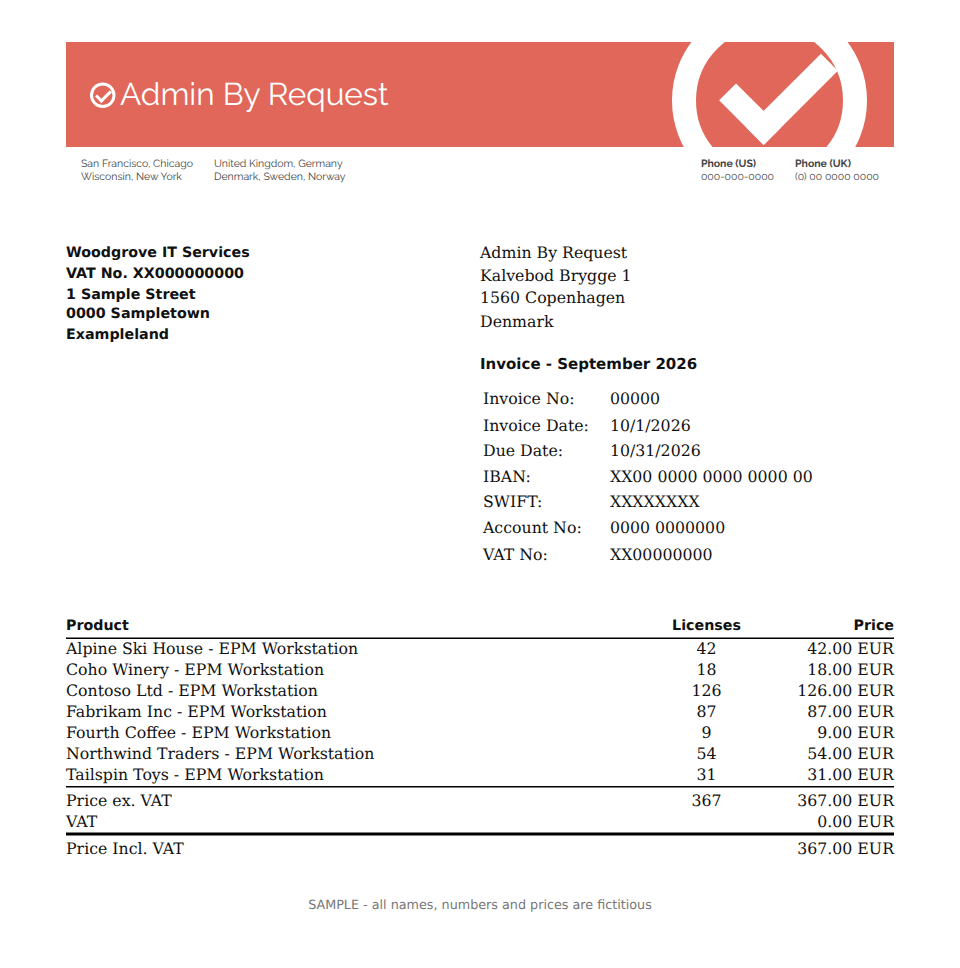
For specific quotes and pricing, contact your Admin By Request Account Manager. Note that Admin By Request does not sell a named "MSP Plan" product: the MSP arrangement is always a commercial agreement with Admin By Request, and the products your customers consume are invoiced per product per customer. The MSP overview and the invoice both show per-product quantities, so consumption is always visible per product per customer.
"Free Edition" on a sub-tenant is usually cosmetic
A sub-tenant that is genuinely licensed under your MSP plan will commonly still display "Free Edition" in its licensing area. For MSP sub-tenants this is normal and cosmetic, not an actual downgrade. Related to this, the per-tenant license report can incorrectly show a free or expired plan for a multi-tenant (MSP) configuration. This is a known display issue, not a real loss of licensing or functionality.
A genuine Free Plan, by contrast, shows a green "Free Plan" banner across the top of the portal after login. So: if a sub-tenant shows "Free Edition" but everything works, do not be alarmed; if you see the green Free Plan banner, that tenant really is on the Free Plan.
Querying license usage via the API for billing automation
If you want to automate per-customer billing, Admin By Request exposes the data through its REST API, but you need to use the right key for the right call:
-
The MSP-level API key (from the MSP portal's API page) serves the
/customersendpoint, which lists your customers. -
Per-customer data (for example, the device inventory that tells you a customer's consumed seat count) requires that customer tenant's own API key, against that tenant's datacenter API hostname.
In other words, you cannot read a customer's detailed usage with the MSP key alone; the MSP key is for the customer list, and each customer's key is for that customer's data.
Free Plan seat counts (for reference)
For quick reference when a prospect asks about it: a standalone tenant on the Free Plan has 25 EPM workstation seats, 10 EPM server seats, and 25 SRA seats (with Remote Support limited to 10 of those), and 25 Web Access Management seats, with no expiry. The Free Plan does not apply once the tenant is under your MSP account.
9. Notifications and monitoring across tenants
Email reaches you across tenants, but mobile push is one tenant at a time
Email and mobile push notifications behave differently under an MSP account:
-
Email. Email notifications from your customer tenants can reach you, but they are configured per tenant rather than inherited from your MSP account. The notification address is set inside each customer tenant (see the configuration points below), so to receive a customer's email notifications, set your address in that customer's tenant.
-
Mobile push. The Admin By Request mobile app is always signed into one specific tenant, and you cannot sign into it as the MSP. You therefore receive push notifications only for the tenant the app is signed into. To receive push for a given customer, create yourself a portal user inside that customer tenant and sign into the app with that account.
The configuration points are:
-
The notification email address is set per tenant under
Settings > [OS] Settings > Authorization > Notification. -
For mobile push, the phone must be registered under
Logins > Mobile Devices.
If push notifications are not arriving on a registered phone, the troubleshooting that has resolved it in practice is to uninstall and reinstall the Admin By Request mobile app and reboot the phone so the device re-registers.
The overview is not a live cross-tenant dashboard
It is important to set expectations correctly: the MSP overview lists your customers and their billing status, but it is not a real-time operations dashboard. There is no parent-level screen that totals pending requests across all customers, or flags "any customer with a malware event today," without clicking into each tenant. MSPs that need active cross-tenant monitoring typically build it themselves by polling each customer tenant's REST API on a schedule and aggregating the results into a tool such as Power BI, Splunk, or Microsoft Sentinel.
10. Offboarding: when a customer leaves the MSP
What unbinding does and does not do
When a customer ends their arrangement with you, their tenant is simply unbound from your MSP account. Unbinding is lightweight:
-
No agent uninstall is required. The tenant continues to exist independently, with its devices and data intact, and can be bound to a new MSP or run standalone.
-
MSP decommissioning procedures that expect an "empty tenant" do not apply here. You do not need to remove agents or wipe the tenant before the customer leaves.
-
Devices may linger in your portal for a while. The departing customer's devices can keep appearing in your overview until the transition fully completes, and then they clear. This is expected.
Moving a customer to a different MSP
If the customer is moving to a new MSP, the datacenter alignment rule applies to the new relationship exactly as it applied when you onboarded them. If the new MSP is on the same datacenter, the tenant is unbound from you and bound to them, and nothing else needs to happen. If the new MSP is on a different datacenter, the tenant does not appear in their overview until it is on their datacenter. Either moving a tenant between datacenters is a manual exception that only Admin By Request can carry out, and it has to be requested through the new MSP's Admin By Request Account Manager, or the tenant is rebuilt on the new datacenter (option 2 below).
Why tenants cannot be merged, and what that means for re-homing
There is no portal feature to merge two tenants into one. If you need to consolidate (for example, a customer created their own tenant independently and you want it under your management), you have two options:
-
Bring the existing tenant under your MSP account. If the tenant is already on your datacenter, it can be brought under your MSP account directly, which keeps the tenant's data and history. If it is on a different datacenter, moving a tenant between datacenters is a manual exception that only Admin By Request can carry out, and it has to be requested through your Admin By Request Account Manager. Treat this as an exception rather than a routine route: it exists for the occasional customer who started on a Free Plan of their own on another datacenter before coming to you. Creating customers from your MSP portal from the start means it is never needed.
-
Create a fresh tenant under your MSP account and re-enroll the devices into it, then decommission the old tenant. Remember from section 7 that the installer is tenant-specific: you must uninstall the old agent and install the installer downloaded from the new tenant, or the endpoints keep reporting to the old tenant.
A warning: deleting an account from the MSP portal removes regular portal access
This one has caught customers out, so handle it carefully. Deleting an account from the MSP portal also removes that account's access to the regular Admin By Request portal. If you remove previously-created tenant admins from the MSP side, you strip their portal access too, which can lock a customer out of their own tenant.
The path back, if it happens, is to recreate the accounts from the MSP side (or from the Admin By Request portal using a still-valid account); and where MSP portal access itself has been lost, the Account Manager has to restore MSP portal access first. Before deleting accounts during offboarding, confirm the customer has retained whatever access they are entitled to keep.
Deleting a customer tenant from the MSP portal requires that the tenant holds no endpoints: clear the customer's Inventory first, and uninstall the Admin By Request agent from those endpoints, or they reappear at their next check-in. Deletion does not always complete even then: there is a known open issue in which the portal accepts and confirms the delete and the tenant remains. If that happens, escalate to support with the exact customer/tenant name and the timestamp of the delete attempt so they can review the logs.
11. Troubleshooting the most common MSP problems
"I can't see this customer in my portal"
This is the most frequent MSP support question. Work through it in this order:
-
Check datacenter alignment first. Open
Tenant Settings > API Keysfor both your MSP account and the missing customer and compare the API hostname prefixes (section 4, Method 1). If they differ, the customer is on a different datacenter and is invisible by design. This is not self-serviceable. Contact your Admin By Request Account Manager with both tenant names and the two datacenters: either the tenant is moved to your datacenter, which is a manual exception that they have to request, or it is re-provisioned on your datacenter (section 10). -
If the prefixes match, check the tenant's date settings second. A datacenter mismatch is not the only cause. A child tenant can disappear from the Select Customer dropdown while the datacenters match, with the root cause being a date setting on the tenant (most often a subscription or expiry date), which support fixes at the backend. When the prefixes match, ask the customer to confirm all tenants on the summary page and escalate for a date-settings check rather than a migration.
-
Then escalate with full tenant details if neither of the above explains it.
"I can't add customers"
Almost always the wrong portal. Adding customers is an MSP-portal function at www.fasttracksoftware.com/msp. If you are logged into www.adminbyrequest.com/login you will not find the option. Log into the MSP portal instead.
Devices still reporting to the old tenant after a move
The installer is tenant-specific. If devices are still showing up in the old tenant after you tried to move them, the old agent was not replaced. Uninstall the old agent and install the installer downloaded from the new tenant.
A sub-tenant shows "Free Edition" but is licensed
This is usually cosmetic for MSP sub-tenants and is not a real downgrade (section 8). Confirm by looking for a green "Free Plan" banner: if there is no banner and everything works, the "Free Edition" label can be ignored. The per-tenant license report similarly showing a free or expired plan under a multi-tenant setup is a known display issue.
An MSP-managed user cannot reset their password
MSP-managed portal users do not use the standard portal password-reset flow; resets go through the MSP admin in the MSP portal. The lasting fix is to move those users to Microsoft 365 / Entra ID SSO so there is no Admin By Request password to reset. Note also that when an MSP operator works inside a customer tenant, some views (such as ticket attribution) show the MSP admin's email rather than the individual operator's; this is expected behavior of the MSP session model and worth explaining to customers who notice an unfamiliar email in their activity history.
12. Quick-reference checklists
New customer onboarding checklist
-
Log into the MSP portal at
www.fasttracksoftware.com/msp. -
Click Create new customer and complete Name, Address, Country, and Notes.
-
Confirm the tenant appears in your overview (it inherits your datacenter automatically).
-
If the customer previously had their own Admin By Request account, check datacenter alignment (Tenant Settings > API Keys prefix). If it does not match, talk to your Account Manager before going further: the tenant either has to be moved to your datacenter as a manual exception or re-provisioned there (section 10).
-
Set the customer's branding and logo so you can tell tenants apart.
-
Configure Global Settings and any Sub-Settings the customer needs (a new tenant starts blank with most features off).
-
Create portal user accounts: your own operators (SSO recommended), and any customer staff who need access (apply restricted rights and a scope as needed).
-
Remember that there is no license allocation step: every endpoint you deploy is counted at the end of the month and invoiced to you.
-
Download the agent installer from inside this specific tenant and deploy it to the customer's devices. Test before mass deployment.
-
Set the notification email (
Authorization > Notification) and register any approver phones (Logins > Mobile Devices). -
Verify devices appear in the tenant Inventory and that an elevation request flows end to end.
Customer offboarding checklist
-
Confirm the commercial offboarding with your Account Manager.
-
Understand that unbinding the tenant does not uninstall agents and does not require an empty tenant.
-
If the customer is moving to a new MSP on a different datacenter, the tenant either has to be moved between datacenters (a manual exception requested through the Account Manager) or rebuilt on the new datacenter.
-
Before deleting any accounts, confirm what access the customer is entitled to keep. Remember that deleting an account from the MSP portal also removes that account's regular Admin By Request portal access, which can lock the customer out.
-
Expect the departing customer's devices to linger in your overview briefly until the transition completes, then clear.
-
If you delete the tenant from the MSP portal, clear its Inventory first. If the delete is confirmed but the tenant remains, escalate to support with the exact tenant name and timestamp.
13. Glossary
Acronyms and Abbreviations
|
Abbreviation |
Full form |
Notes |
|---|---|---|
|
Endpoint Privilege Management |
Admin By Request's core capability: removing standing local admin rights and granting controlled, audited, time-bound elevation. Sold as EPM Workstation and EPM Server. |
|
|
Identity Provider |
The external identity system, such as Microsoft Entra ID or Okta, that authenticates users. |
|
|
Multi-Factor Authentication |
Requiring more than one factor to authenticate. When SSO is used, MFA is enforced by the IdP. |
|
|
Managed Service Provider |
A company that manages IT services, including Admin By Request, on behalf of multiple customer organizations. |
|
|
Secure Remote Access |
Admin By Request's remote access to managed devices, licensed and billed as a separate product. |
|
|
Single Sign-On |
Logging in through an IdP rather than with ABR-specific credentials. |
Technical terms
-
Datacenter - one of six geographically separate Admin By Request environments (regions) in which a tenant's data lives. It determines the tenant's API endpoint and portal subdomain. The six are EU West (Netherlands), US East (Virginia), London (United Kingdom), EU Central (Germany), US West (California), and Singapore.
-
Datacenter alignment - the rule that an MSP account and all of its customer tenants must be on the same datacenter, otherwise a customer tenant does not appear in the MSP overview.
-
Free Plan - the permanent, no-cost tier a standalone tenant can start on: 25 EPM workstation seats, 10 EPM server seats, and 25 SRA seats (Remote Support limited to 10), and 25 Web Access Management seats, with no expiry. It does not apply to customer tenants under an MSP account, where every endpoint is invoiced.
-
Multi-tenant user invitation - a per-user feature that links one email address to more than one tenant, with independent permissions in each.
-
Parent MSP account - the single account an MSP logs into to reach and manage all of its customer tenants.
-
Portal user scope - a filter that restricts which devices a portal user can see within the areas their rights allow.
-
Subscriber (master) account - the email used to first create a tenant. It sits above the portal user list, does not appear in the user logins list, and cannot be invited to other tenants.
-
Sub-tenant (customer tenant) - a customer's tenant managed under an MSP parent account, fully isolated from every other sub-tenant.
-
Tenant - an isolated Admin By Request environment with its own settings, audit log, inventory, license counts, and user logins.