Teams Integration V2 Overview
Introduction
Microsoft Teams is a workspace for all-round collaboration, bringing together messaging, file sharing, application sharing, and video conferencing capabilities.
Literally millions of organizations around the world use Teams as their go-to business communication tool, so we've created a custom Admin By Request app for Teams which enables users to handle (i.e., approve and deny) requests for administrative access from within a dedicated Teams channel.
Version 2 of the Teams integration introduces several significant improvements over V1:
-
Sub Settings Name scoping - channels can be configured to receive only requests that match a specific Sub Settings Name, enabling targeted routing across multiple channels within the same team.
-
Multi-channel synchronization - when a request is handled in any channel, all other channels that received the same request automatically update their cards to reflect the outcome and where it was handled.
-
Portal-handled notification - if a request is approved or denied in the Admin By Request portal, Slack, or any other integration rather than through Teams, all Teams channels are updated to indicate it was handled. When handled via the portal, the portal admin's name is also displayed on the updated card.
-
Both request types supported - both Run As Admin and Admin Session requests are routed to Teams.
-
Run As Admin program details - request cards for Run As Admin requests include the program version, file path, and scan result.
-
Deny reason - when denying a request from Teams, a deny reason can be entered; it is recorded in the audit log.
-
Auditlog attribution - if the Teams user's email matches a portal admin's email, the portal admin's name is written to the auditlog. If no match is found, the "Approved by" field is omitted from the auditlog entry.
Assumptions
The tasks described in this manual assume that the user has access to Teams, the Admin By Request Portal, and some familiarity with both environments.
The access provided to users through our Teams integration overrides Portal settings.
Once the Teams integration described in this guide is configured, all users with access to the Teams channel(s) created in Task C will have the ability to approve or deny requests via Teams, regardless of whether they have been granted these abilities in Admin By Request User Portal Sub-Settings.
Ensure you only add the integration to internal channels and reserve access for authorized users.
Prerequisites
To complete the integration, you first need to download the V2 application .zip file: teams-v2.zip. This file will be uploaded during task A. Upload the App File.
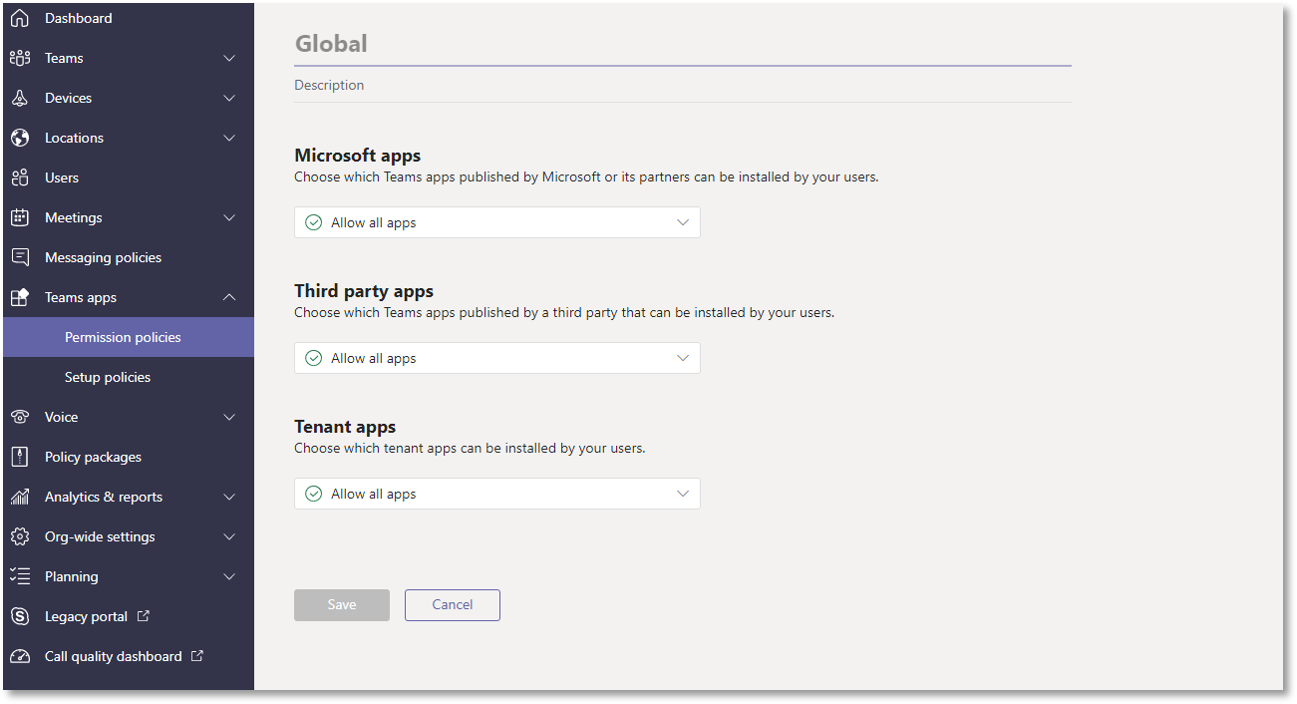
You will also need access to your organization's Teams Admin Center console.
The V2 integration is installed once per team. Existing single-channel setups continue to work; the Sub Settings Name feature is optional and only required if you want to route requests to multiple channels based on settings scope.
V1 and V2 of the Teams integration are independent and cannot be updated in place. To use V2, you must remove the existing V1 integration and complete the V2 installation described in this guide.
V1 will continue to function until it is removed. You can run both integrations in parallel during a transition period if needed.
Something Missing?
If you’ve identified a bug or have a suggestion for this integration, or another SIEM integration you’d like us to add, contact us here and we’ll see what we can do.
The task descriptions in this guide (and screenshots in particular) cover the state of Microsoft Teams at the time of writing. While every effort is made to ensure currency, the screens you see during setup may look a little different, especially color schemes and the placement of buttons and links.
Related Articles
This guide may refer to, and should be read in conjunction with, the following:
-
Commitments and responsibilities in ABR's Data Processing Agreement
-
Support provisions in ABR's Terms and Conditions and Customer Support Services
-
Collection, use and disclosure of personal data in ABR's Privacy Policy and Data Privacy Settings
Refer also to ABR's Trust Center documents.
This guide is available in PDF format: