Installing the Template
To install the Power BI integration in your Admin By Request tenant, you need to download the template and configure the connection. This procedure includes the following tasks:
Task A: Download the Template
The Admin By Request Power BI template comes custom-built and ready to use. The first step is to download and open the template in Power BI Desktop.
-
Once the download is complete, unzip and open the file in Power BI Desktop.
Task B: Configure and Test the Data Import
For data to load into the template, a connection must be established between Power BI and your Admin By Request tenant. When the template file opens for the first time in Power BI Desktop, a parameter dialog appears automatically.
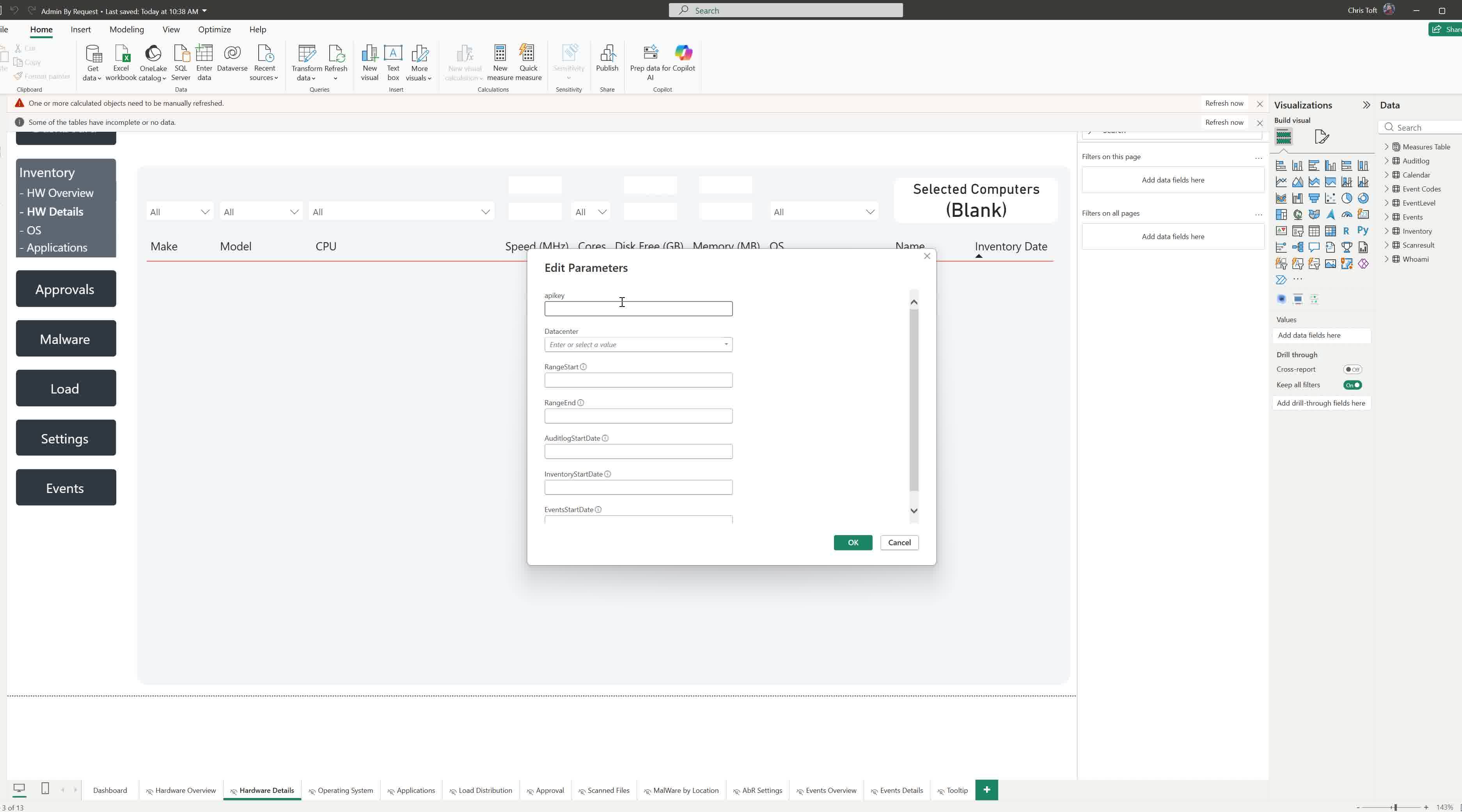
For a first test, it is recommended to set the parameters so that the amount of pulled data is small enough for the import to finish in a reasonable time.
Parameter definitions
| Parameter | Purpose |
|---|---|
apikey
|
Authenticates API calls to your ABR tenant. |
Datacenter
|
Sets the API base URL for your data center. |
RangeStart
|
Lower bound for the incremental refresh window; must be before any data you want to pull |
RangeEnd
|
Upper bound for the incremental refresh window; must be after any date you will ever query |
AuditlogStartDate
|
How far back to pull Auditlog data |
InventoryStartDate
|
How far back to pull Inventory data |
EventsStartDate
|
How far back to pull Events data |
Note on RangeStart and RangeEnd: These parameters exist because of the incremental refresh mechanism. Scheduled refresh only fetches records newer than the last successful refresh, rather than re-fetching everything from the start date. Setting RangeStart and RangeEnd to dates far in the past and future ensures this mechanism continues to work correctly indefinitely.
Steps
-
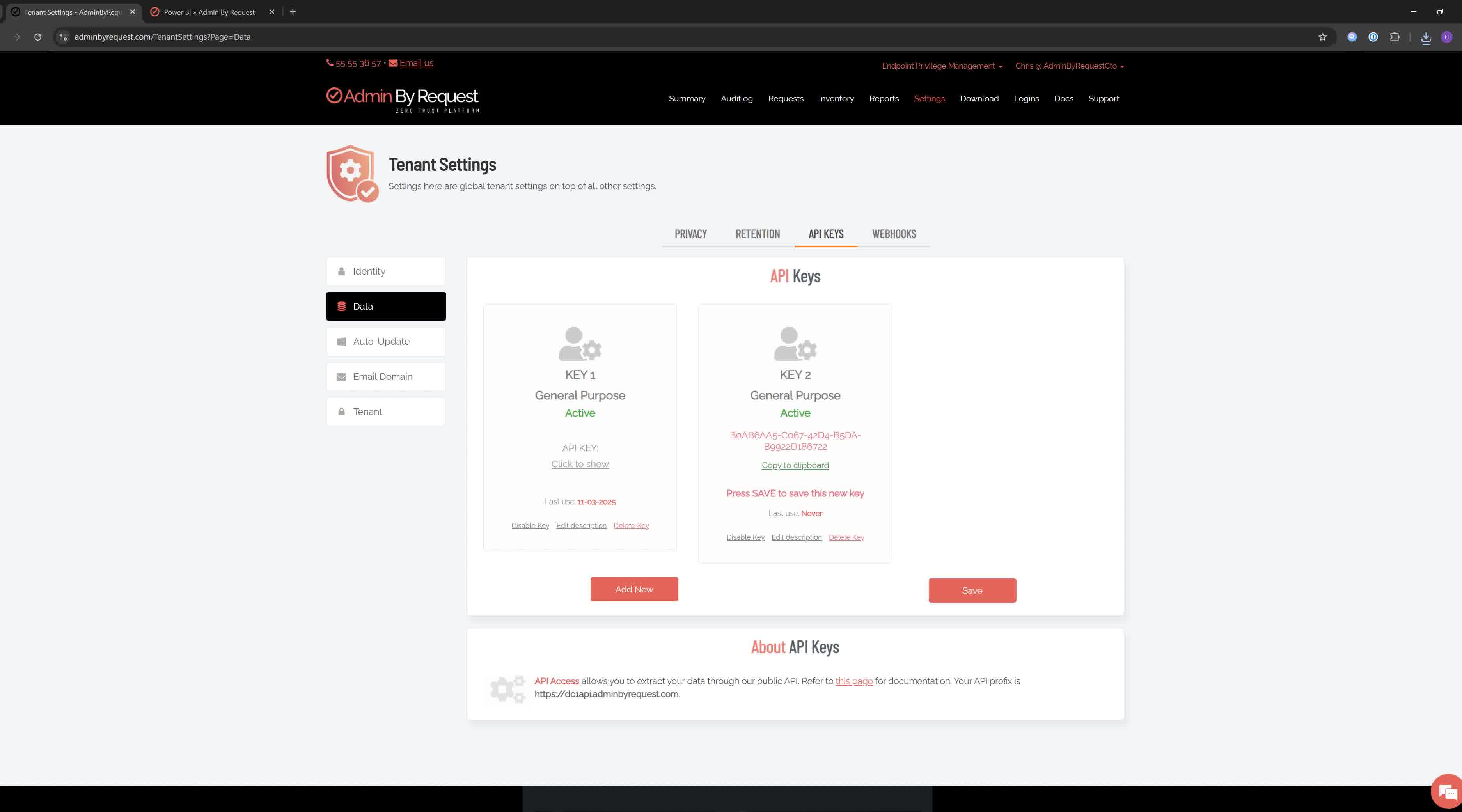
Paste your API key into the apikey field.
-
From the Datacenter drop-down, select the appropriate option. If you are not sure which option to choose, look up your data center's URL:
Go to Settings > Tenant Settings > Data > API Keys in the portal and check which API prefix is shown under About API Keys:
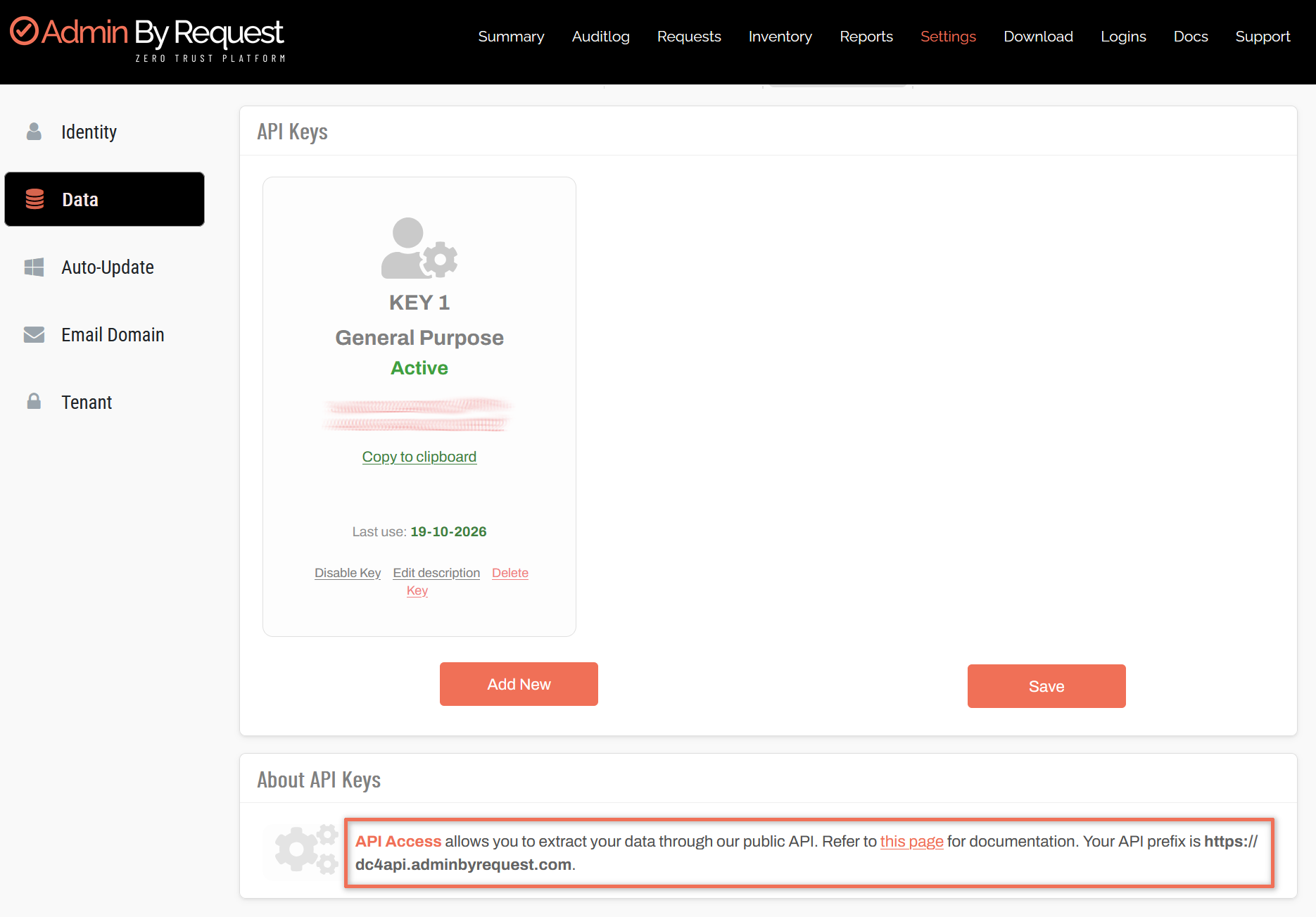
The data center API URL (also known as the API prefix) will be one of the following:
-
https://dc1api.adminbyrequest.com (Europe - Netherlands)
-
https://dc2api.adminbyrequest.com (US East)
-
https://dc3api.adminbyrequest.com (UK)
-
https://dc4api.adminbyrequest.com (Europe - Germany)
-
https://dc5api.adminbyrequest.com (US West)
-
https://dc6api.adminbyrequest.com (Asia)
-
-
Set RangeStart to
1/1/2000and RangeEnd to1/1/2100.Important: Enter dates in the correct format for your regional settings (
M/D/YYYYorD/M/YYYYdepending on your location and Windows locale). A yellow alert icon appears next to a field if the format is wrong. See Troubleshooting for how to resolve date format errors.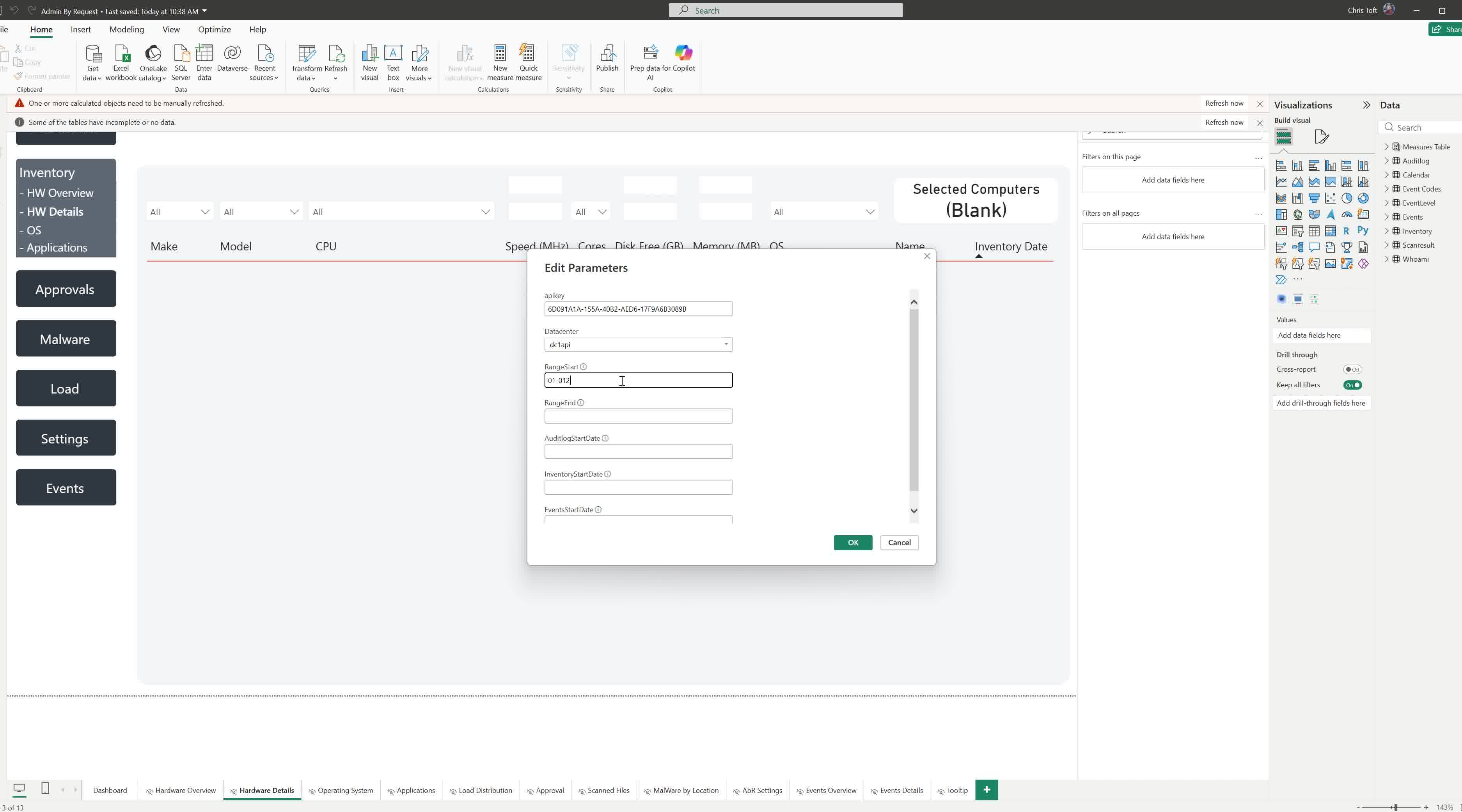
-
Set AuditlogStartDate, InventoryStartDate, and EventsStartDate to approximately one week before the current date.
Important: Use a short lookback window for the initial load. The further back the start dates, the more data Power BI must retrieve and the longer the initial load takes. A one-week window lets you confirm that connectivity is working correctly before pulling months or years of history.
-
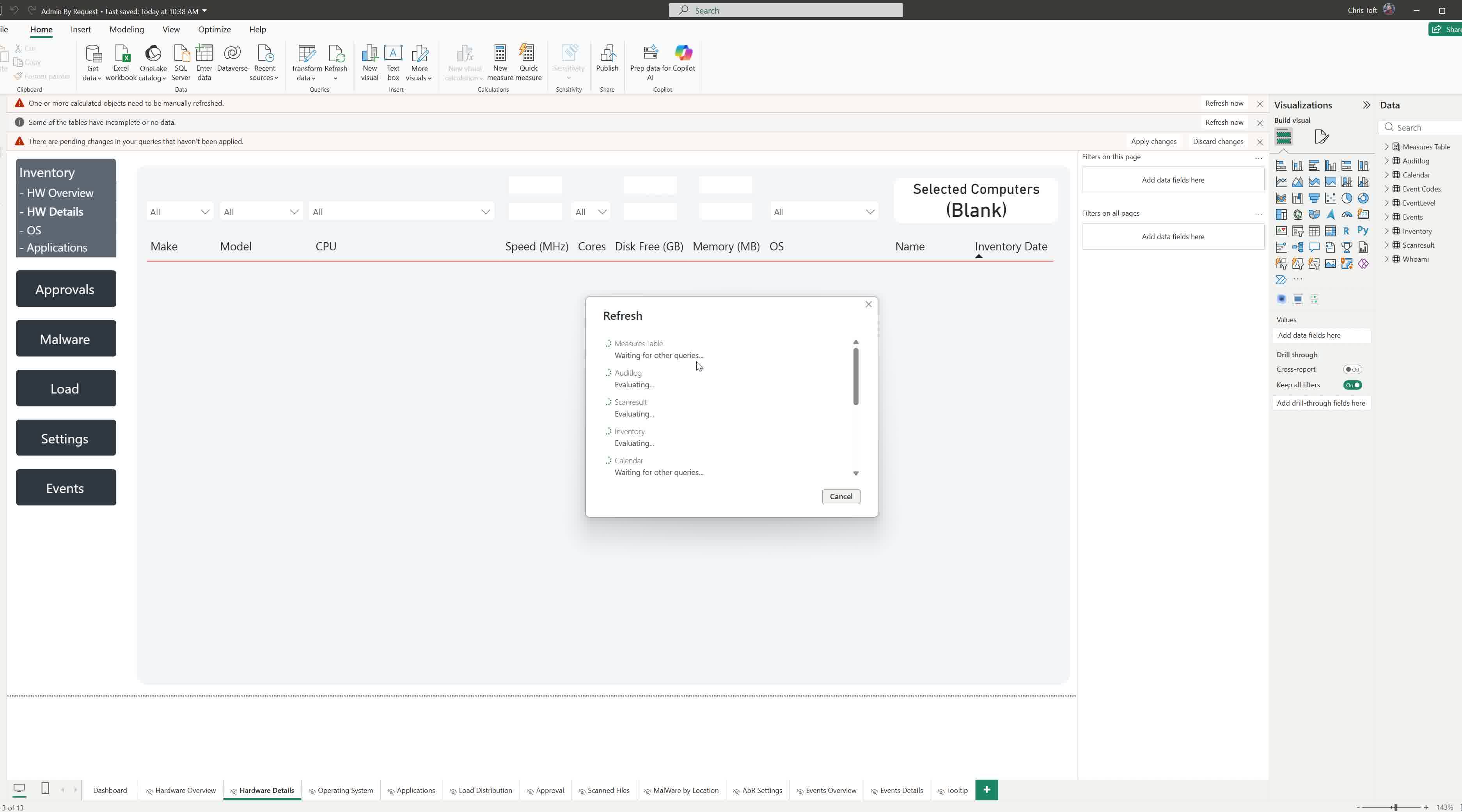
Click Load. A loading window appears while Power BI connects to the Admin By RequestAPI and retrieves data.
-
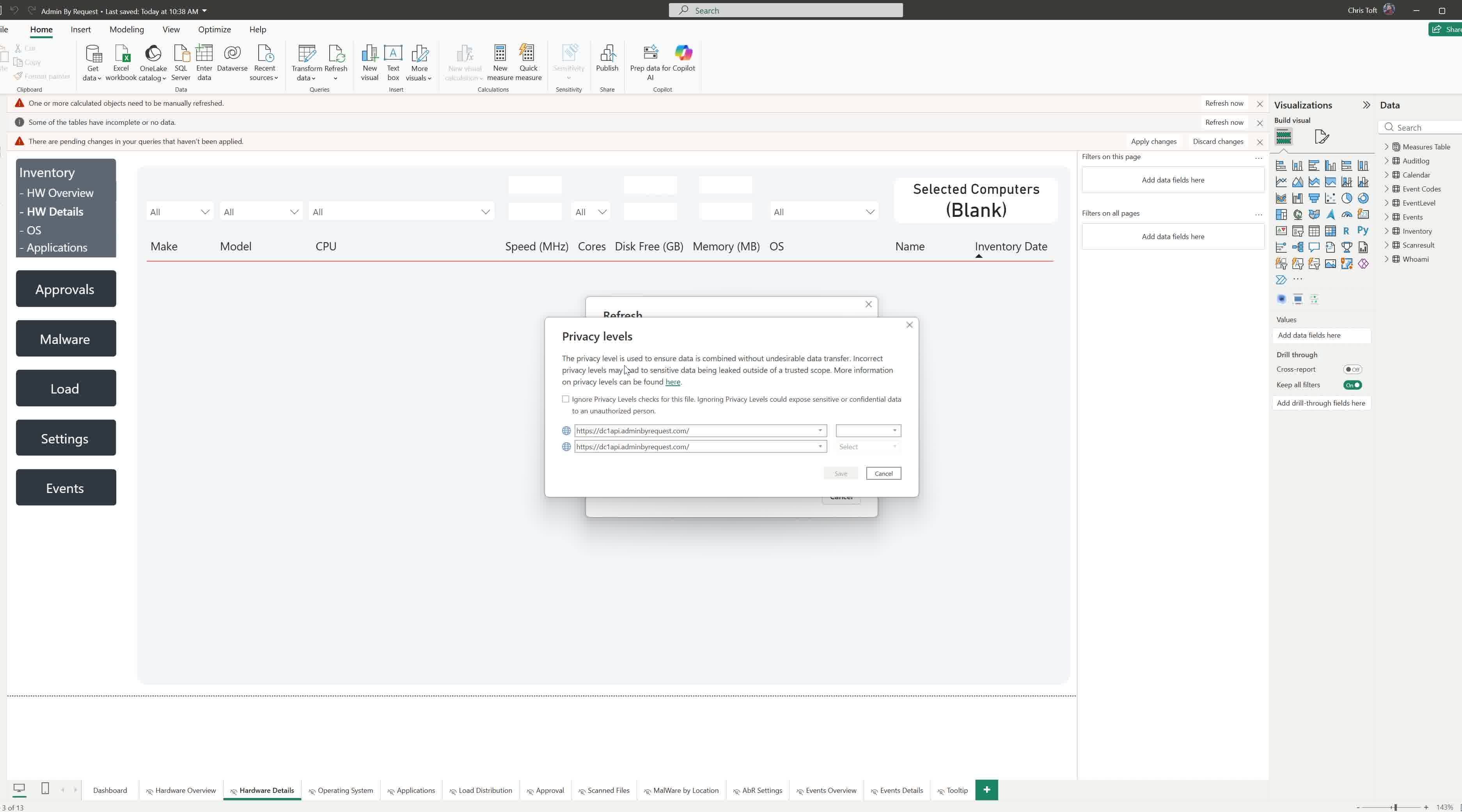
Power BI may display a Privacy Levels dialog listing the Admin By Request API data sources used by the template. You can either assign a privacy level to each source individually (Public, Organizational, or Private), or check Ignore Privacy Levels checks for this file to skip this check entirely. The latter is the simpler option for most organizations.
-
After clicking Load, Power BI may prompt you to select an authentication method. Select Anonymous and click Connect.
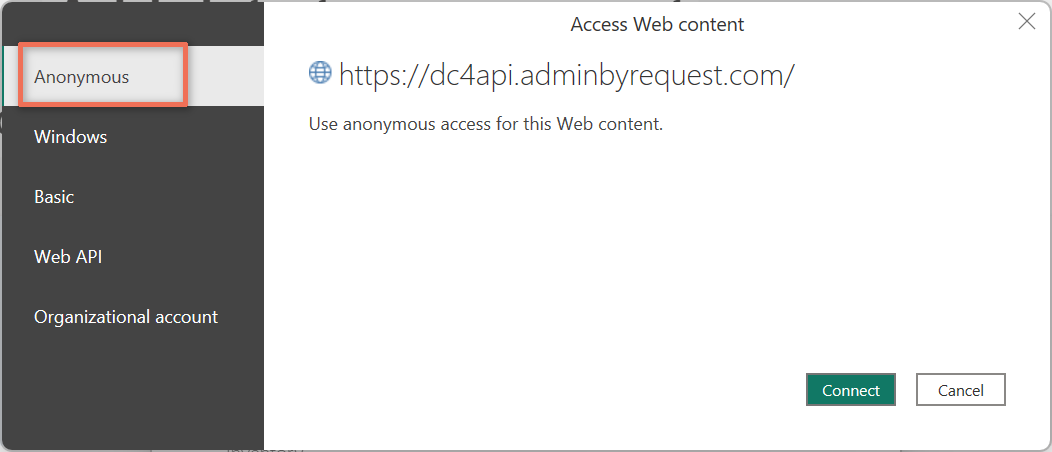
Important: Make sure you select Anonymous, not any of the other options. "Anonymous" in this context means that Power BI passes the connection using the API key defined in the template parameters, rather than applying additional credentials on top. Any other selection will fail, since the additional credentials will clash with those passed in the API key.
Task C: Update Parameters
After confirming that the initial load succeeded (data is visible in the report), update the start dates to the actual date range you want to report on.
-
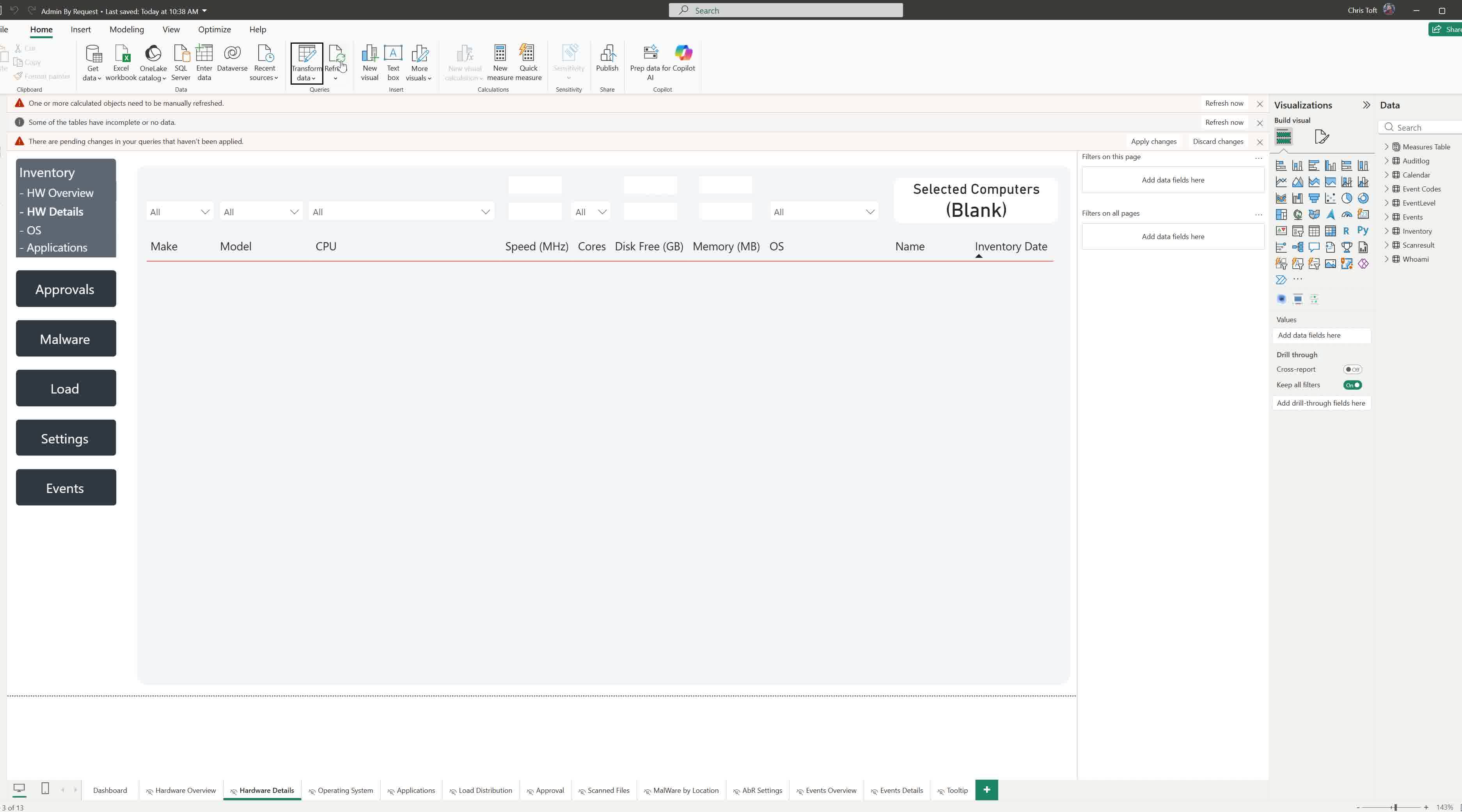
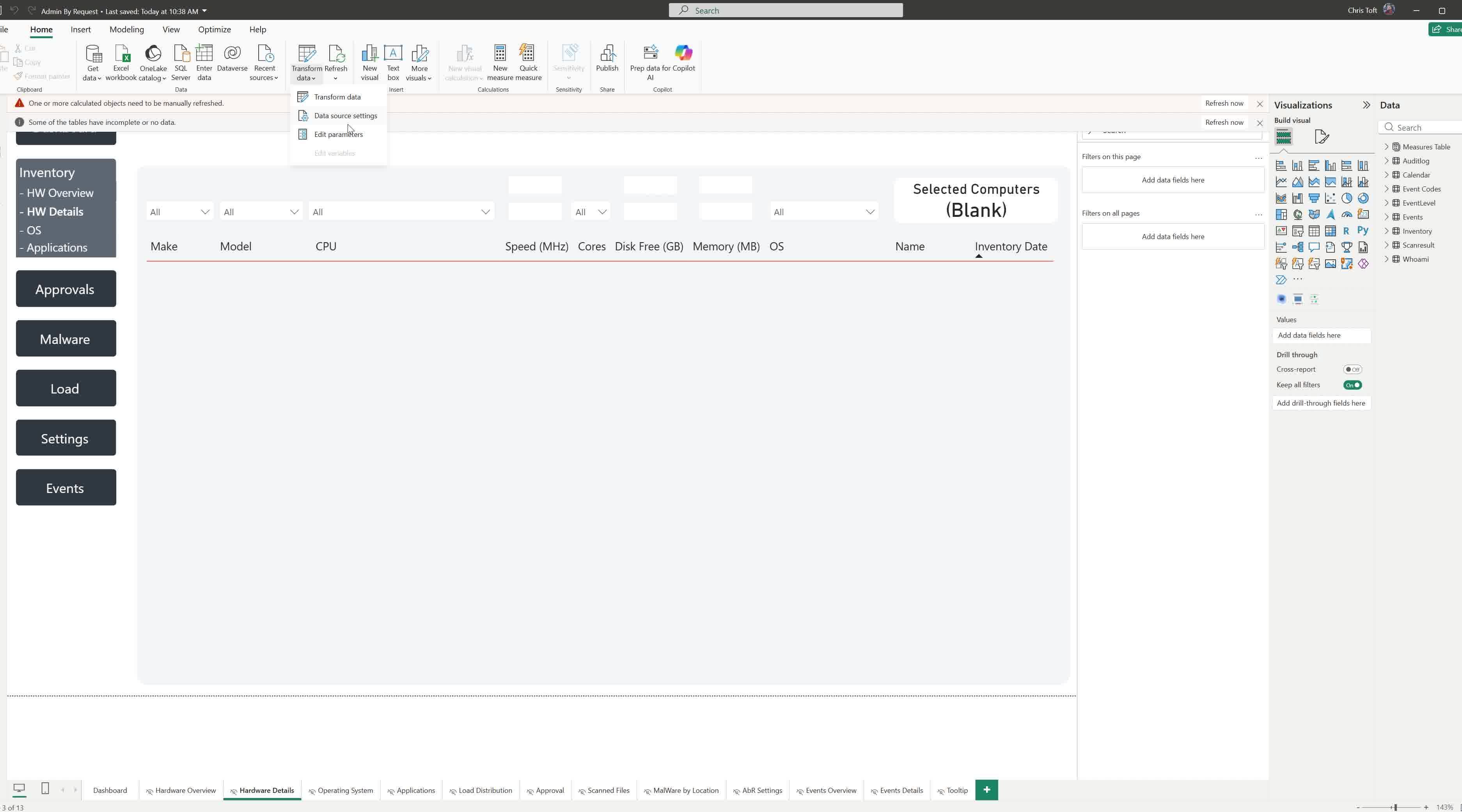
In the Home tab, click the Transform Data drop-down and select Edit Parameters.
-
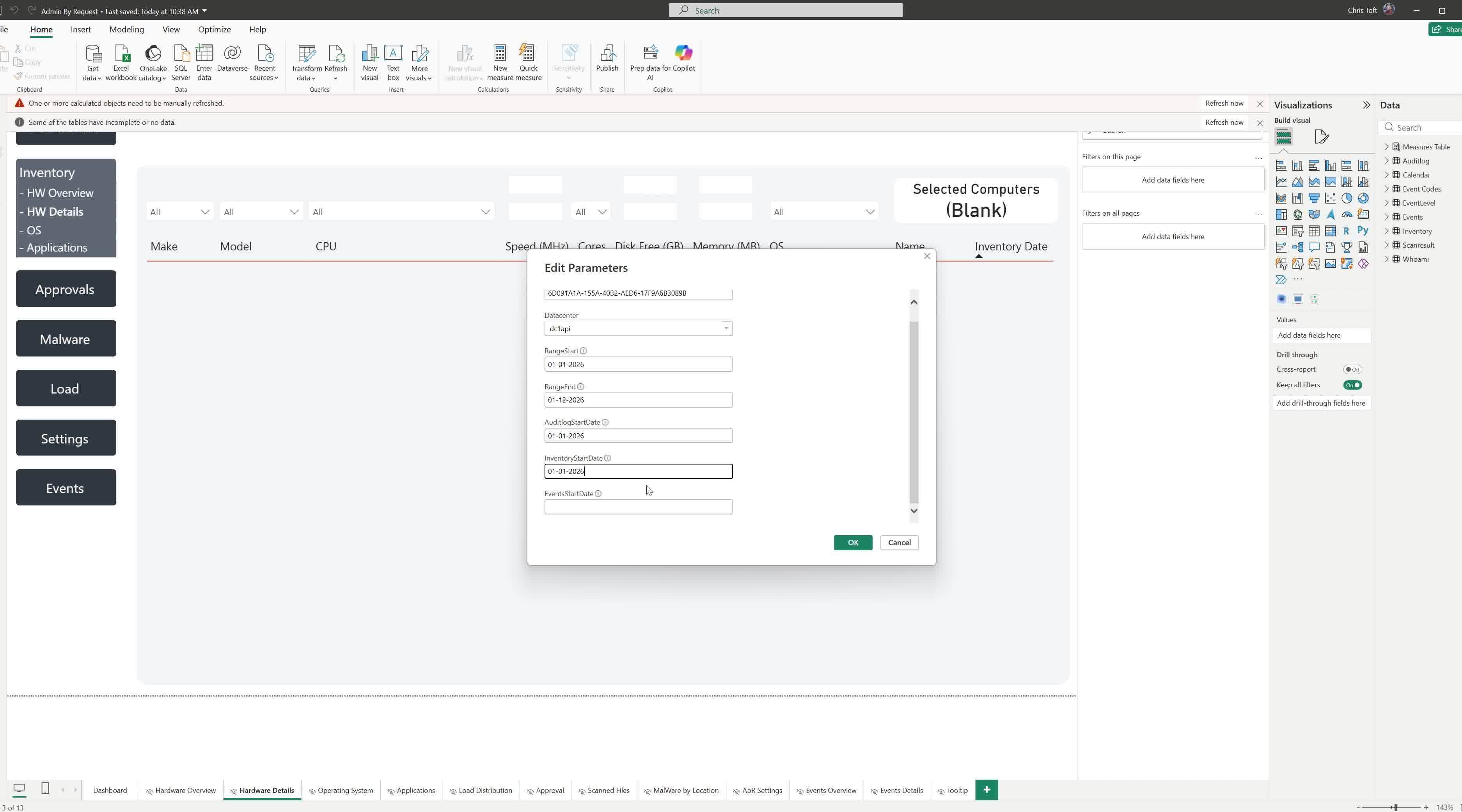
Update AuditlogStartDate, InventoryStartDate, and EventsStartDate to the actual dates you want data from, for example the date you first deployed Admin By Request, or one year ago.
-
Click OK.
-
A yellow banner appears at the top of the report canvas indicating that changes are pending. Click Apply changes to apply the updated parameters and trigger a reload.
Task D: Refresh the Data
-
In the Home tab, click the Refresh button.
Power BI re-queries the Admin By Request API from the start dates you set, pulling all historical data in the specified range. This may take some time for a large date range.