Splunk Integration
Introduction
A key selling point to Admin By Request is the valuable Auditlog data we collect. All significant security events, such as requests for elevated privileges, software installs and uninstalls, and programs run as administrator, are logged in the Admin By Request portal for further use if necessary.
However, with large enterprises today generating gigabytes of data on a daily basis, it makes sense to provide the ability for our customers to manage this data in a tool of their choice – specifically, one designed for handling copious amounts of data from various different sources.
Our integration for Splunk does just that. Splunk is a tool that makes complex data much easier to understand and utilize by collecting, analyzing, and storing it in a structured format, which can then be indexed and searched easily.
We have created an integration which allows you to get Admin By Request auditlog data sent to your Splunk environment using Splunk’s HTTP Event Collection (HEC) functionality combined with Admin By Request webhooks.
Prerequisites
To follow the instructions in this manual, you will need:
-
Access to Splunk
-
Access to the Admin By Request portal
-
Some familiarity with both systems
If you are using Splunk Cloud, you additionally need super-admin permissions to access the global settings.
Overview of Tasks
This manual covers the following tasks:
Integration Tasks
Set Up a Splunk HEC Channel
HEC is an HTTP endpoint for your Splunk instance with an authorization token, which
allows you to send data into Splunk.
-
In your Splunk instance, navigate to Settings and click Data inputs.
-
From the Local inputs list, select HTTP Event Collector.
-
Click New Token.
-
Enter a name and description as desired.
-
Click Next and continue with the setup as appropriate for your organization.
-
Click Review, then Submit.
-
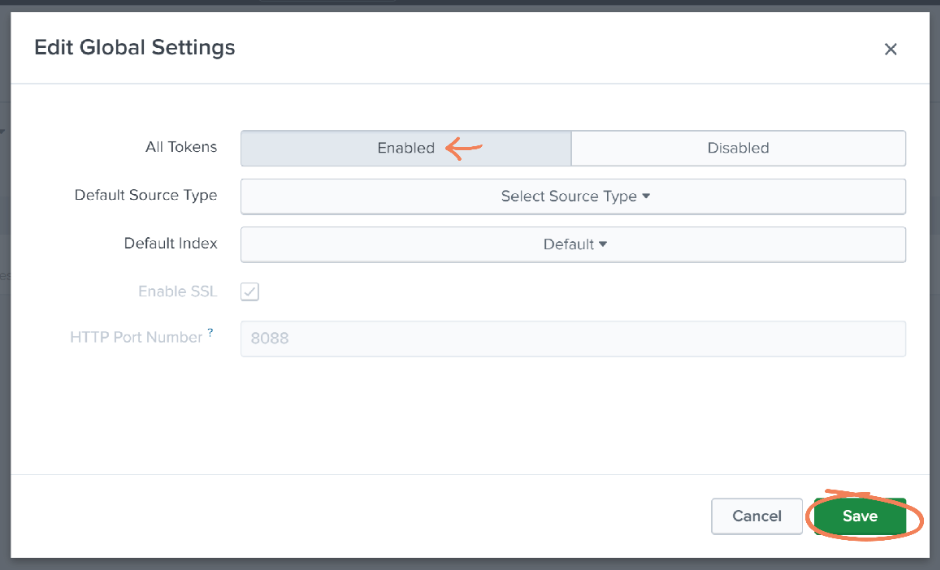
Return to the HTTP Event Collector page and click Global Settings. Note that if you are using Splunk Cloud, you need super-admin rights to access the global settings.
-
Make sure that All Tokens is set to Enabled, then click Save.
Define a Webhook
With webhooks you can subscribe to events in real-time instead of pulling data out at intervals. You can define webhooks in the portal.
-
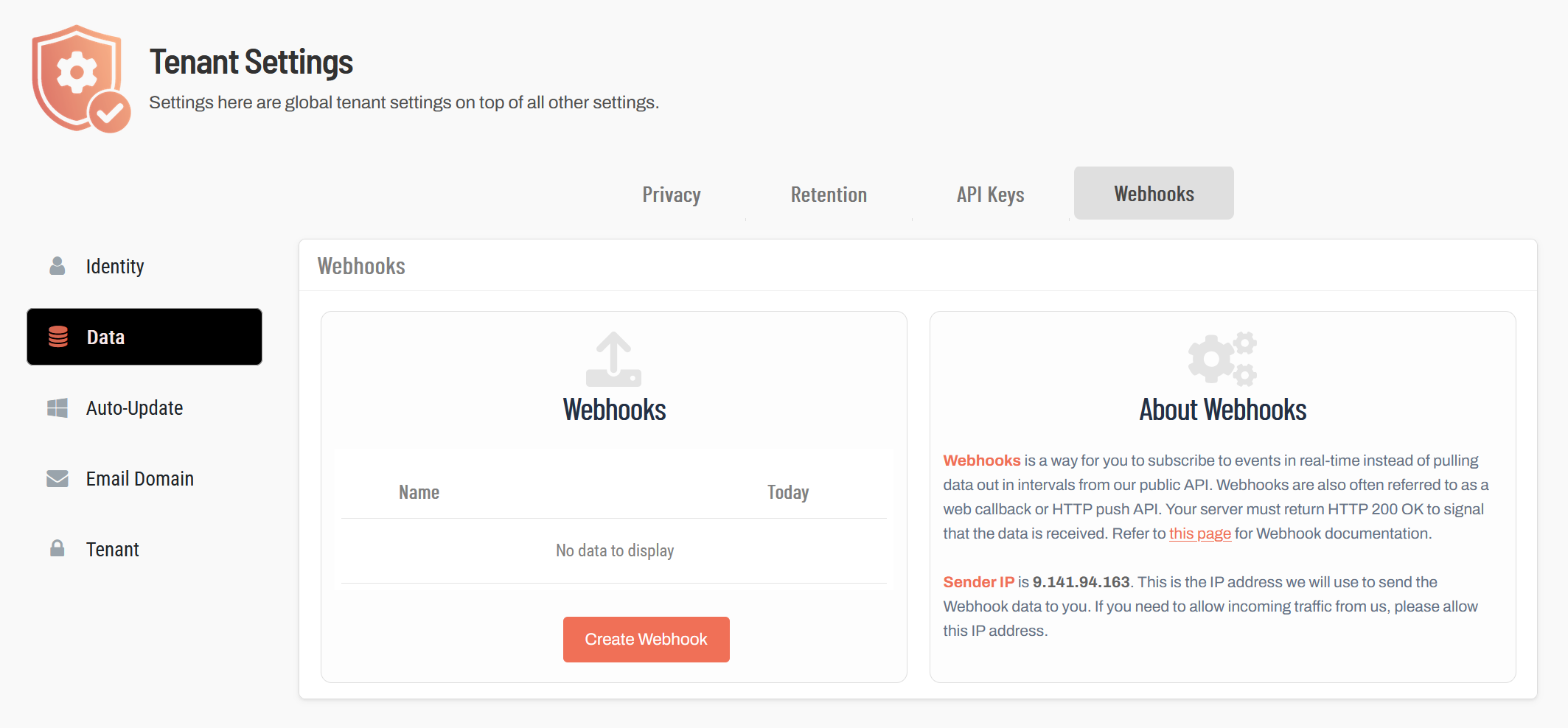
In the main portal navigation, click Settings -> Tenant Settings.
-
In the navigation pane, click Data and switch to the Webhooks tab.
-
Click Create Webhook.
-
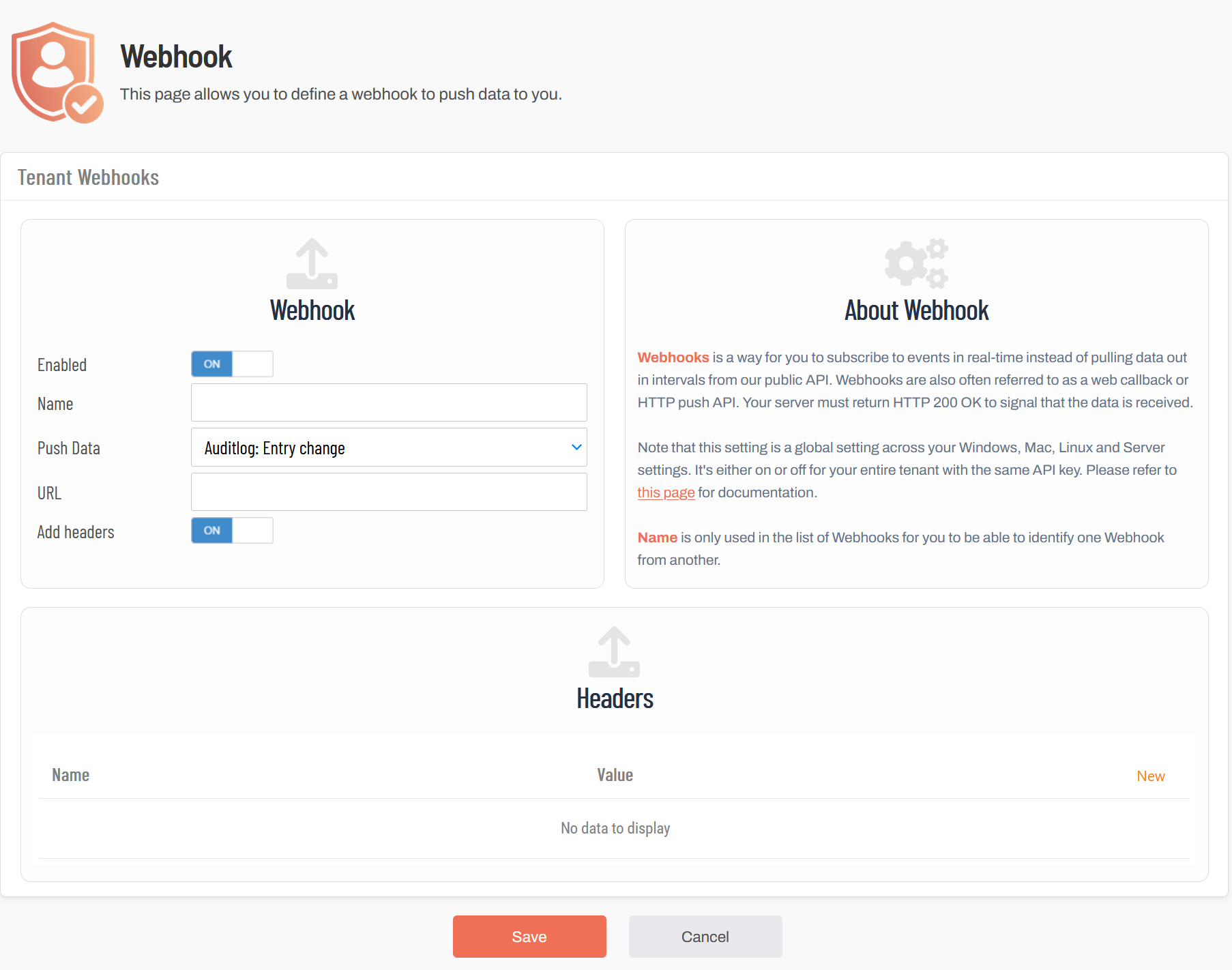
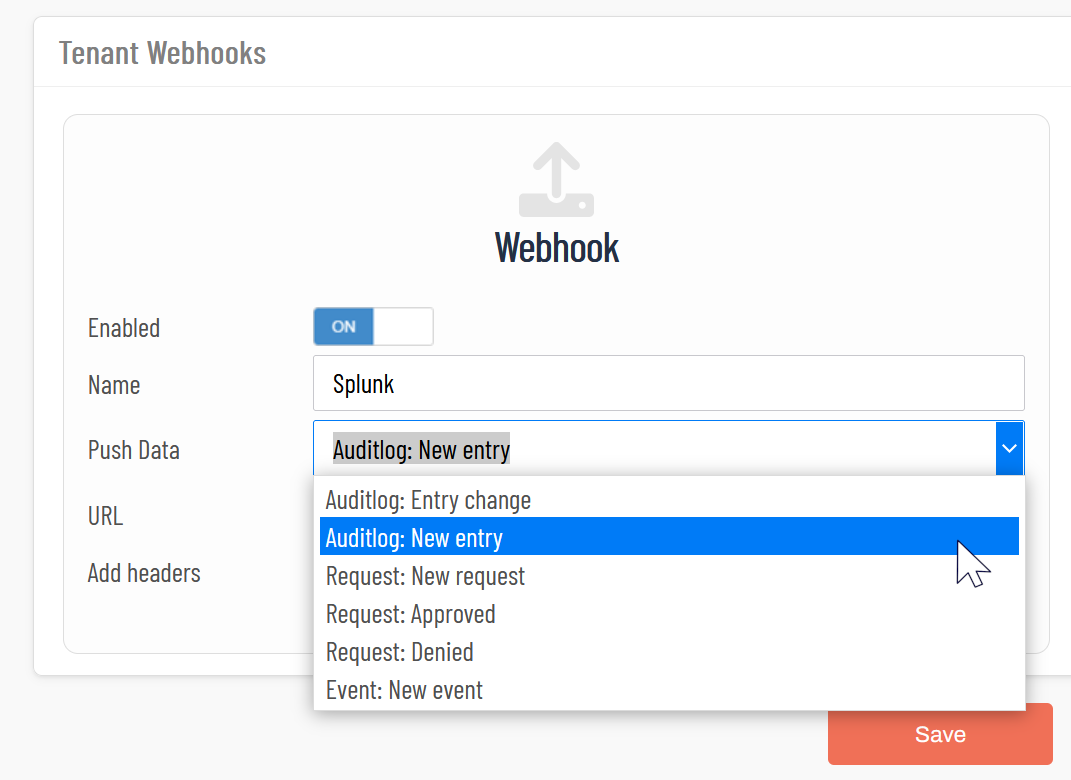
In the Webhook panel, set the Enabled switch to On.
-
Enter a name for the Webhook, for example "Splunk".
-
From the Push Data drop-down field, select Auditlog: New entry.
-
In the URL field, enter the URL of your Splunk instance. The URL has one of the following formats:
-
https://inputs.prd-p-[SplunkID].splunkcloud.com:8088/services/collector/raw
-
https://http-inputs-[SplunkID].splunkcloud.com:443/services/collector/raw (for Splunk Cloud)
Replace the placeholder [SplunkID] with the tenant ID of your Splunk tenant.
IMPORTANT Be aware that the value you need to enter here may depend on your Splunk settings and configuration. If in doubt, contact your Splunk representative to ensure that you are using the correct publicly available HEC endpoint for your Splunk tenant. -
-
In your Splunk instance, copy the value of the token that you created when you set up the HEC channel.
-
On the Webhooks page in the Admin By Request portal, set the Add headers switch to On.
-
In the Headers panel, click New to add a new header.
-
In the Name field, enter "Authorization".
-
In theValue field, enter "Splunk", followed by the token value that you copied from Splunk.
-
Click Update.
-
Click Save to save your new webhook. It is now listed on the Webhooks page and ready to use.
Receive Events
After you have set up the HCE channel and webhook, your Admin By Request data will appear in your Splunk instance where you can search and view it.
-
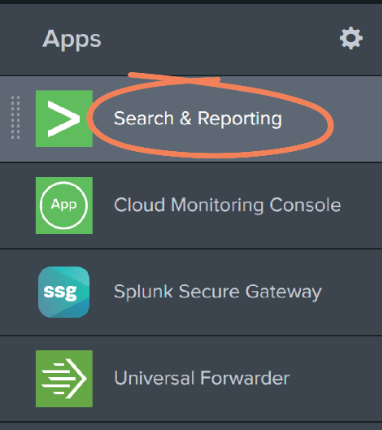
Navigate to Splunk home and select Search & Reporting from the left-hand menu:
-
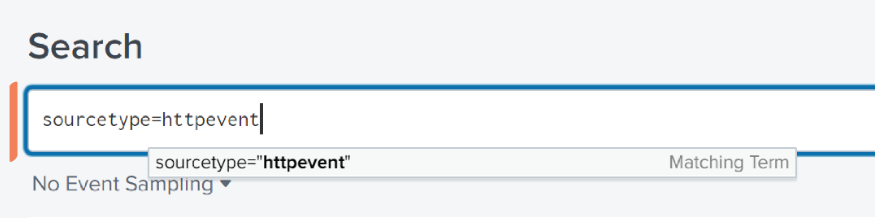
Use the Search field to search for HTTP events:
-
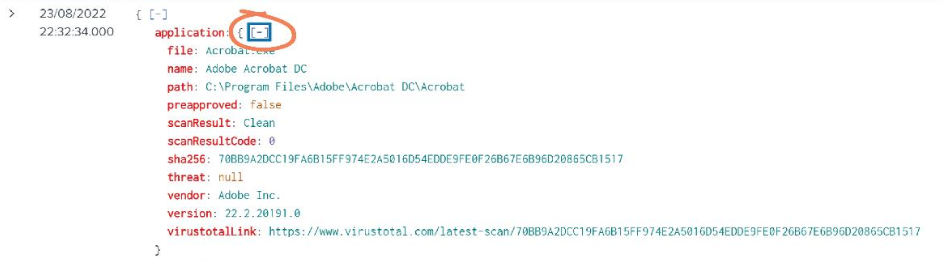
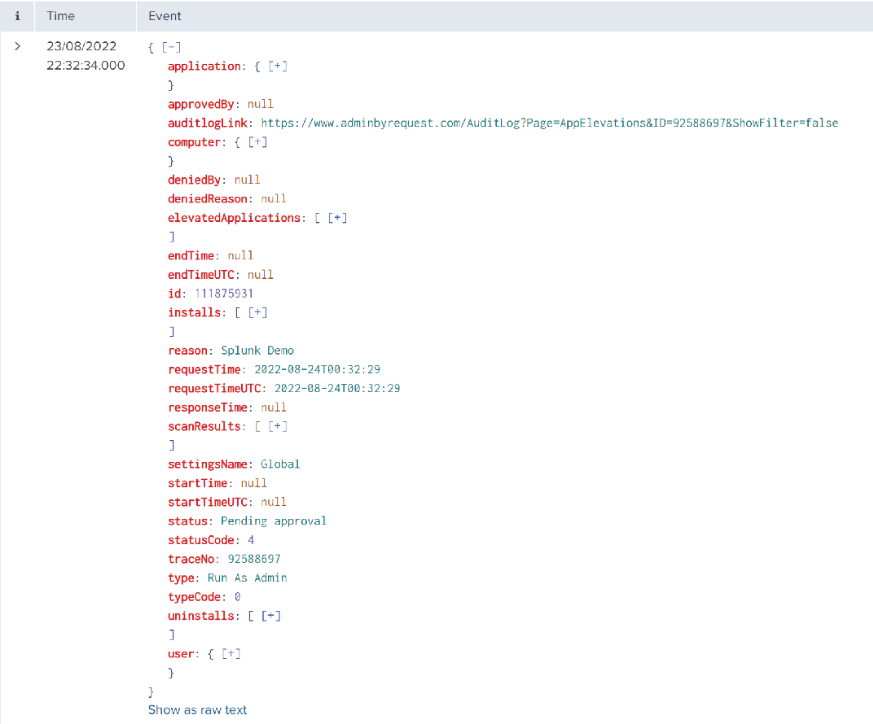
Recent Admin By Request events are detailed here. In this example, we see a request to run Adobe Acrobat DC as admin, displaying details on the application, computer, reason, scan results, and user:
-
Click the plus icon on an entry to view more details: