Ticketing System Integration
You can set up a generic ticketing system integration if your ticketing system is not yet supported directly by Admin By Request.
Setting Up Ticketing System Notifications
The Admin By Request service can push notifications to your ticketing system through emails. Because all ticketing systems are able to create a ticket based on emails, this solution will work with any ticketing system available. You can set up notifications from the Admin By Request portal:
-
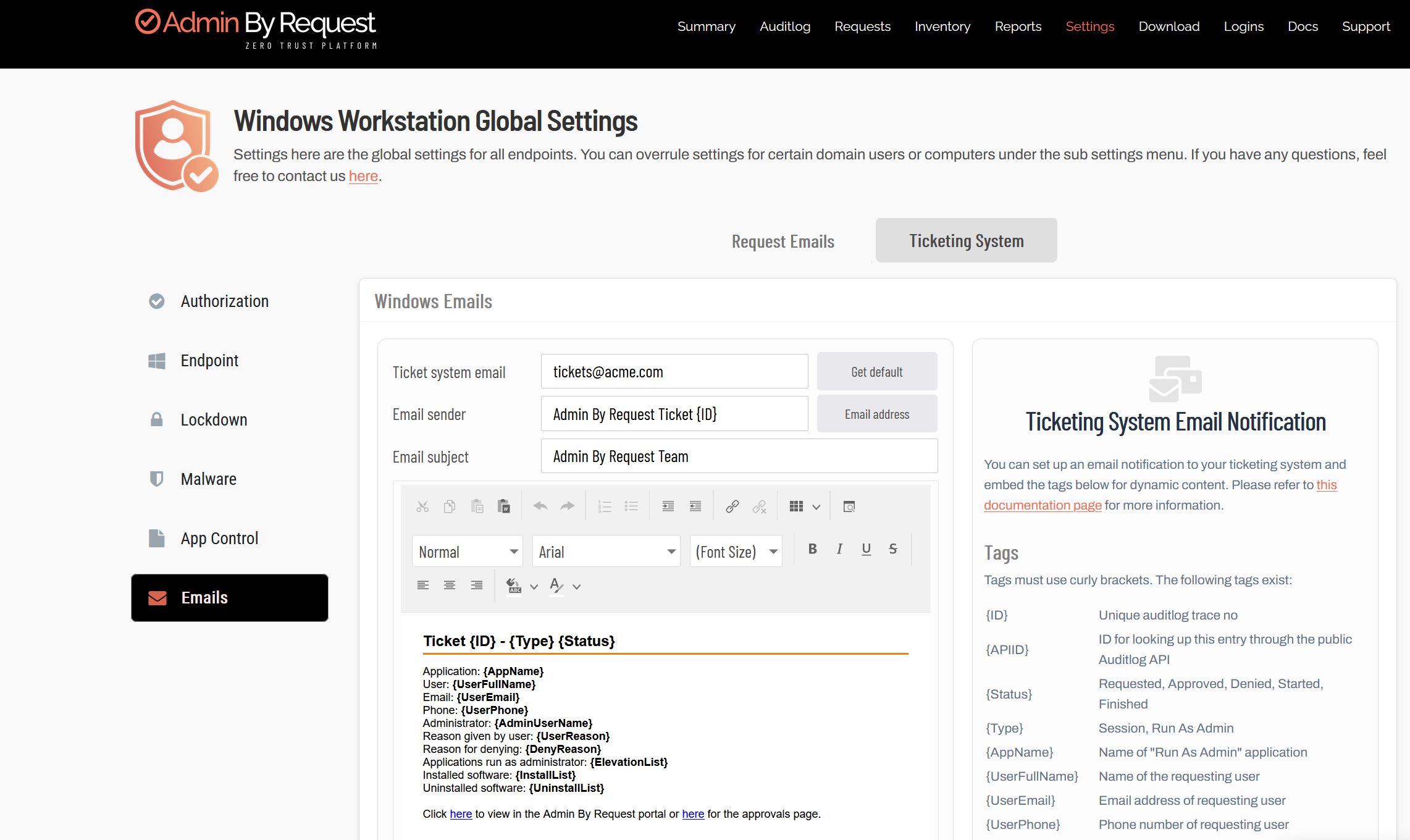
In the portal, open the global settings for your environment, e.g. Settings > Windows Settings.
-
In the navigation, click Email.
-
Switch to the Ticketing System tab:
-
In the Ticketing system email field, enter the email address of your ticketing system.
-
Optional: enable and disable Events as required.
-
Click Save.
You will now receive an email with all relevant information every time one of the configured events occurs.
Template Designer
You can design your own email template which contains exactly the information you need by including predefined tags. The information panel next to the template designer provides an overview of the available tags. When an email is sent, the tags are dynamically replaced with the corresponding content. For example, the {UserFullName} tag is replaced with the full name of the user as configured in your system.
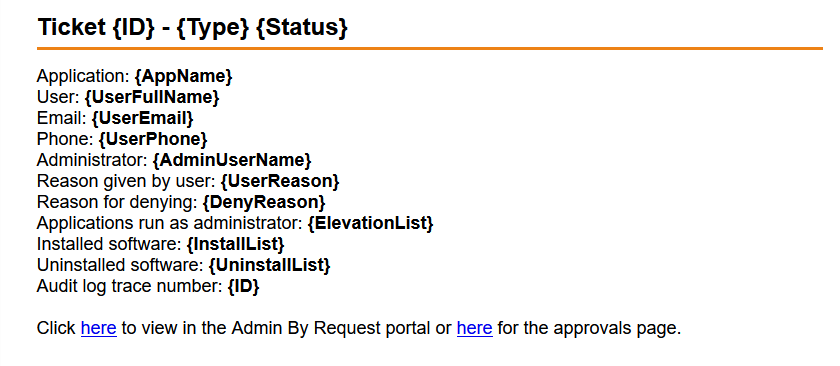
Lines which contain only tags that cannot be replaced with content are automatically removed before the email is sent. For example, the line "Reason for denying: {DenyReason}" would be removed if the administrator who denied the request did not give a reason. The available content also depends on the type of the event that triggered the email. For example, an email triggered by a user requesting a Run As Admin operation contains less information than an email triggered by an approval or denial of a request. Since unnecessary lines are removed automatically, you only need one template for all events.
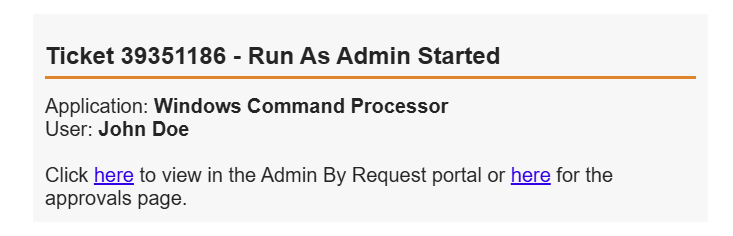
The template designer provides basic editing and formatting capabilities, so you can tailor your email template to match your organization's CI.
Events
You can configure for which events you want an email sent to your ticketing system.
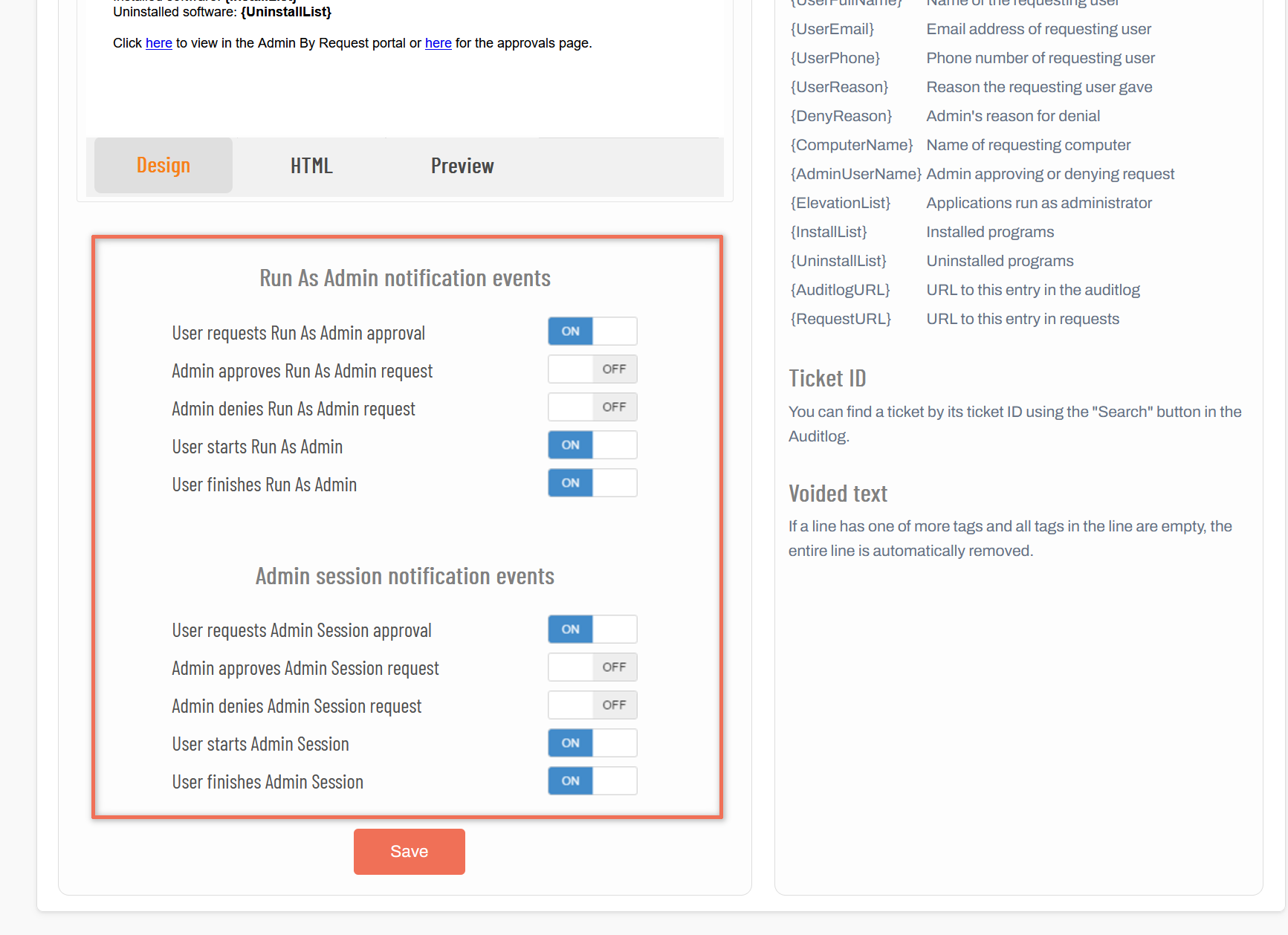
A good starting point could be to turn on notifications for incoming user requests and for users finishing their session. If approval is required for user requests, it makes sense to have a notification triggered so the request can be addressed as quickly as possible. When the user finishes a session, sending an email to the ticketing system will provide a summary of the user's session. Configure the events as required to strike a balance between collecting necessary information and flooding your ticketing system with emails.
Collecting Information in One Ticket
When more than one event is triggered for the same user session, you would likely prefer that this updates the same ticket that was created by the first email relating to a specific user request, rather than creating a new ticket for every updating event. To avoid multiple tickets relating to the same user request, you need to set up an inbound rule in your own ticket system.
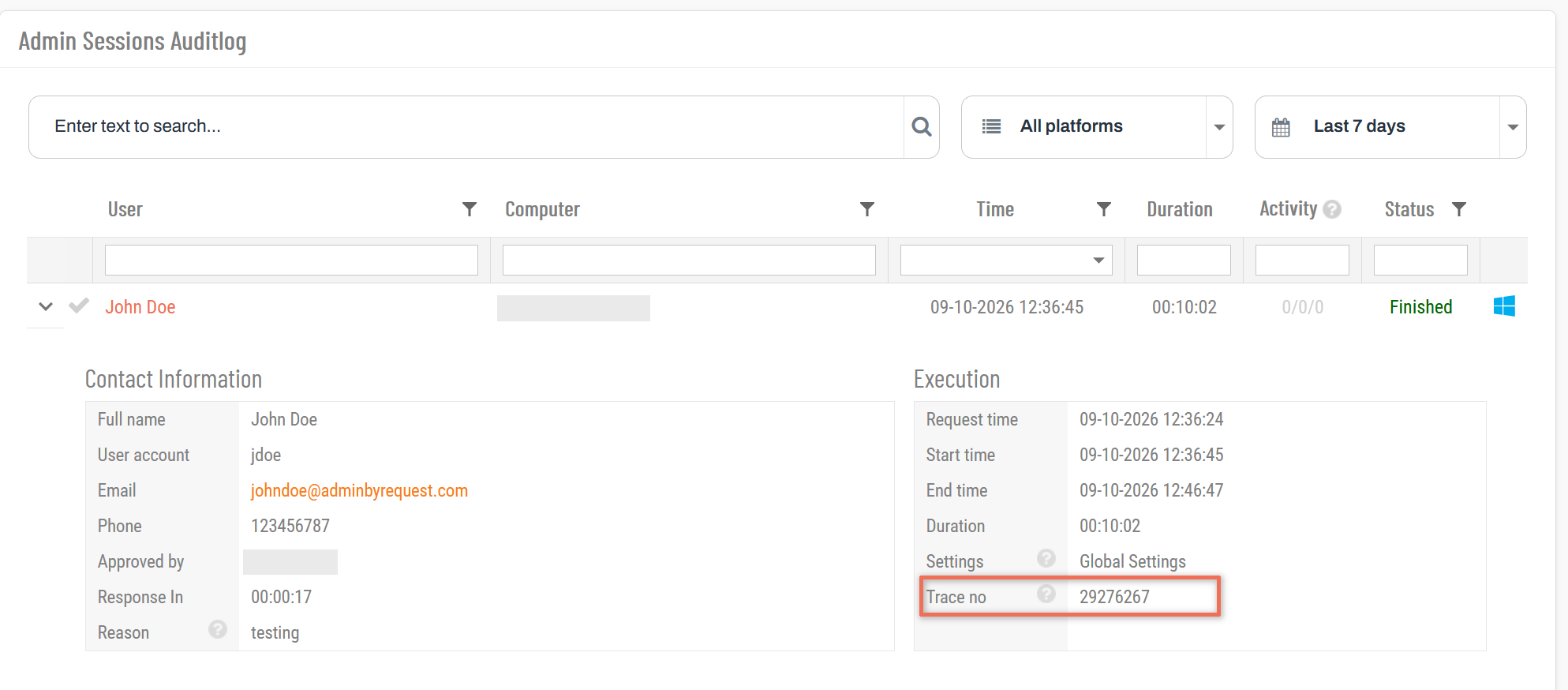
In the template designer, the {ID} tag is replaced with the trace number of the audit log entry that is created in Admin By Request when a user sends a request. This trace number is the same across all emails which relate to a specific user session. The exact procedure for getting your ticketing system to update the existing ticket for a given race number depends on which system you are using, but the general procedure is as follows:
-
Set up an inbound email rule
-
Look for noreply@adminbyrequest.com as sender
-
Extract the trace number ({ID}) from the email
-
Store the trace number with your ticket on first creation
-
On subsequent emails, find and update the ticket with the email's trace number
You can also search for trace numbers in the audit log of the Admin By Request portal to view the complete log of the corresponding session..
Questions?
If you have questions not answered on this page, please contact us using the chat or the contact menu at the top.